
Plans & Billing
Plans & Billing is where you see the plan your account is on, change it, check what you'll be charged next, change the card you pay with, download receipts, and see how much of your plan you've used.
It opens as a panel over whatever page you're on. Open it from your profile menu → Plans & Billing, or from any Upgrade Plan button in the app. Only the account Owner, the account Billing contact and Routy staff can open it. If you're someone else on the team, see the Plans & Billing access guide.
Transcript
Plans and Billing is where you manage your plan, your card, and your receipts. Only the account owner and the billing contact can open it. Open your profile menu, and choose Plans and Billing.
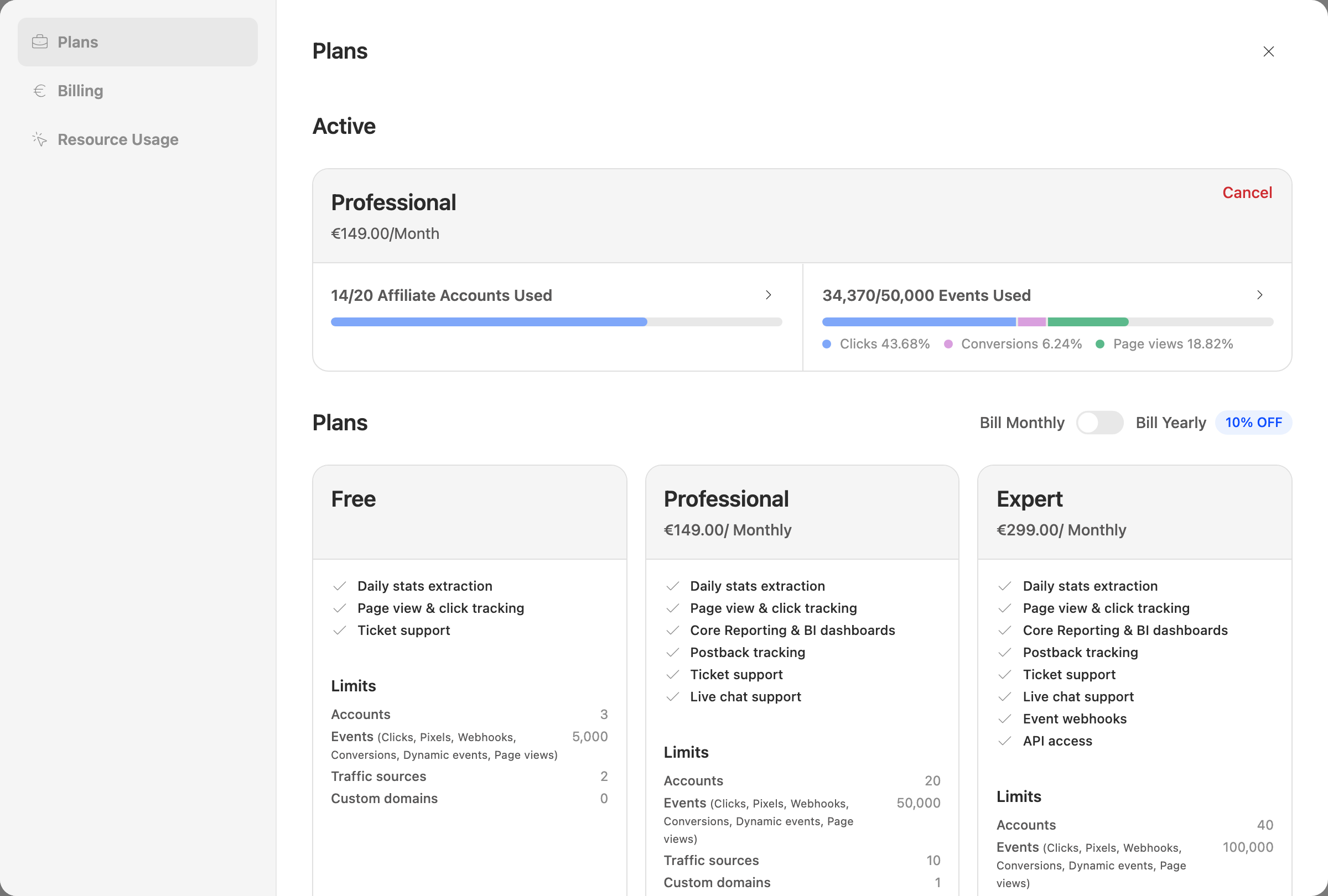
The Plans tab opens first. At the top is the plan you're on, and its price. Below it, how many affiliate accounts you've added out of your plan's limit. And how many events you've recorded this billing period, broken down by kind. Cancel, at the top right, ends a paid plan. Its own guide explains when that takes effect.
Further down are the plans you can move to, with what each includes and its limits. Your current plan is marked Active Plan. To move up, click Upgrade. A secure checkout from our payment provider opens over the page. Routy never sees your card. Once the payment goes through, your new plan and its limits appear.
The Billing tab shows your next charge, and the date it is due. Change card opens our payment provider's secure page in a new tab, where you enter a new card. Invoice history lists every payment, newest first. Download the receipt for any payment from the end of its row. A failed payment has no receipt, because nothing was charged. When a later payment goes through, it shows as its own row.
Resource Usage lists every limit on your plan, and how much of each you've used. A full red bar means you've reached that limit. To get more room, move to a bigger plan from the Plans tab.
The panel has three tabs down the left: Plans, Billing and Resource Usage.
The prices in these screenshots are examples. Your panel always shows your current prices.
Plans
The Plans tab answers two questions: what am I on now, and what could I move to.
Active
The card at the top is the plan your account is on today, with its price.
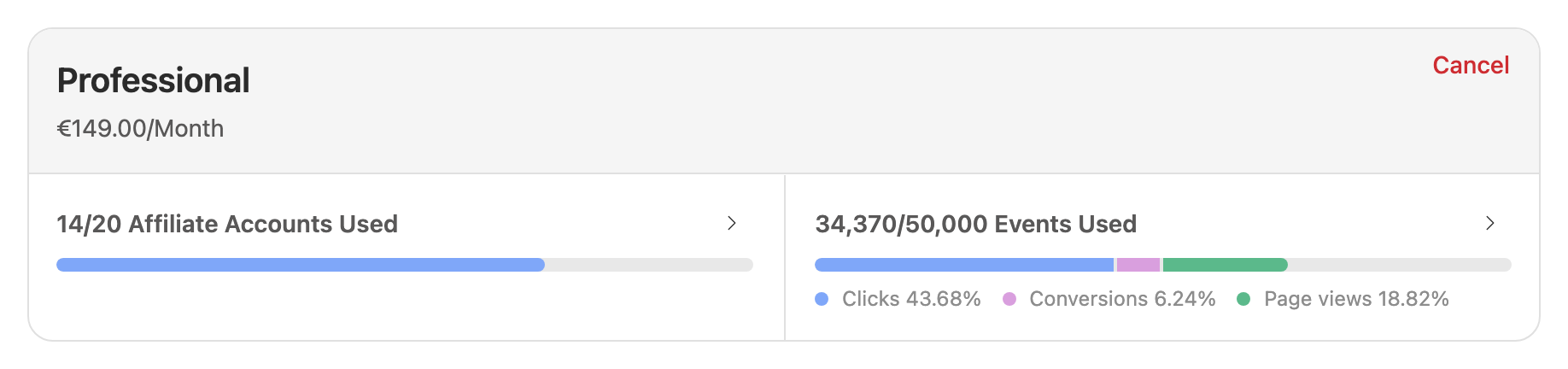
Under it are the two figures people check most:
- Affiliate Accounts Used: how many of your plan's affiliate accounts you've added.
- Events Used: how many events (clicks, conversions, page views and the rest) you've recorded in the current billing period, out of your plan's monthly allowance. The coloured bar shows which kinds of event make up the total. The figure turns red once you're past 85% of the allowance.
The arrow beside either figure takes you to Resource Usage, which lists every limit on your plan.
Cancel at the top right of the card cancels your paid plan. It's only there on a paid plan that isn't already being cancelled. What cancelling does, and when it takes effect, is in the Cancelling your subscription guide.
Choosing a plan
Below your active plan are the plans you can move to. Each card lists what the plan includes, and under Limits how much of each thing it allows: affiliate accounts, events per month, traffic sources and custom domains.
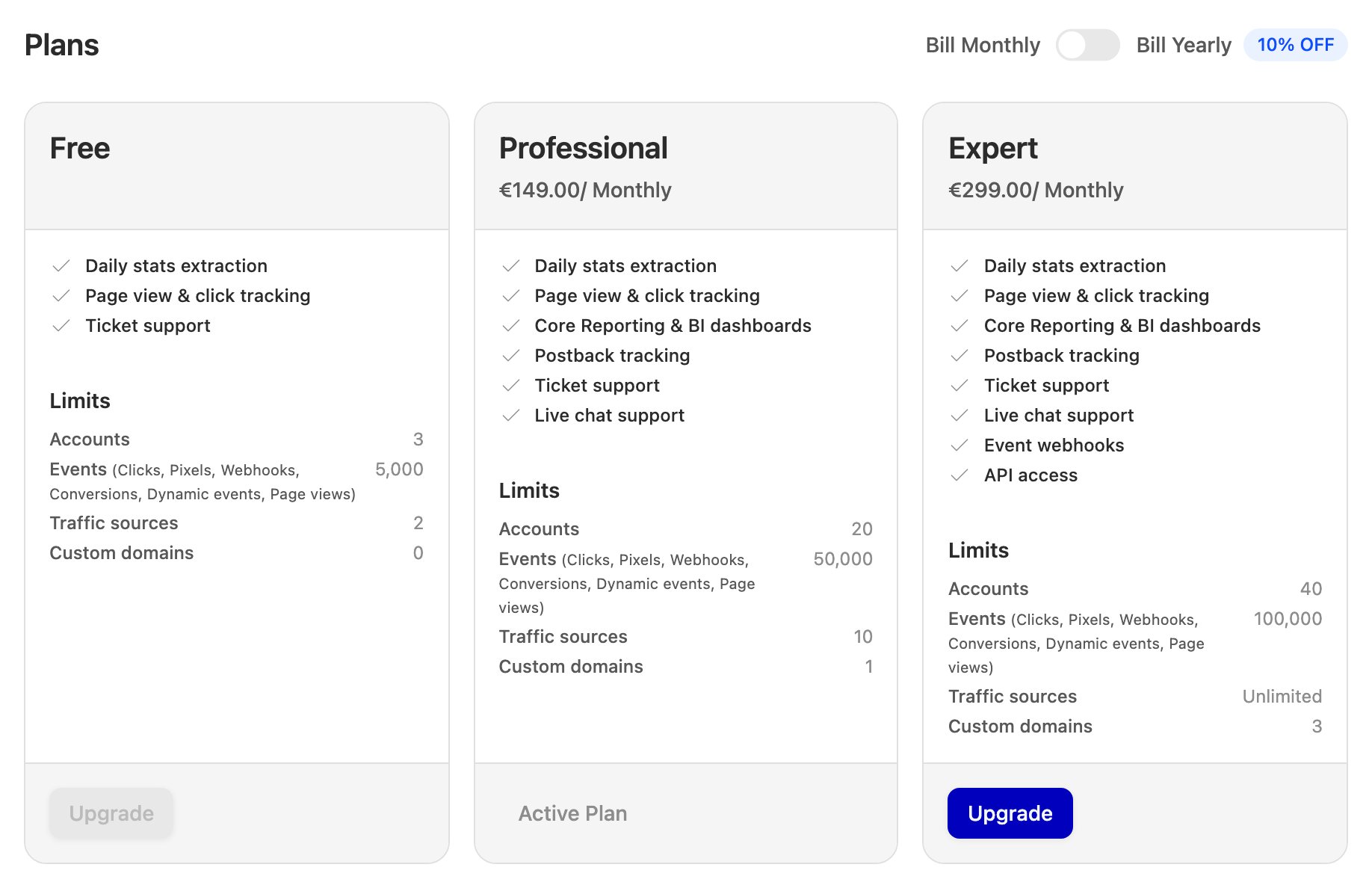
- Your current plan is marked Active Plan.
- Bill Monthly / Bill Yearly switches between monthly and yearly prices.
- Upgrade starts the purchase.
To move to a plan:
Already paying for a plan by card? Contact support to switch plans rather than clicking Upgrade. Buying a second plan here starts a second subscription alongside the first, and both are charged until one is cancelled. We'll move you over without charging you twice.
- Click Upgrade on the plan you want.
- A secure checkout from our payment provider opens over the page. Enter your payment details there. Routy never sees your card.
- When the payment goes through, you'll see Subscription Updated and the panel reloads. Your new plan, and its limits, can take a moment to show.
Billing
The Billing tab is about money: what's coming, how you pay, and what you've paid.
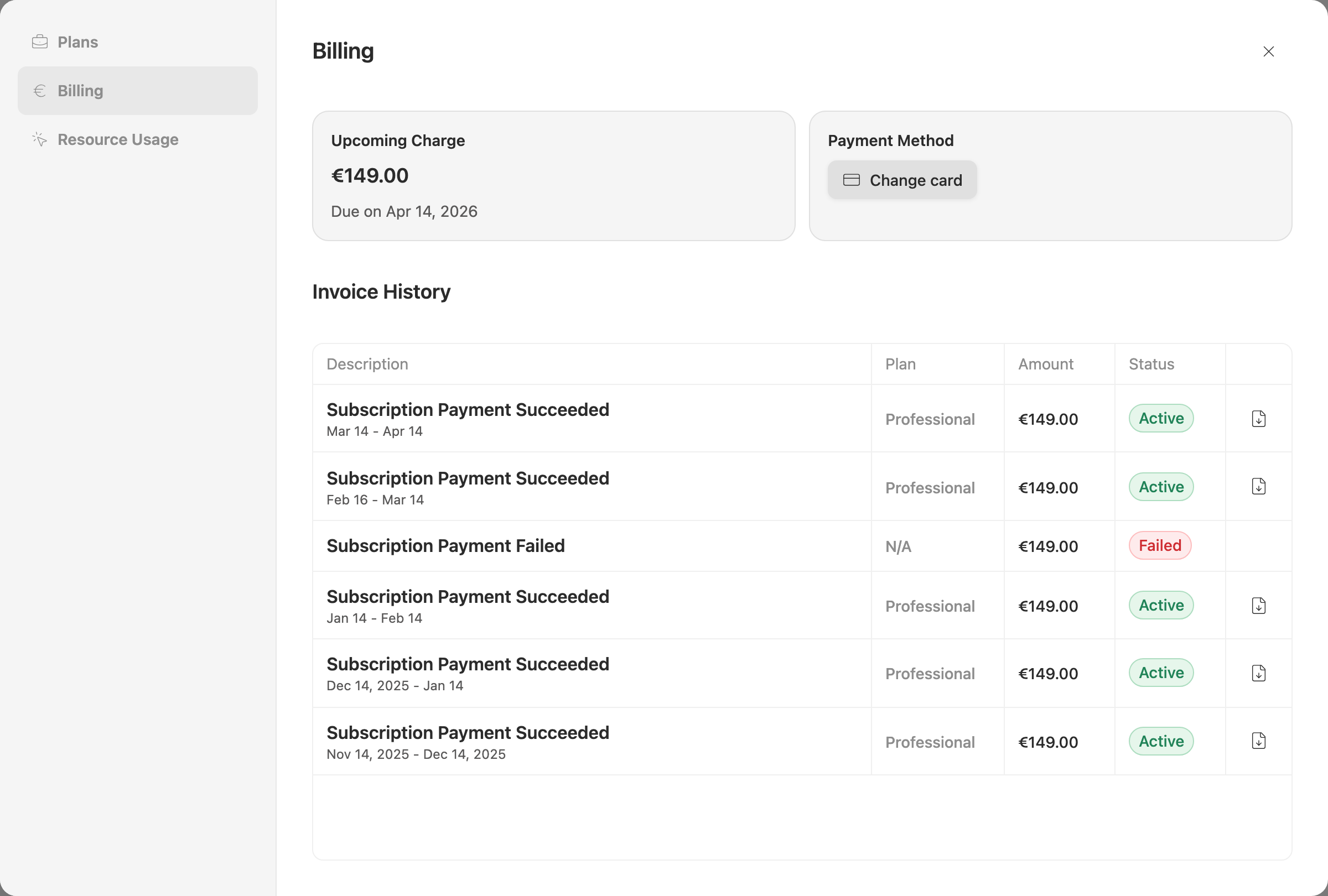
Upcoming Charge
What your next renewal will cost, and the date it's due. If there's no renewal date on file, it says No upcoming charges.

Payment Method
Change card opens our payment provider's secure page in a new tab, where you enter the new card. Future charges go to the new card. The link is made fresh each time you click, so if you closed that tab, just click again.
If you see No card on file, your plan wasn't bought by card in the app. It was set up for you by your account manager, and you're not billed through the app, so there's no card to change.
Invoice History
One row for every payment our payment provider has processed for your plan, newest first.
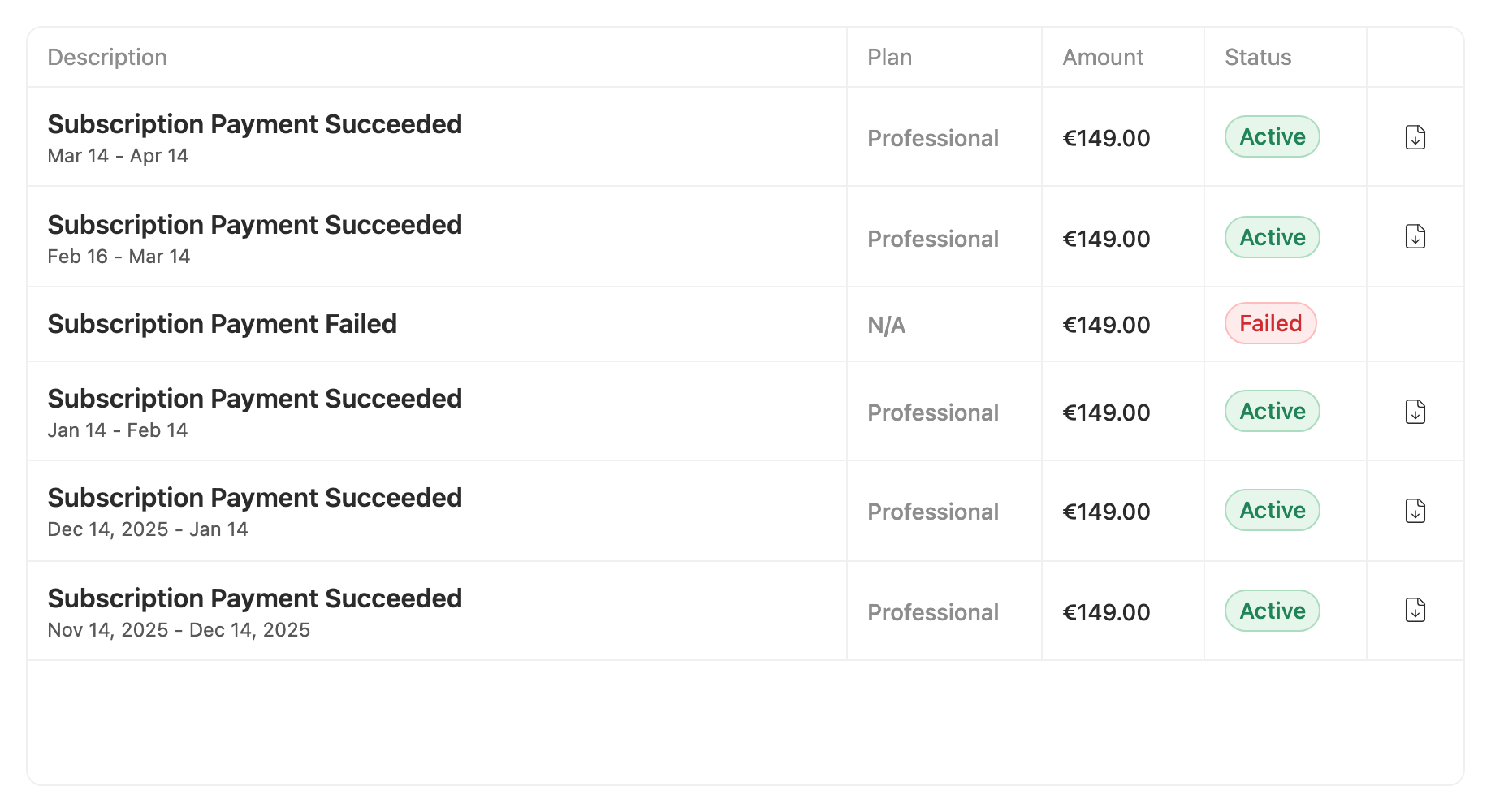
A failed payment has no plan, no period and no receipt, because nothing was charged. When a later payment succeeds, it shows as its own row with a receipt, as in the example above. When a payment fails, Routy also records a payment problem on your account; it clears by itself once a payment goes through.
Resource Usage
Resource Usage lists every limit on your plan and how much of each you've used, as of the moment you opened it.
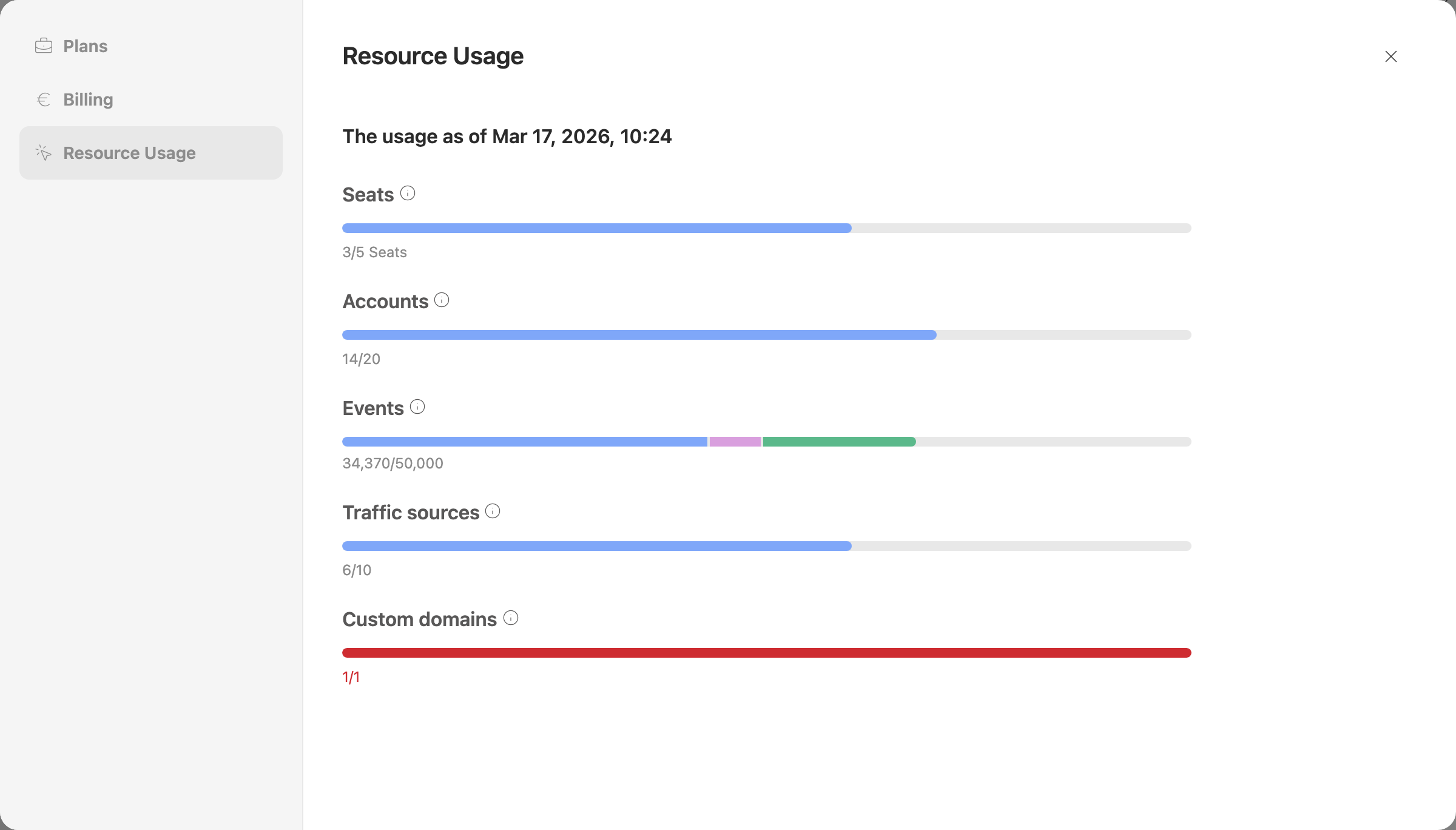
Hover the (i) beside a name for what it counts. A bar that's full and red, like Custom domains above, means you've reached that limit: you can't add more of that thing until you free one up or move to a plan that allows more.
Events are a monthly allowance, counted per billing period.
Common questions
"Why is Upgrade greyed out on a plan?" That plan can't be bought from the app right now, and hovering it says Coming soon. Contact support if you want to move to it. The Free plan is greyed out too: you move to Free by cancelling your paid plan, not by upgrading.
"I cancelled, but Billing still shows an upcoming charge." For a plan paid by card, cancelling keeps it running until the end of the period you've paid for, so that date stays on screen. It's the day your plan ends, and you won't be charged on it. See the Cancelling your subscription guide.
"I upgraded and I'm being charged for two plans." Contact support straight away. Upgrading from a plan you already pay for by card starts a second subscription rather than replacing the first, so both renew until one is cancelled. Support will cancel the one you don't want.
"I paid but I'm still on my old plan." The plan changes once our payment provider confirms the payment to us, which usually takes a moment. Close and reopen Plans & Billing. If it still shows the old plan after a few minutes, contact support.
"A payment failed. What do I do?" Usually the card expired or was declined. Click Change card on the Billing tab and enter a card that works. The failed row stays in your history; that's a record, not something still owed.
"Where's my receipt?" Billing → Invoice History → the download icon on that payment's row. Failed payments have none.
"My plan was set up by my account manager. Why are there no invoices?" Invoice History only lists payments made by card through the app. For a plan your account manager set up, ask them for invoices.
When to escalate to engineering
- You paid at checkout, and after several minutes and a reopen of Plans & Billing the plan still hasn't changed.
- Change card shows Couldn't open the payment page on a plan that you pay by card.
- A payment you were charged for is missing from Invoice History, or a receipt link doesn't open.
- Any tab shows an error instead of loading.