
Page Views Event Log
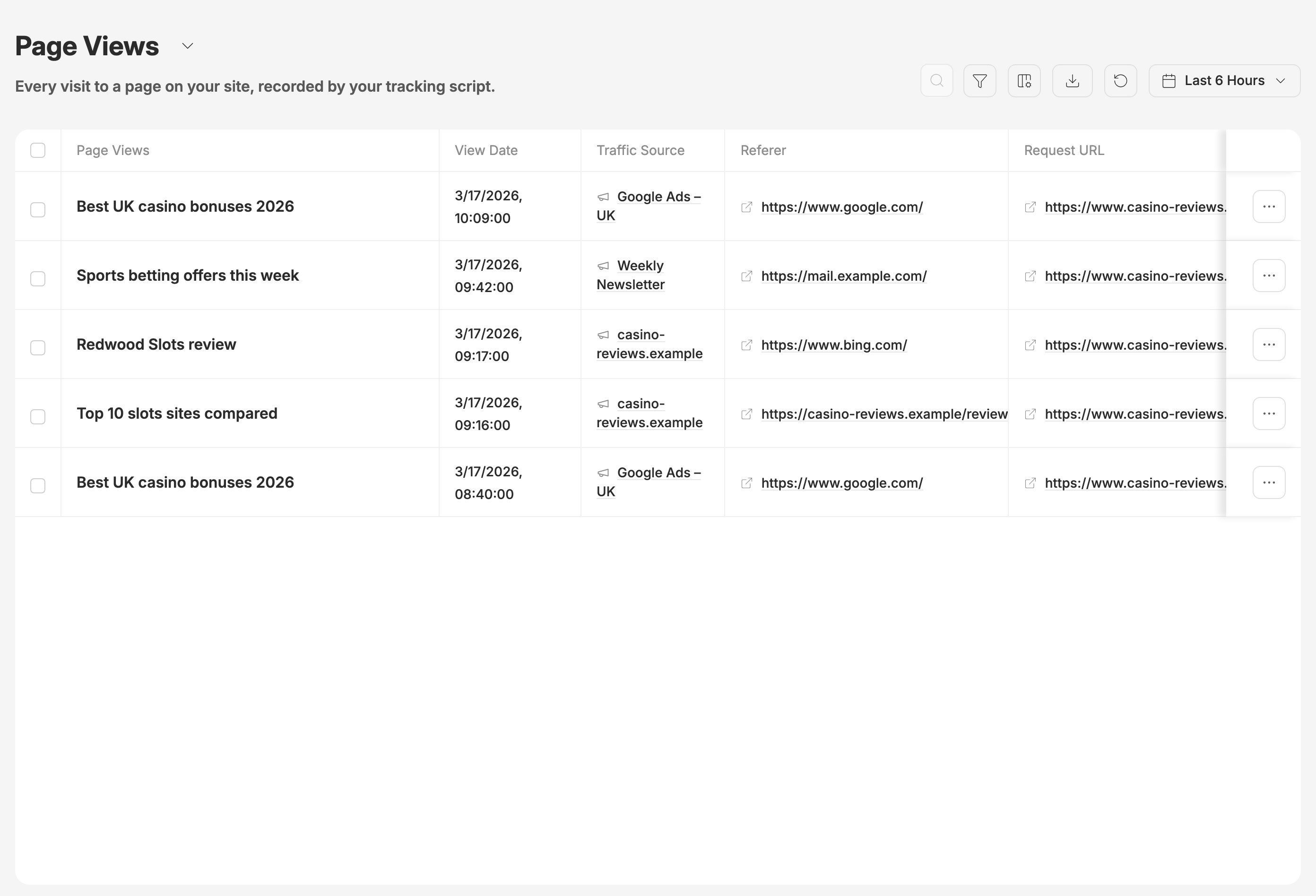
A walkthrough for Events → Page Views. Every row is one visit to one page on your own site, recorded by Routy's tracking script. If someone asks "did the visitor reach our page?", "which page did they land on?" or "where did they come from?", this is the screen that answers it.
What this page is for
Clicks tell you someone clicked a link. Page views tell you what happened on your site before that: which page loaded, where the visitor came from, and on what device. When a visitor clicks a Routy link from one of your pages, the click remembers the page view it came from, so you can follow a visitor from page to click.
Use it to:
- Confirm the tracking script is recording visits.
- See which pages visitors land on, and from which referrer.
- Check the full address a visitor arrived on, including its parameters.
Page views only appear if the tracking script is installed on your site.
Date
The date picker in the toolbar starts at the last 6 hours. The quick buttons go back as far as the last 6 months, and you can pick any range up to now, including the time of day. The range is based on when Routy received the page view.
Refresh reloads the list and, on a quick range such as "Last 6 Hours", moves it forward to now.
Filters
Open Filter to narrow the list by Traffic Source. The filtered view is kept in the page address, so you can copy the URL and share it.
The search box on this page isn't available yet, so you can't look up a page view by its address, a parameter or a click ID here. To follow a particular visitor, start from their click instead: see Common questions below.
Reading the row
Empty cells show N/A. Show, hide and reorder columns from the columns button. Click a header to sort by it.
Clicking a Traffic Source opens a short menu: filter the list to that source, or open the traffic source's own page.
Page view details
Click … at the end of a row (or Show more on a phone) to see everything Routy recorded for that page view: the full address and its parameters, the External Click ID if one was passed, the referrer, the device and browser, the location, and the UTM values.
Export
The Export button (download icon) offers:
- Export these results: a CSV of every page view matching your filter and date range. Very large results are capped, and you are told how many rows were included.
- Download loaded rows (CSV): just the rows already on screen, in the columns you have showing.
- Full export, runs in the background: every page view over a date range. It needs a plan that includes data exports.
Common questions
Which page did this click come from? On Events → Clicks, open the click and look at User Page Views. The Page View ID column on the Clicks page shows the page view a click started from.
No page views at all. Check the date range first. If it's wide and still empty, the tracking script may not be installed or may not be loading on your site.
Source is always N/A. That's expected: the Source column is not filled in yet.
When to escalate
Contact support when:
- The tracking script is installed and loading, but no page views appear across a wide date range.
- Clicks show a Page View ID, but that page view isn't in the list for the same time.
- Page views appear under a traffic source that isn't yours.
Include the page address, roughly when the visit happened, and the click ID if the visitor clicked through.