
Adding a brand to your account
Every account in Routy sits on an affiliate program, and the brands you can link to are the brands that program lists. When you start promoting a brand the program doesn't list yet, you can put it there yourself rather than asking support.
Two things are worth knowing before you start:
- Most brands are already in Routy. The catalog is shared by every Routy customer, so the brand you're missing has usually been added by someone already, often on a different program. You then attach it: the existing brand is added to your program, and no copy is made.
- Brands live on the program, not on your account. Attaching or adding a brand puts it on the affiliate program behind your account. Anyone else in Routy with an account on that program will see it too.
Who can add brands
Adding brands is switched on per customer by Routy. Some plans include it, and your account manager can turn it on for you.
If you don't see Add Brand in an account's menu, it hasn't been turned on for you. Contact support with the brand's name and website and we'll add it, or turn the option on for you.
From an account
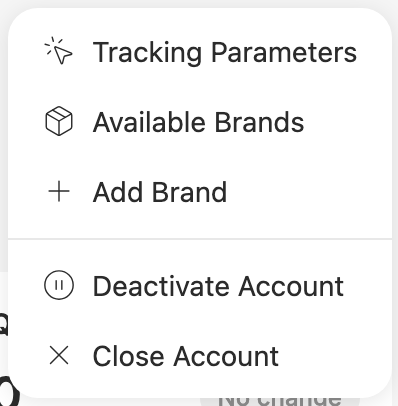
- Open the account and press the ⋮ button at the top right.
- Available Brands lists the brands already on this account's program. Check there first: the brand may already be there.
- Choose Add Brand.
- Type the brand's Name. As you type, brands already in the catalog that look similar appear underneath (see the next section).
- If one of them is your brand, press Attach. You're done.
- If none of them is, fill in the Website and press Add.
Brands that already look like yours
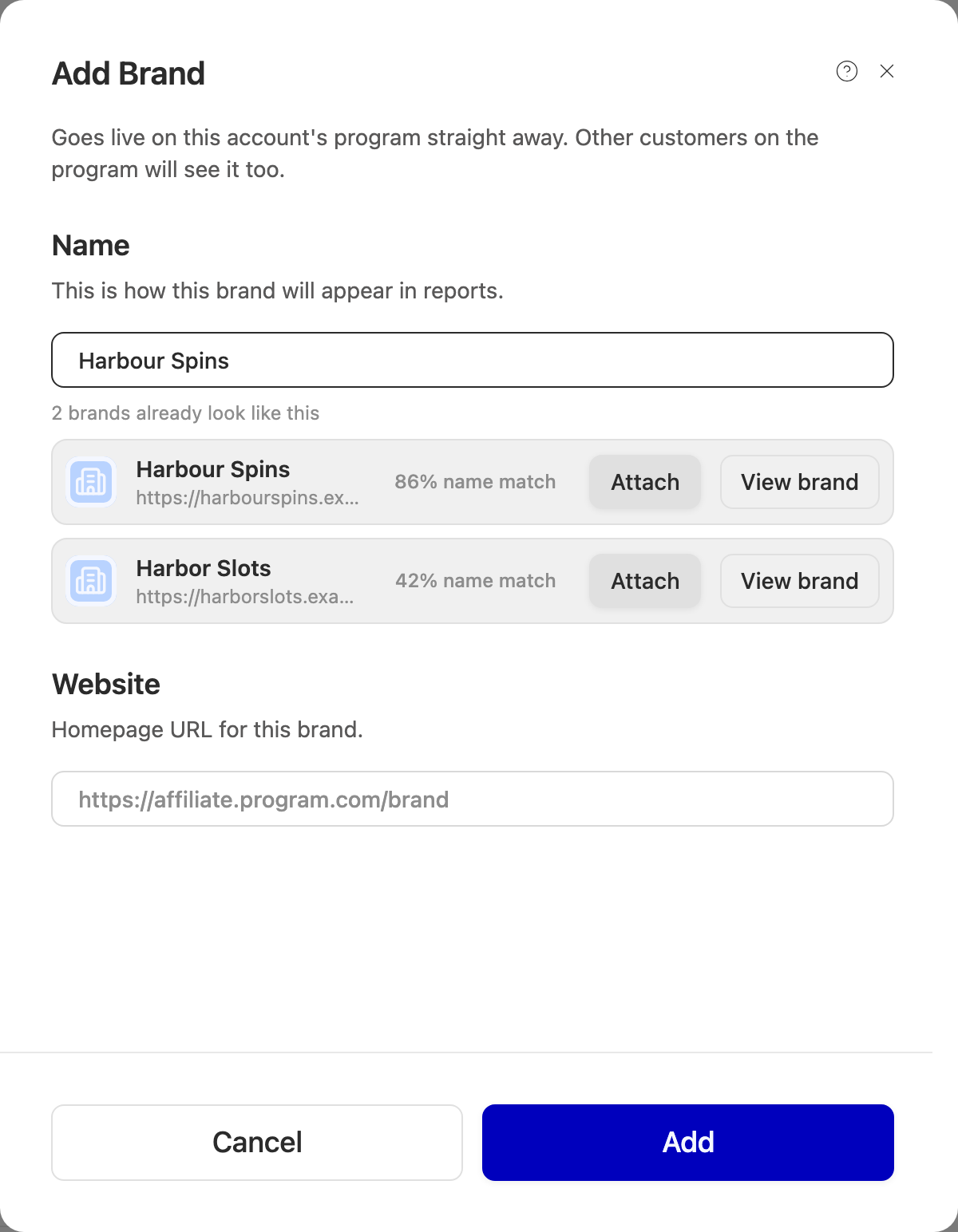
The list under the name field shows what the catalog already holds that looks like what you typed. It checks both the name and the website, so spacing, spelling and punctuation differences still match: "Bet 365" finds "Bet365".
Each row shows the brand's website and how closely it matched. Two buttons:
- Attach puts that existing brand on your account's program. Nothing new is created. This is the outcome to aim for whenever the brand is yours.
- View brand opens the brand in a new tab, so you can check it without losing what you've typed.
A strong match isn't always the same brand. Compare the website: two different casinos can have similar names, and the website is what tells them apart.
Name
How the brand appears in your reports. Between 2 and 100 characters.
Website
The brand's own website. It's required to create a brand, because the website is how Routy tells one brand from another. You don't need it to attach an existing brand.
If you leave out https://, we add it for you.
This website already belongs to a brand
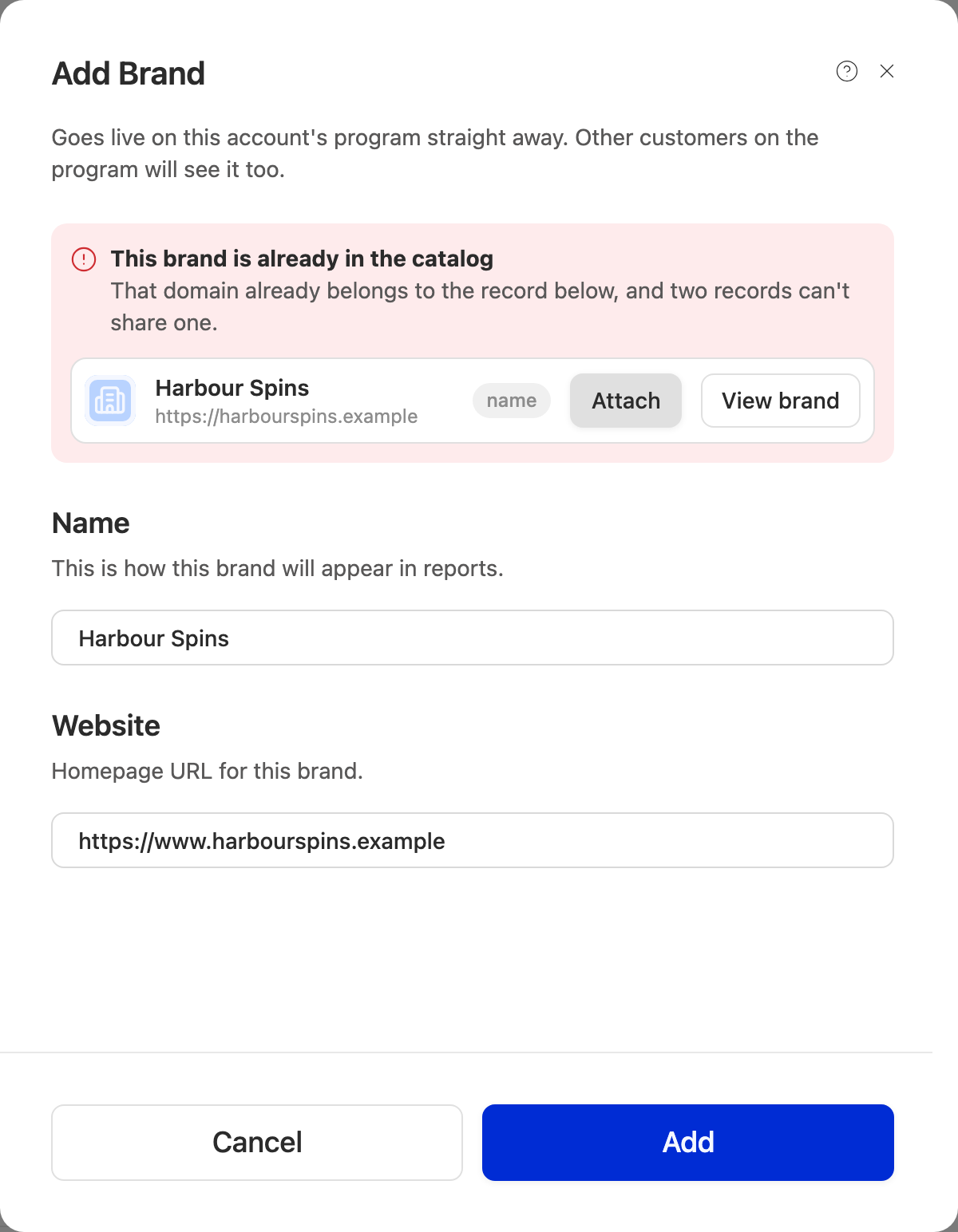
Two brands can't share a website. If the website you entered is already used by
a brand in the catalog, nothing is created and the notice shows the brand that
has it. The check ignores www. and the page path, so
https://www.example.com/promo counts as example.com.
There's no way around this, and that's deliberate. What to do:
- It's your brand under the name we have: press Attach.
- The existing brand has the wrong name or the wrong logo, or it's a different company that somehow has your brand's website: contact support. Catalog brands are shared, so only Routy can correct them.
Looks similar: create anyway?
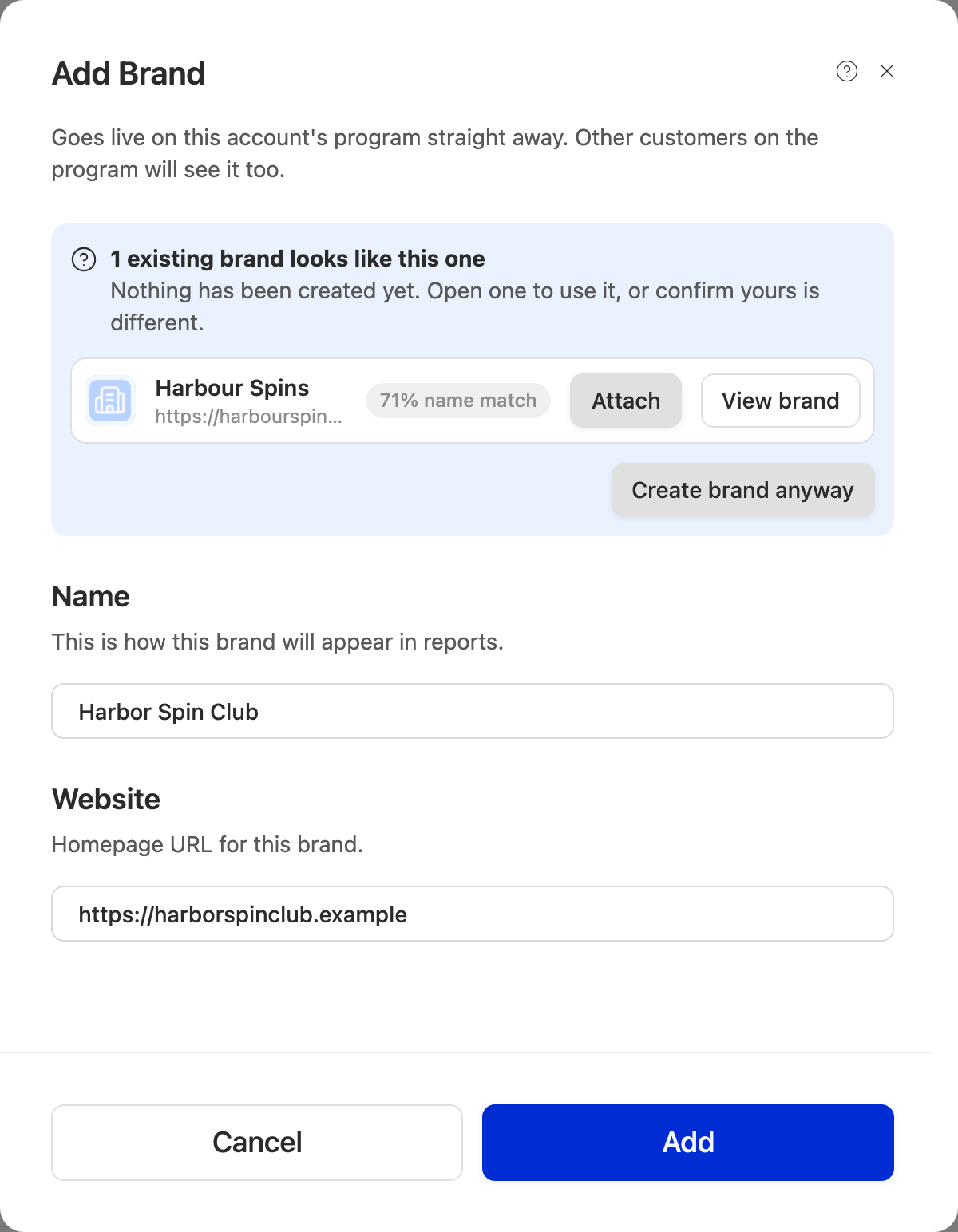
Sometimes you press Add and Routy finds a brand that looks close to yours, which the list under the name field hadn't shown. Nothing has been created yet. You have two choices:
- Attach the existing brand, if it's yours.
- Create brand anyway, if yours is genuinely different.
If someone adds another look-alike while you're deciding, you may be asked once more about that one.
While importing links from a channel
When you import links from a connected channel (Channels, open a connection, Import links), each link needs a brand. If the brand isn't on the destination account's program, you can add it without leaving the import.
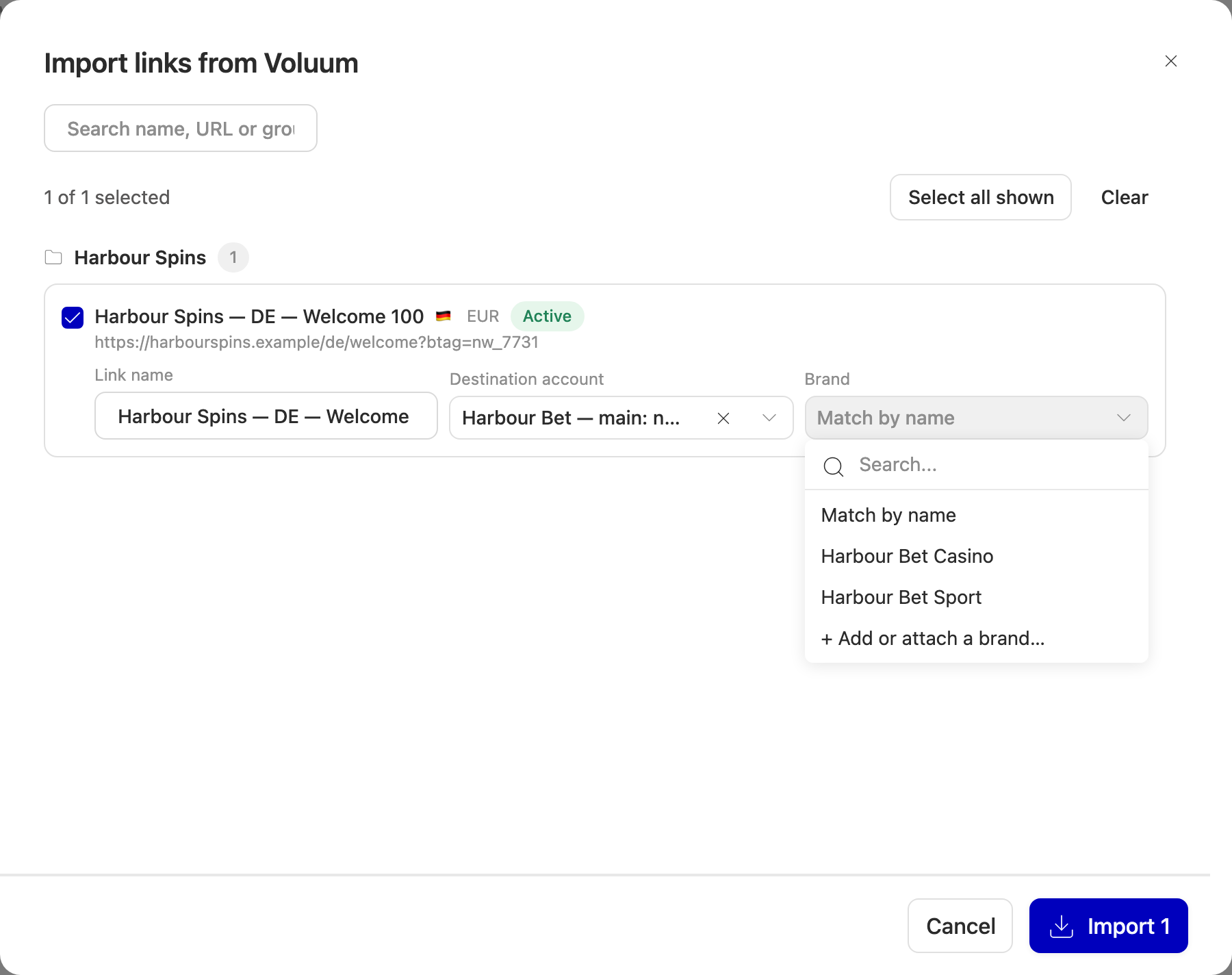
- Choose the link's Destination account first. The option only appears once an account is chosen.
- Open Brand and pick + Add or attach a brand… at the bottom.
- The Add brand step opens, with the brand name taken from the channel. Edit it if you need to.
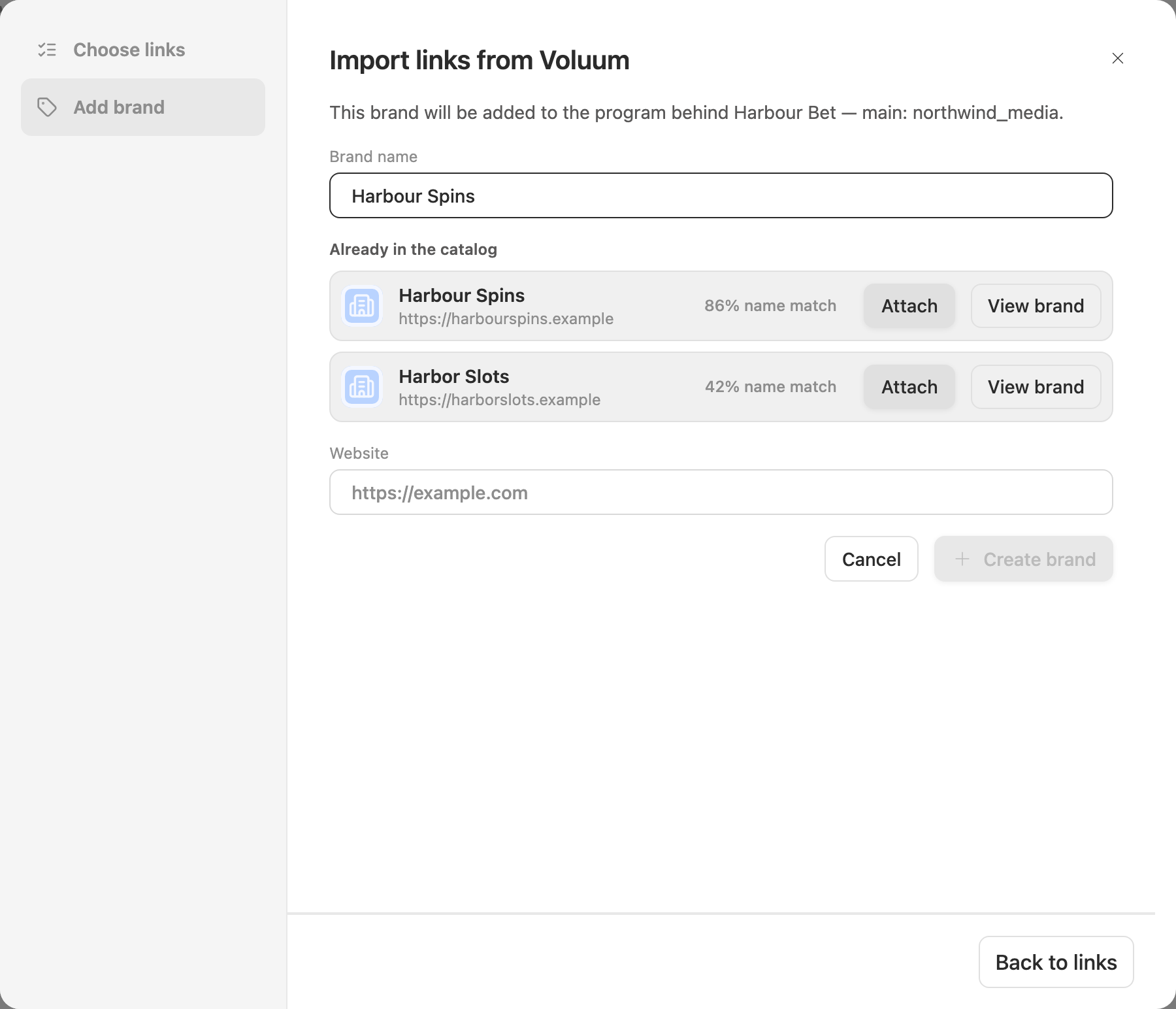
- Under Already in the catalog, press Attach if your brand is listed. Otherwise fill in the Website and press Create brand.
- You're taken back to your links, with the brand selected on that link.
Back to links or Cancel leaves the link's brand as it was.
This option is rolling out and may not be in your account yet. Even when it is there, adding or attaching only works if brand adding is turned on for you (see Who can add brands).
Where the brand appears
Once it's attached or created, the brand is on the account's program straight away:
- in the account's Available Brands;
- in the brand list when you create a link for that account;
- in the Channels import, already selected on the link you added it for.
A brand you create is live immediately, and it becomes part of the shared catalog, available to anyone in Routy.
Troubleshooting
I don't see Add Brand. Brand adding isn't turned on for you. Contact support, or ask your team's admin.
I don't see "+ Add or attach a brand…" in the Channels import. Pick a Destination account for that link first. If it's still missing, brand adding isn't turned on for you, or the option hasn't reached your account yet. Try Add Brand from the account page, then come back to the import.
Attach says the brand is already attached. It's already on your account's program. Look in Available Brands.
I pressed Attach or Add and got a "no access" message. Brand adding isn't turned on for you. Contact support.
Add stays greyed out in the Channels step. Both the name and the website are needed to create a brand.
I created a brand by mistake, or created a duplicate. You can't remove a catalog brand yourself. Contact support with both brand names and we'll merge or close the extra one.
Using the API
If you set up links automatically, you can do the same thing through the Routy API with an API token (see API tokens). The order matters, because the API is checked the same way the screen is:
- Search for similar brands with the brand's name and website. An empty result is a normal answer meaning nothing looks close.
- If one of the results is your brand, attach it to your account's affiliate program.
- Otherwise, create the brand, passing your account's program as
affiliateProgramIdso it lands on your program in the same call. A website is required.
Creating can be refused in two ways, and they need different handling:
- The website already belongs to a brand (response code
5). Nothing was created, and the response carries the existing brand's id. Attach that brand instead. This can't be overridden. - It looks like a brand we already hold (response code
11). Nothing was created, and the response lists the look-alike brands. If one is yours, attach it. If yours is different, send the same request again with the ids of the brands you checked inacknowledgedSimilarIds. You may be asked again if a new look-alike has appeared in the meantime.
Check the response code, not just the HTTP status. API access to adding brands follows the same rule as the screen: it only works once brand adding is turned on for you. For the request formats, ask support for the API reference.
When to contact support
- You don't have the option to add brands and want it, or want a brand added for you.
- An existing brand has the wrong name, logo or website.
- A website you need is held by a brand that isn't yours.
- You created a duplicate or a brand by mistake.
- You attached a brand and it doesn't appear in Available Brands after a reload.