
Postbacks Event Log
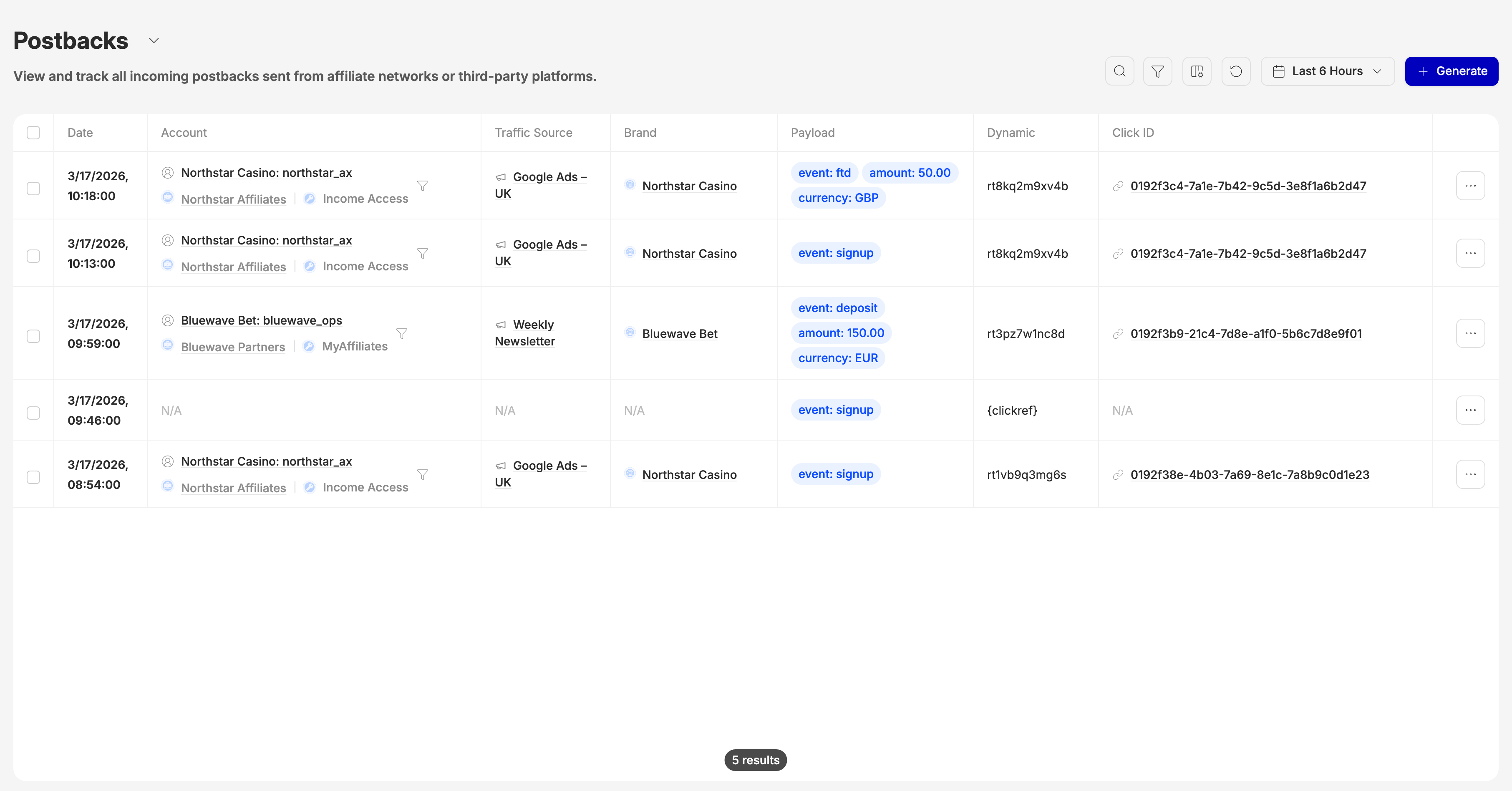
A walkthrough for Events → Postbacks. Every row is one postback: a message a brand, network or tracking platform sent to Routy to say a conversion happened. If someone asks "did the brand's postback reach us?", "which click was it matched to?" or "what did they actually send?", this is the screen that answers it.
What this page is for
When a brand fires a postback, Routy reads the click ID or dynamic parameter in it, matches it to the click it belongs to, and records the conversion. This page shows each postback as it arrived, before any adding up, together with the click it was matched to.
Use it to:
- Confirm a brand's postback arrived, and when.
- See exactly which parameters the brand sent.
- Find the click, account and traffic source a postback was matched to.
- Spot postbacks that arrived but couldn't be matched to a click.
Conversions collected by integration (Routy reading the brand's reports) don't come through here. They appear on Events → Conversions only.
Date
The date picker in the toolbar starts at the last 6 hours. The quick buttons go back as far as the last 6 months, and you can pick any range up to now, including the time of day. A postback older than the range on screen isn't in the list, so widen the range first when something seems missing.
Refresh reloads the list and, on a quick range such as "Last 6 Hours", moves it forward to now.
Find a postback by click ID or dynamic parameter
- Set the date range to cover when the postback arrived.
- Paste the value into the search box.
- The matching postbacks appear, with their Account, Traffic Source and Brand.
Search matches:
- the Click ID the postback was matched to (the whole ID or part of it),
- the Dynamic value the brand sent back,
- the address the postback was sent to, and the IP it came from.
Part of a value is enough. For the most reliable result, paste the click ID or dynamic value exactly as it appears.
Reading the row
Empty cells show N/A. A postback with N/A in Click ID and Account arrived but wasn't matched to a click: usually the click ID or dynamic value in it is missing, or doesn't belong to any of your clicks.
Show, hide and reorder columns from the columns button. Click a header to sort by it.
Postback details
Click … at the end of a row (or Show more on a phone) to open the postback together with the click it was matched to: the click's details, the visitor's device, the referrer, attribution, the click's Conversions, every Incoming Postback on the same click, its Outgoing Webhooks and its User Page Views.
Details open only for postbacks that were matched to a click. An unmatched postback has no click to show.
Filters
Open Filter to narrow the list by Account, Brand or Traffic Source. Clear all resets them. The filtered view is kept in the page address, so you can copy the URL and share it.
Generate
Generate opens Postback Tracking, which walks you through setting up a postback in three steps: create the postback URL, add it to the program, then test and verify it.
Reload
To have Routy process postbacks again, tick them in the list and click Reload. They are queued for processing, and a message confirms how many were queued. Reload is available on a computer; it isn't offered on a phone.
Common questions
The brand says they sent a postback but I can't see it. Widen the date range, then search for the click ID or dynamic value they sent. If it still isn't there across a wide range, the postback didn't reach Routy: ask the brand which address they sent it to and check it against the one from Generate.
A postback shows N/A for Click ID. It arrived but wasn't matched. Look at its Payload: the click ID or dynamic value is often missing, empty, or a placeholder the brand never filled in.
I clicked a Click ID and the Clicks page is empty. The Clicks page opens on the last 6 hours. Widen its date range to when the click happened.
The postback is here but there's no conversion. Open the postback's details and check its Conversions section. If it's empty, contact support with the click ID.
When to escalate
Contact support when:
- A postback shows a click ID that belongs to one of your clicks, but Click ID and Account still read N/A.
- A matched postback has no conversion in its details.
- A postback is matched to a click, account or traffic source that isn't yours.
Include the click ID or dynamic value, and roughly when the postback was sent.