
Your account's integration
Once an affiliate account is added, Routy signs in to that program with the credentials you gave it and collects your reports on a schedule. This guide is about an account you already have: how to tell whether that collection is working, how to fix it when it isn't, and how to ask for dates to be collected again.
Everything here starts from the account itself. Open Accounts, click the account, and go to the Integration tab.
Transcript
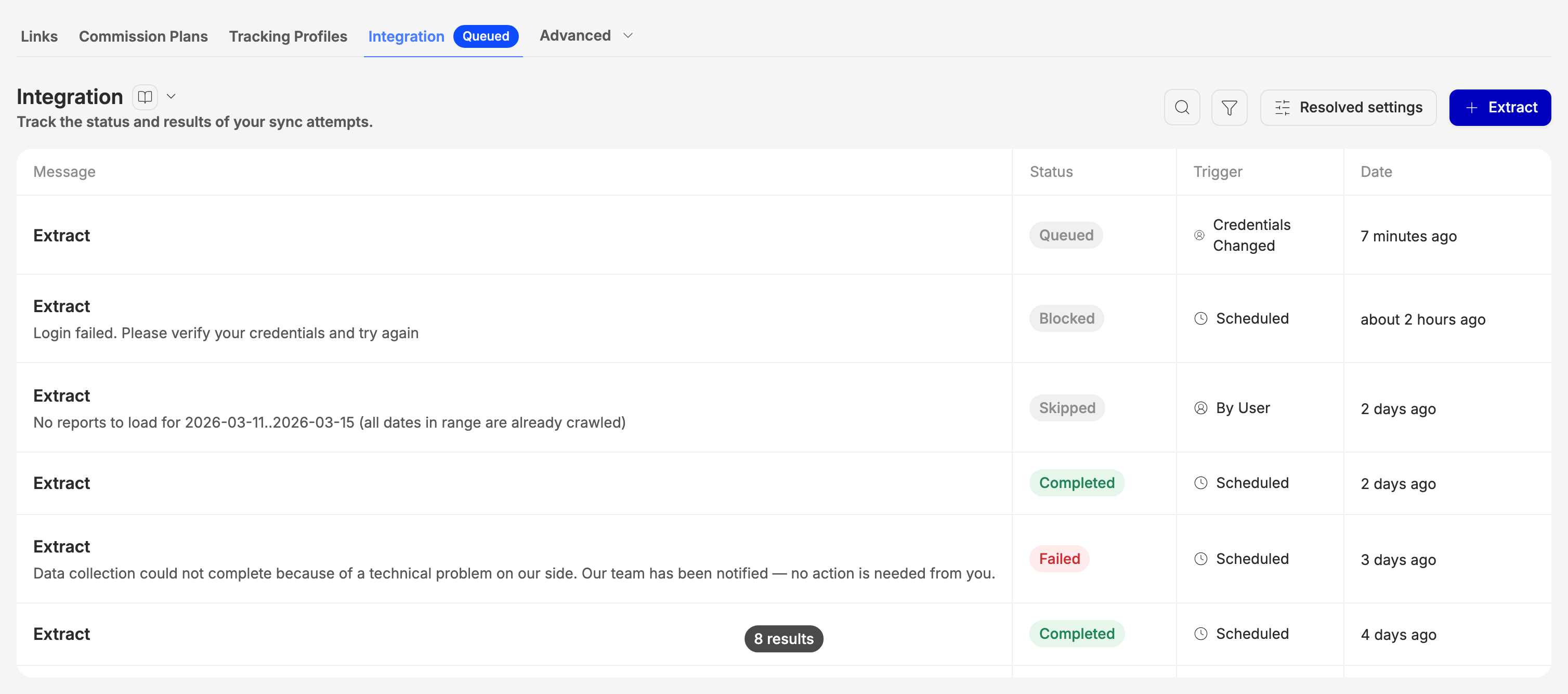
In this video, we'll check an account's integration, and fix it when it stops working. Open the account, and go to the Integration tab. It lists every run Routy made, newest first. The badge beside the tab shows how the newest run ended. Completed means the run collected what it set out to. Skipped means there was nothing to do. It is not a failure. Failed with this message is a problem on our side. It is retried automatically, and no action is needed. Blocked is the one that needs you. Nothing more is collected until it is fixed. Here the program refused the sign-in. Usually that means your password or API key changed. Click Edit, then the Integration step. Test Integration signs in with the credentials Routy has saved. It fails, with the program's own reason. So the saved key is no longer good. Click the pencil on the API key, and paste the new one from the program. Then test again. This time it tests what you just entered, before anything is saved. It works, so click Save. Saving new credentials starts a run straight away, to fill in what the blocked runs missed.
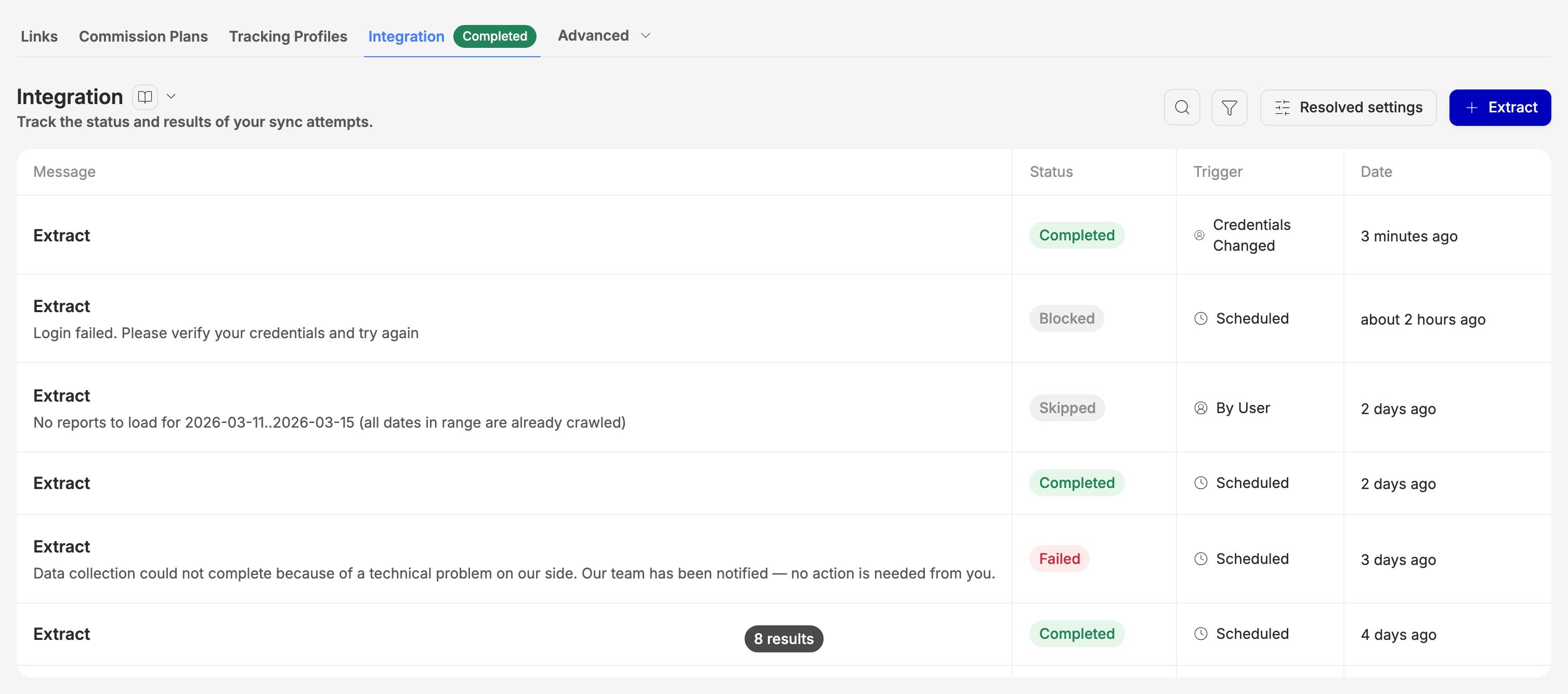
Refresh the page after a moment, and the run is at the top, marked Credentials Changed.
A few minutes later, it has completed. That also closes the issue the blocked run raised. Extract collects a date range now, instead of waiting for the next scheduled run. Use it when you know dates are missing. You can go back up to a hundred and twenty days. Dates that already have data are left out. That's it. The help panel on this screen explains every status, and what to do about each one.
Integration
The Integration tab lists every run Routy has made for this account, newest first. A run is one attempt to sign in to the program and collect reports.
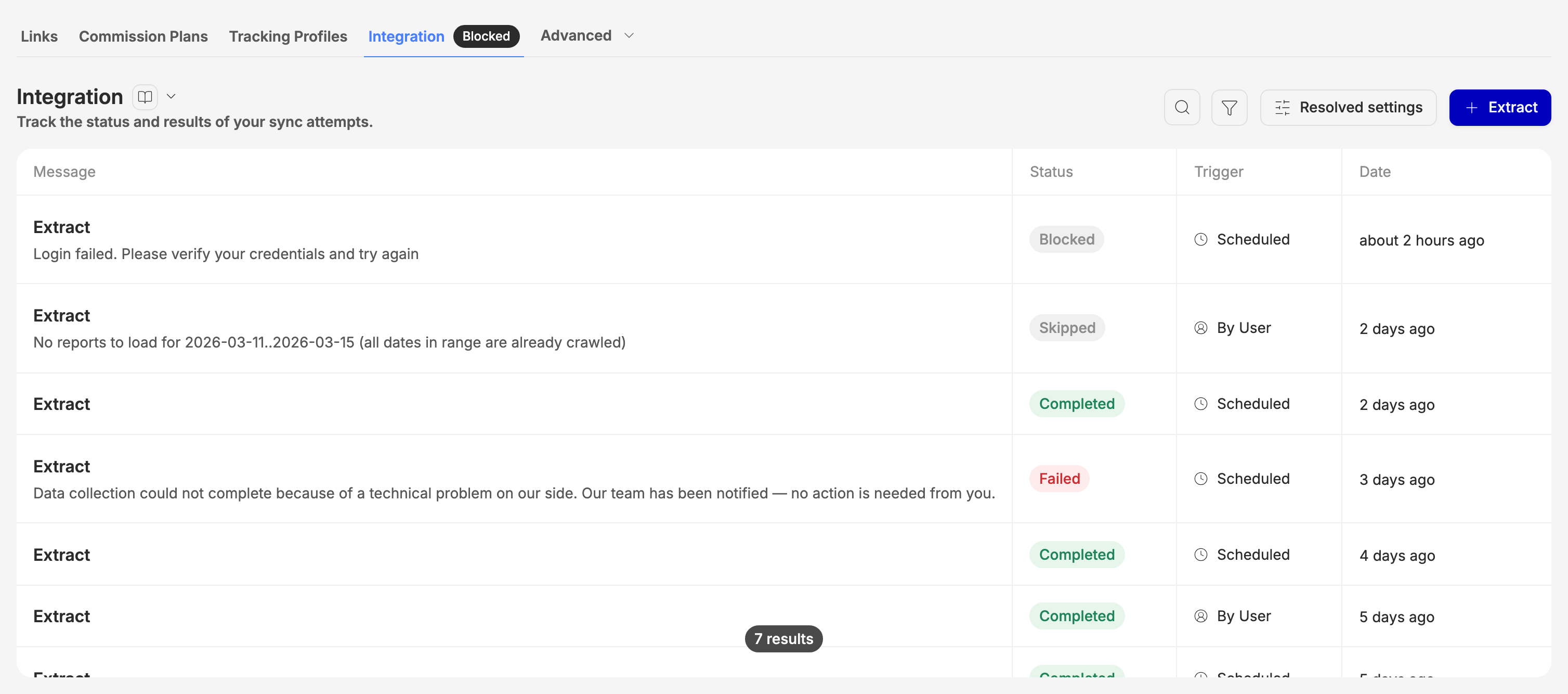
- Message says what the run did. It is empty when there is nothing to say, which is the usual case for a run that completed.
- Status is how the run ended (see below).
- Trigger is what started it.
- Date is when it last changed.
The badge beside the tab's name shows the status of the newest run, so you can see from any tab of the account whether its latest run went through.
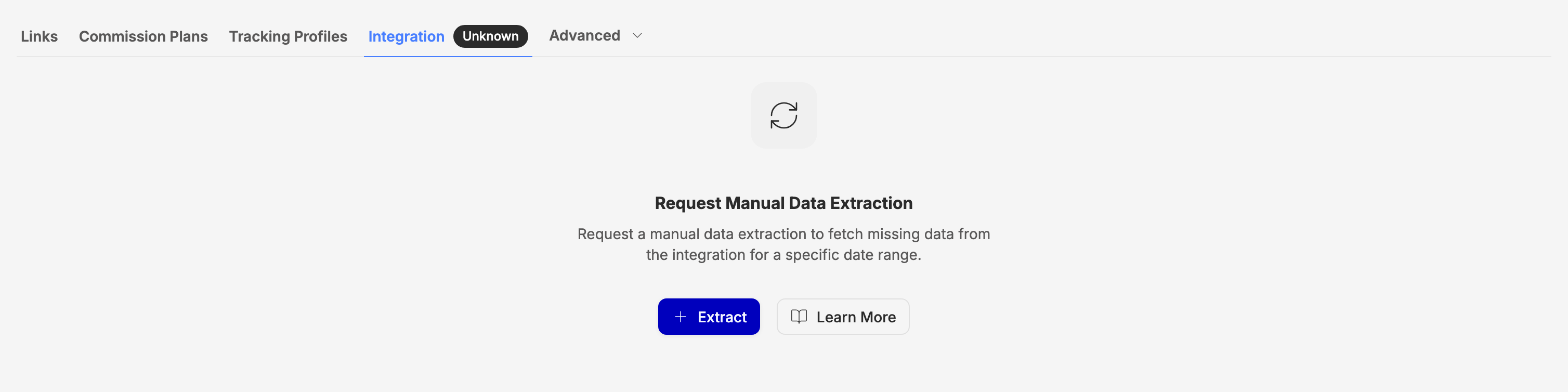
A brand-new account has no runs yet, and the tab shows Extract and Learn More instead of a list. The first scheduled run usually starts within a few minutes of adding the account.
Status
Blocked is the one that needs you. A blocked account also raises an issue on your Issues page, and you're notified about it. It clears itself the next time a run completes.
Trigger
- Scheduled: the regular run, on the account's sync schedule.
- By User: someone on your team asked for it with Extract.
- Credentials Changed: started automatically when the account's credentials were changed and saved.
- By Admin: started by Routy's support team.
How often it runs
By default an account runs once a day. Each scheduled run collects the last 60 days again, not just yesterday, so conversions and commission changes that the program records late are picked up without you doing anything.
When a run fails because the program was unavailable, or because of a problem on our side, it is retried automatically, a few times, over the following hours.
Your plan can set how often an account runs.
Fixing a blocked account
A Blocked run almost always means the credentials Routy holds no longer work: you changed your password at the program, the program replaced your API key, or the program switched off API access for your account.
- Click Edit at the top of the account, then the Integration step.
- Your saved credentials are shown masked. Click the pencil on the one that changed and enter the new value.
- Click Test Integration (see Test Integration).
- When it passes, click Save.
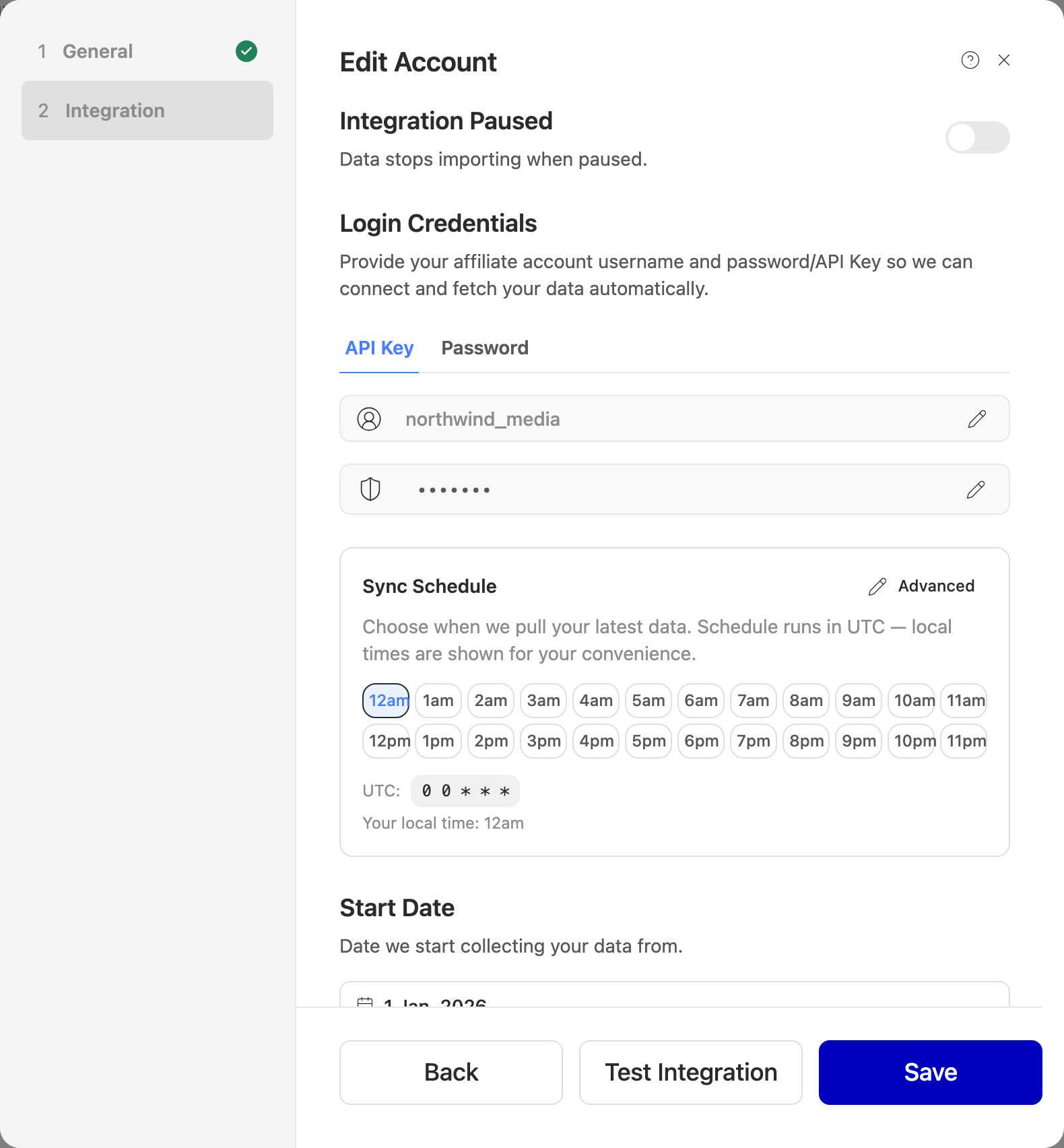
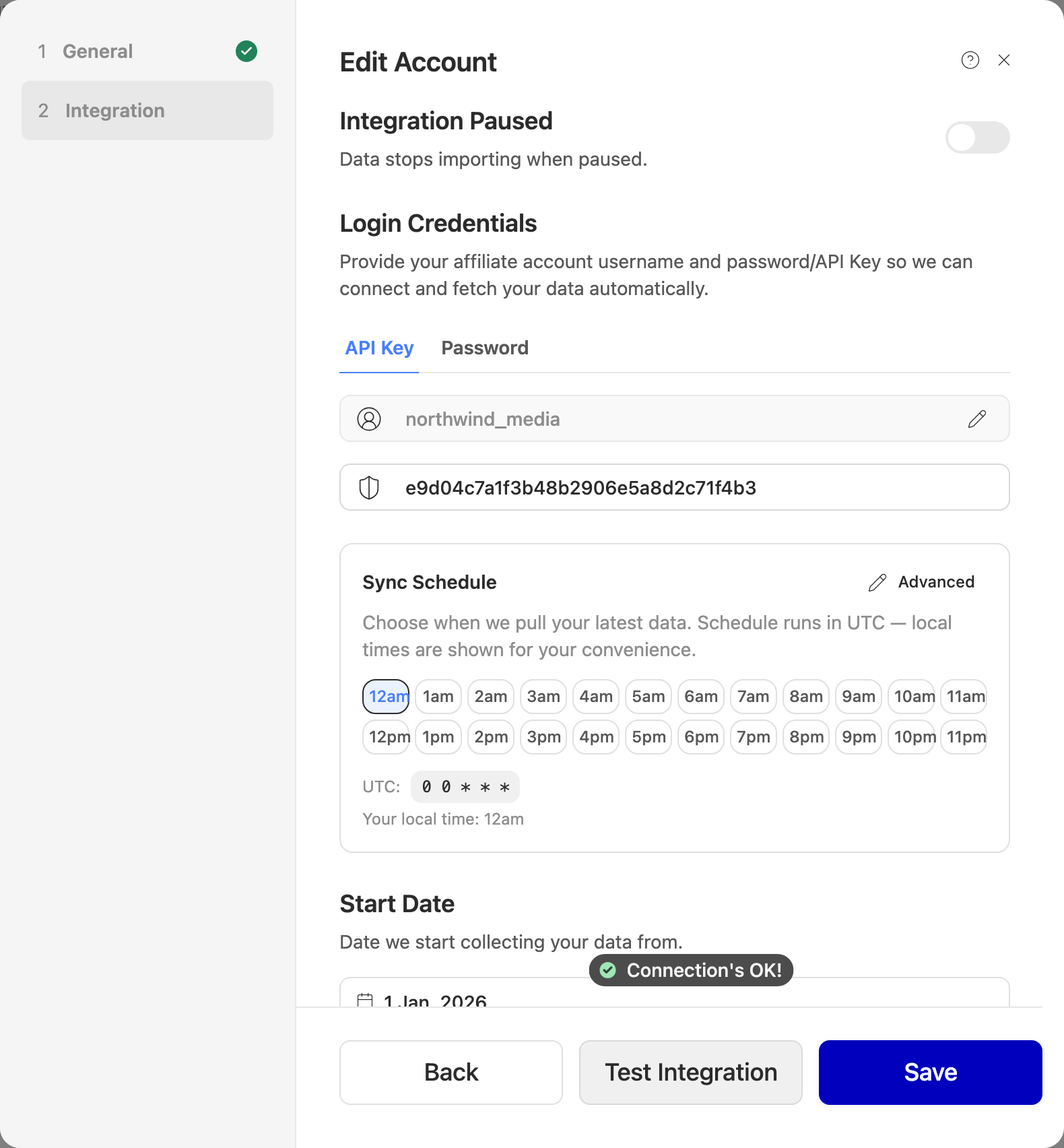
Saving new credentials starts a run straight away. Refresh the page after a moment and it's at the top of the Integration tab, with the trigger Credentials Changed. It collects from the start of the month three months ago, so the gap the blocked runs left is filled in.
If the credentials are right but the run is still blocked, the program is refusing for another reason. The message usually names it: API access switched off, a password change the program is forcing, or an IP address it doesn't recognise. The causes and fixes are the same as when adding an account; see "Test connection failed" in the guide to adding an account.
Test Integration
Test Integration signs in to the program with this account's credentials, right now, and tells you whether it worked. It is in the footer of the Edit drawer's Integration step.
- If you haven't changed anything, it tests the credentials Routy has saved.
- If you've entered new ones, it tests those instead, before anything is saved.
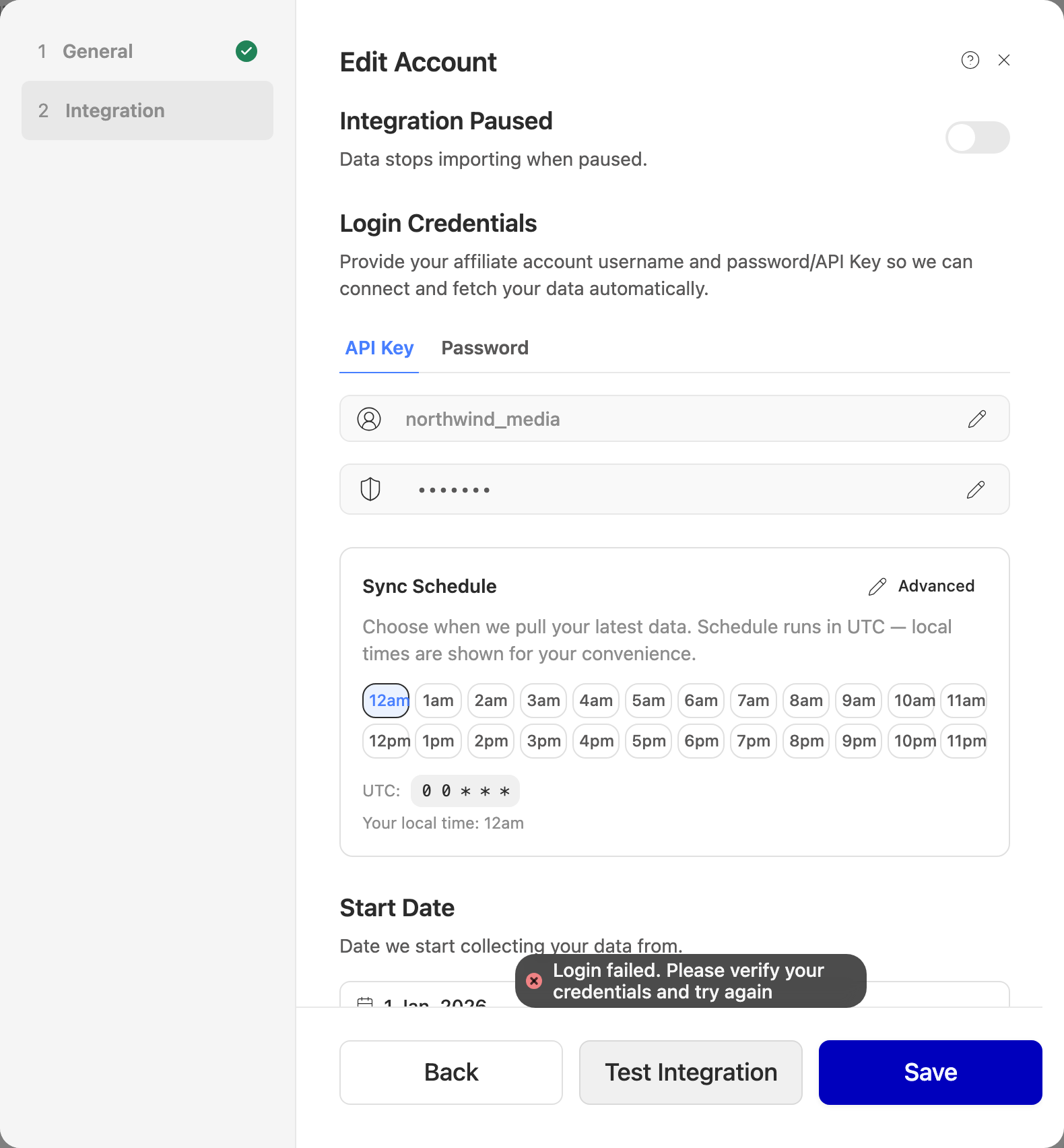
A failed test shows the program's own reason, worded however that program words it.
Two things a test does not do:
- It doesn't save anything. A failed test leaves the account as it was, and a passing one still needs Save.
- It doesn't collect a report. It only checks that the sign-in works. A passing test followed by a blocked run usually means the account can sign in but isn't allowed to read reports. Ask the program to enable reporting or API access for your account.
Login Credentials
The username, password, API key or client credentials the program issued to you. Saved secrets are masked. The pencil beside each one opens it for editing so you can replace it.
If the program offers more than one way to authenticate, there is a tab for each. Fill in the one your account is set up for. You don't need both.
Sync Schedule
The hour of the day the scheduled run starts. Hours are shown in your local time. How many runs a day you can choose depends on your plan.
Start Date
The earliest date Routy collects for this account. It can be set up to 90 days in the past.
Integration Paused
Turn this on to stop scheduled runs for the account without removing it. Nothing is collected while it's on, and changing credentials doesn't start a run. Turn it off again to resume.
Requesting an extraction
Extract, at the top of the Integration tab, asks Routy to collect a date range now instead of waiting for the next scheduled run. Use it when you know data is missing for specific dates: after a program fixed its own reporting, or for dates further back than the schedule collects.
- Click Extract.
- Pick the dates. Quick picks cover since yesterday, this month and last month, and you can go back up to 120 days.
- Click Extract.
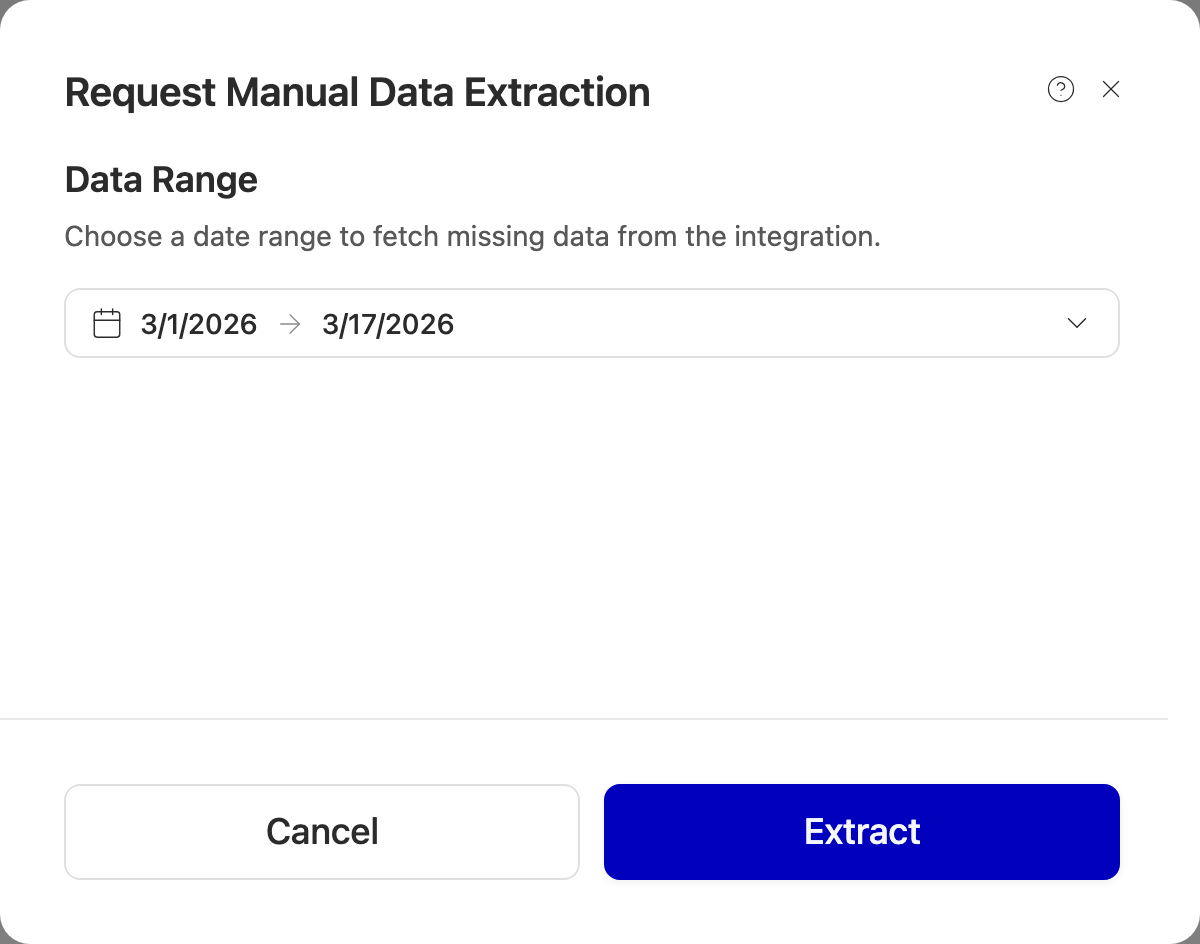
The run appears at the top of the list with the trigger By User.
Some requests are turned down rather than run:
- Dates already collected are left out. If every date in the range already has data, there's nothing to do, and you're told "No reports to load … (all dates in range are already crawled)".
- Not within an hour of the last run. An account that ran in the last hour can't be extracted again until the hour is up.
- Not more often than the account's schedule. If your plan runs this account less often than daily, the message says when the next manual extraction is allowed.
- Not while the account is blocked. Fix the credentials first; saving them starts a run anyway.
- Not on an inactive account. Extract is disabled until the account is activated again.
Troubleshooting
The newest run is Blocked with a sign-in error. The credentials changed at the program. See Fixing a blocked account.
Test Integration passes, but runs are still Blocked. The account can sign in but not read reports. Ask the program to enable reporting or API access.
Runs complete, but some figures are missing. Each scheduled run collects the last 60 days, so recent late changes arrive on their own. For older dates, use Extract. If the figures arrive but land in the wrong place, the account's report columns may need mapping (Advanced → Column Mapping).
A run says Failed with "a technical problem on our side". No action is needed. It's retried automatically and our team is notified.
Extract is greyed out. The account is not active. Click Activate Account at the top of the account first.
When to contact support
Contact support with the account name and the exact message from the run when:
- runs stay Blocked after you've saved credentials that pass Test Integration, or
- runs keep Failing for more than a day.
Don't send us your password or API key. We can see the account without them.