
Impressions Event Log
A walkthrough for Events → Impressions. Every row is one impression: one time an impression pixel you placed was shown to a visitor. If someone asks "is my pixel firing?" or "how often was this banner seen, and where?", this is the screen that answers it.
Impressions are rolling out. If you don't see Impressions under Events, it isn't available on your account yet.
What this page is for
An impression pixel is a tiny invisible image you generate from a link and place next to a banner or offer. Each time it loads, Routy records an impression and attributes it to the link, traffic source and tracker it was made for. Compared with clicks on the same link, impressions show how often an offer was seen versus acted on.
Use it to:
- Confirm a pixel is firing after you place it.
- See where and on what devices an offer was shown.
- Check the Parameter A and Parameter B values that came through.
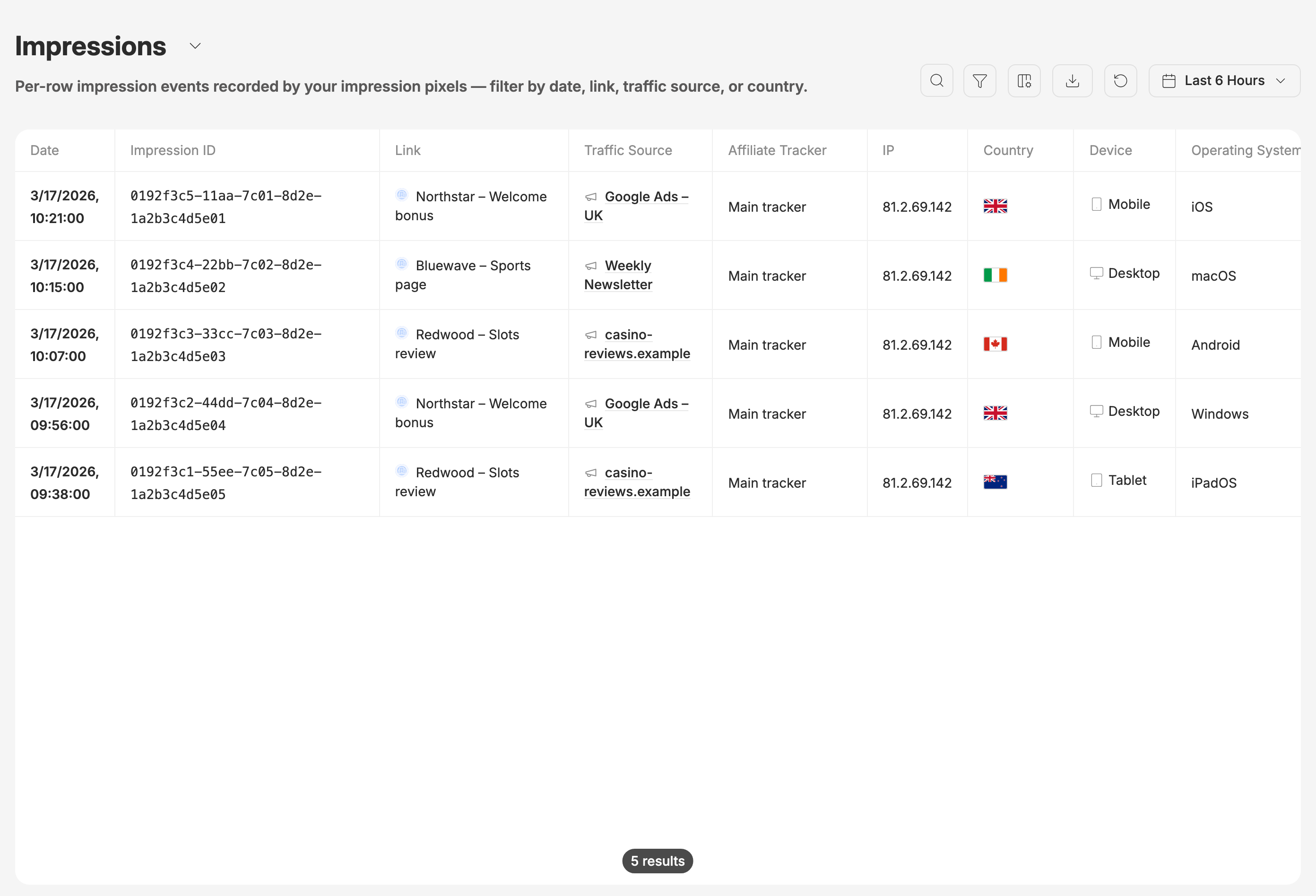
Date
The date picker in the toolbar starts at the last 6 hours. You can go back up to 90 days, including the time of day.
Refresh reloads the list and, on a quick range such as "Last 6 Hours", moves it forward to now.
Find an impression
The search box matches part of a Parameter A, Parameter B, dynamic parameter or UTM campaign value. Capitals don't matter.
To find one particular impression, open Filter and paste its ID into Impression ID: press Enter (or Add filter), and repeat to add more.
Search doesn't match link or traffic source names; use the filters for those.
Filters
Open Filter to narrow the list. Clear all resets them, and the filtered view is kept in the page address, so you can copy the URL and share it.
Reading the row
Empty cells show N/A. Show, hide and reorder columns from the columns button. Sort by Date to see the newest or oldest impressions first.
Export
The Export button (download icon) offers:
- Export these results: a CSV of every impression matching your filters and date range. Very large results are capped, and you are told how many rows were included.
- Download loaded rows (CSV): just the rows already on screen, in the columns you have showing.
- Full export, runs in the background: every impression over a date range. It needs a plan that includes data exports.
Common questions
I placed a pixel but nothing shows up. Load the page with the pixel yourself, then set the date range to Last 1 Hour and filter by its Link. If nothing appears, check that the pixel code on the page is the one generated for that link.
Can I see impressions older than 90 days here? No. This page goes back 90 days.
When to escalate
Contact support when:
- A pixel you can see loading on your page records nothing, even with a 1-hour range and the right link selected.
- Impressions appear under a link or traffic source that isn't yours.
Include the link, the page the pixel is on, and roughly when you loaded it.