
Adding an affiliate account
Adding an account tells Routy to log in to one of your affiliate programs and pull your reporting automatically — clicks, conversions, commissions, and the status changes that follow them. Once an account is connected you stop exporting spreadsheets from that platform: its numbers show up next to every other program you run.
You add one account per affiliate program. If you work with five brands on the same platform under five separate logins, that's five accounts.
Watch this video on its own page →
Transcript
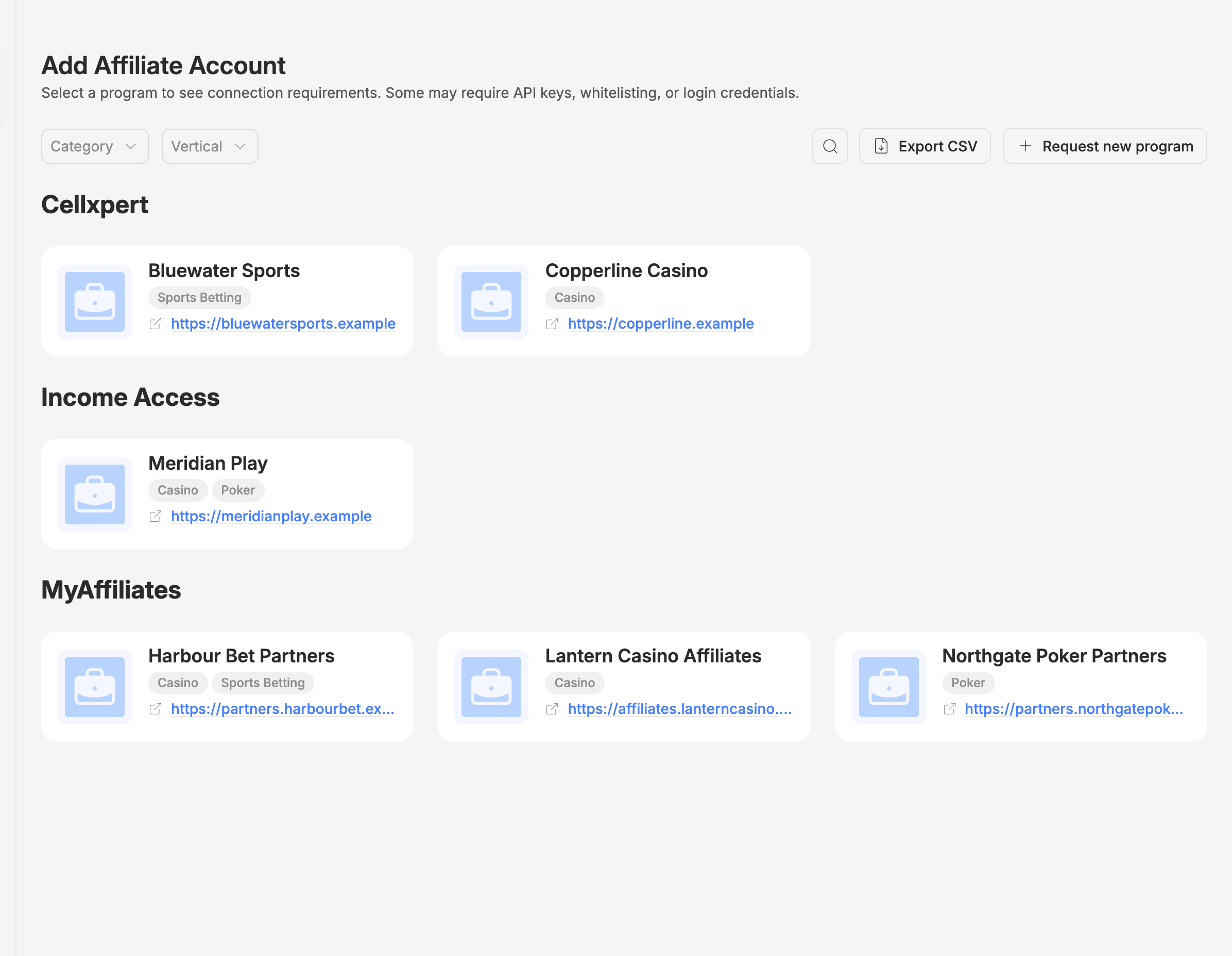
In this video, we'll add an affiliate account, so Routy collects your reports from that program. You add one account per affiliate program you work with. Programs are grouped by the platform that runs them.
Find your program, and click it.
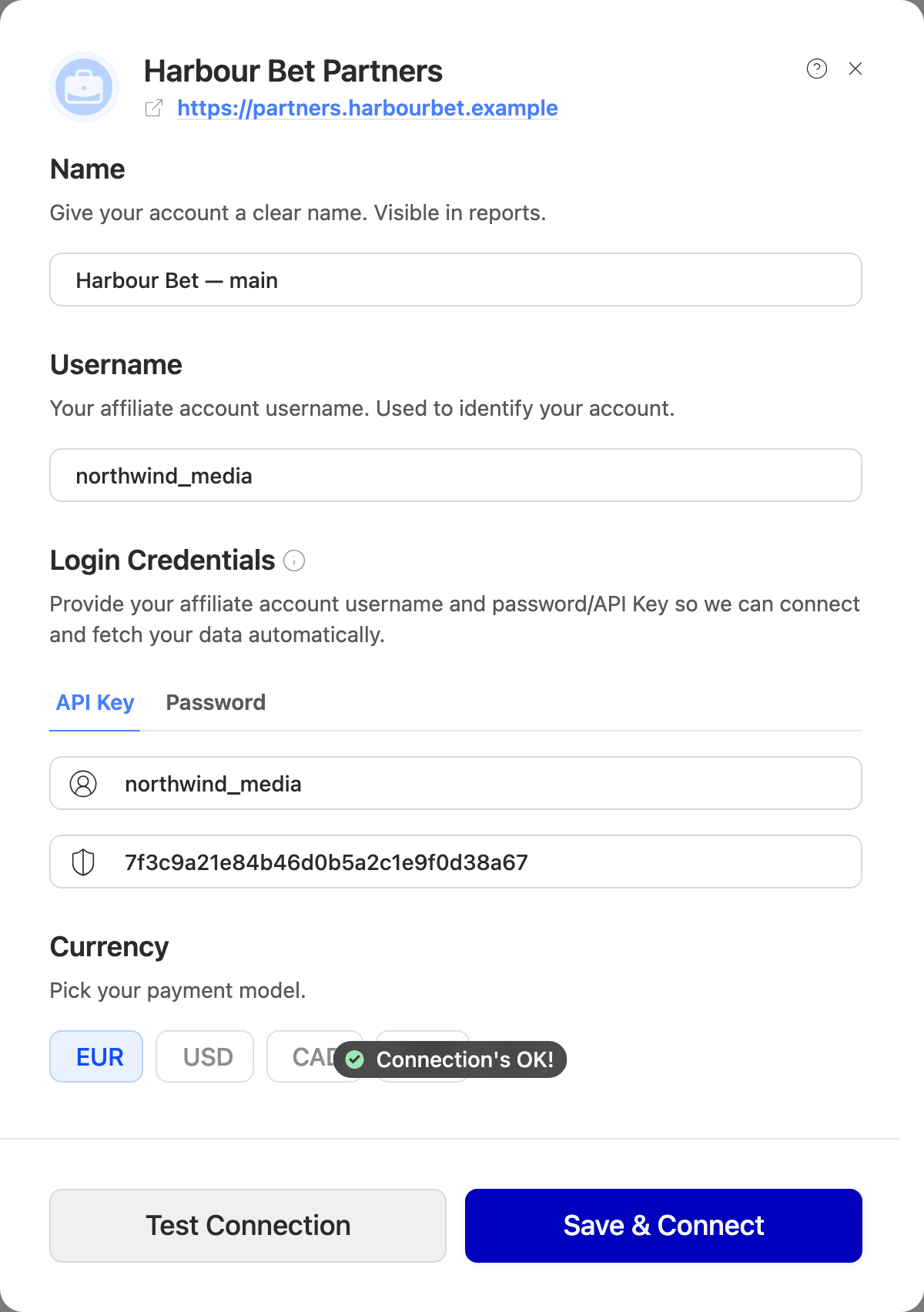
Give the account a name you will recognise later. It is for you, not for the program. Then your username at that program, the one you use to sign in there.
These are the credentials the program issued to you, not your Routy login. This program accepts an API key or a password. Pick one tab and fill in only that one. Paste the key exactly, with no space at either end. Before saving, click Test Connection. Routy signs in to the program with what you entered, and tells you whether it worked. It saves nothing, so a wrong key costs you nothing to fix here.
Pick the currency this program pays you in. Everything Routy collects for the account is recorded in it, so get it right now. Click Save and Connect. The first run starts within a few minutes, and collects up to the last sixty days. From then on, the account's Integration tab shows every run, and whether it worked.
Adding an account
- Find your program in the list. Programs are grouped by the platform that runs them, so if you know your login is on Cellxpert or Everflow, filter by that platform rather than scrolling.
- Click the program.
- Give the account a name you'll recognise later — this is for you, not for the platform.
- Enter your credentials for that program (see below).
- Click Test Connection. Do this before saving; it's much faster to fix a wrong key here than to save and wait.
- Pick the currency the program pays you in.
- Click Save & Connect.
The first run starts within a few minutes and collects up to the last 60 days. Historic data takes longer — how far back we can go depends on the platform.
From then on, the account's Integration tab shows every run and whether it worked. Changing credentials later, testing them again, or asking for dates to be collected again all happen from the account itself; see the guide to your account's integration.
Can't find your program?
Use Add new program at the top of the list. Depending on your plan this either creates the program directly or raises a request for our team to add it to the catalog — either way, the button is the right place to start. Tell us the program's website in the request; that's what we need to identify it.
Export the program list
Moving several accounts to Routy at once? Click Export CSV to download the programs in the list, with each program's ID, name, website and platform, and match them against the programs you already work with. The file follows your search and filters, so clear them first if you want the whole catalog.
Finding your credentials
This is where most people get stuck, and it's worth saying plainly: the credentials Routy asks for are the ones your affiliate platform issues to you, not your Routy login. You get them from the platform where you already log in to check your stats.
Where they live differs by platform, but they are almost always in one of these places once you're logged in to your affiliate account:
- A section called API, API access, or Integrations
- Your profile or account settings
- Tools, Developer, or Advanced settings
Two things to know before you go looking:
- Many platforms don't show API access by default. It's common for it to be switched off until you ask. If you can't find an API section anywhere, that's usually the reason — contact your affiliate manager at that program and ask them to enable API access for your account. This is a normal request and they handle it routinely.
- Some platforms generate the key once and never show it again. Copy it somewhere safe when you create it. If you've lost it, generate a new one rather than hunting for the old one.
If your affiliate manager asks why you need it: it's read-only reporting access. Routy pulls your own performance data. It never places, changes, or approves anything in your account.
Username
Your login username for that affiliate program — the one you type into the platform's own login page. This is always required, even when the platform also issues an API key, because it's how we identify which account the data belongs to.
Use the username, not your email address, unless the platform's login is your email.
Password
Your login password for the affiliate program. Some platforms have no API and the only way in is the same credentials you use yourself.
Stored encrypted, used only to fetch your reporting.
API Key
A long string of letters and numbers the platform generates for you. It may also be labelled API token, access key, auth key, or secret key — these are the same thing under different names.
Copy it exactly. The most common cause of a failed connection is a key that picked up a trailing space, or one that's been truncated at the end during copying.
Client Identifier
Some platforms issue a pair: an identifier that names your integration and a secret that authenticates it. The identifier is the non-secret half — it may be called client ID, app ID, API user, or account ID.
Client Secret
The secret half of the pair above. Treated like a password: entered once, stored encrypted, and never displayed back to you.
Choosing between two credential types
A few platforms accept more than one way to authenticate, and the form shows a tab for each. Pick one and fill in only that tab — you do not need both. If you have a choice and no reason to prefer either, use the API key: it's easier to revoke later without changing your own login.
Currency
The currency this program pays you in — not your reporting currency, and not your local currency.
Get this right at the point of adding the account. Everything we import is recorded in the currency you set here, so changing it later doesn't retroactively reinterpret data we've already pulled.
Test connection failed
The message tells you which stage failed. In order of how often each turns out to be the cause:
- Wrong or expired credentials. Re-copy the key from the platform. Check for a leading or trailing space — this is by far the most common cause.
- API access not enabled. Ask your affiliate manager at that program to turn on API access for your account.
- Wrong credential type. If the form offers tabs, you may have filled in the one your account isn't set up for. Try the other.
- The program restricts API access by IP. Some platforms only accept API calls from addresses you've allow-listed. Add Routy's IP addresses in their API settings, or ask their support to add them. Where we know a platform does this, a notice next to the credentials says what to do there. It's advice, so it doesn't stop you saving, and it can show on a program that hasn't turned the restriction on.
- Your affiliate account isn't fully approved yet. Some platforms issue credentials before the account is live, and the API rejects them until it is.
A connection that tests successfully but returns no data usually means the account is genuinely empty for the period we pull first — new accounts often look like this until the first conversions land.
Getting help
If the connection still fails after you've re-copied the credentials and confirmed API access is enabled, contact support with the program name and the exact error from Test Connection. Don't send us the key itself — we can see the account without it.