
Connecting a MyAffiliates account
MyAffiliates runs the affiliate portal for many casino and sports-betting brands. Each brand has its own portal on its own address, but the menus are the same everywhere, so these steps work whichever MyAffiliates program you're adding.
Routy connects with an OAuth2 client: a Client Identifier and Client Secret you create inside the program's portal. It gives Routy read-only access to your stats without your own login, and you can remove it from the portal at any time.
Finding your credentials
- Log in to the program's affiliate portal.
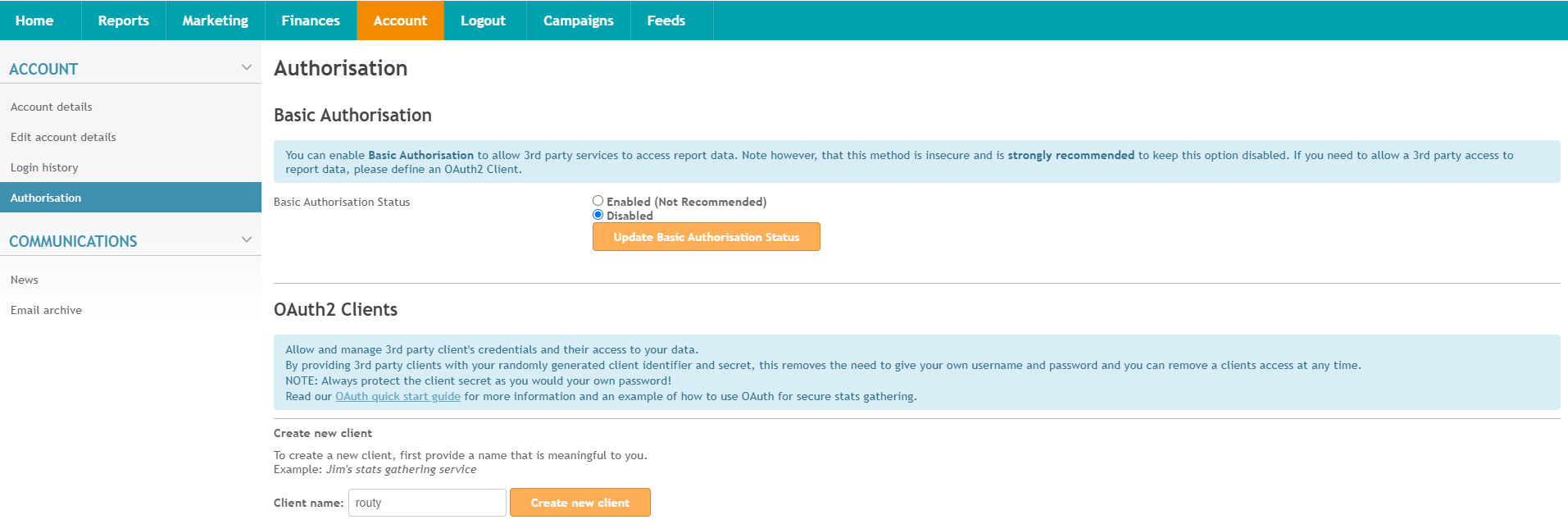
- Go to Account → Authorisation.
- Under OAuth2 Clients, type a Client name. It can be anything; "Routy" makes it easy to recognise later.
- Click Create new client.
The page reloads and shows the new client's Client identifier and Client secret.
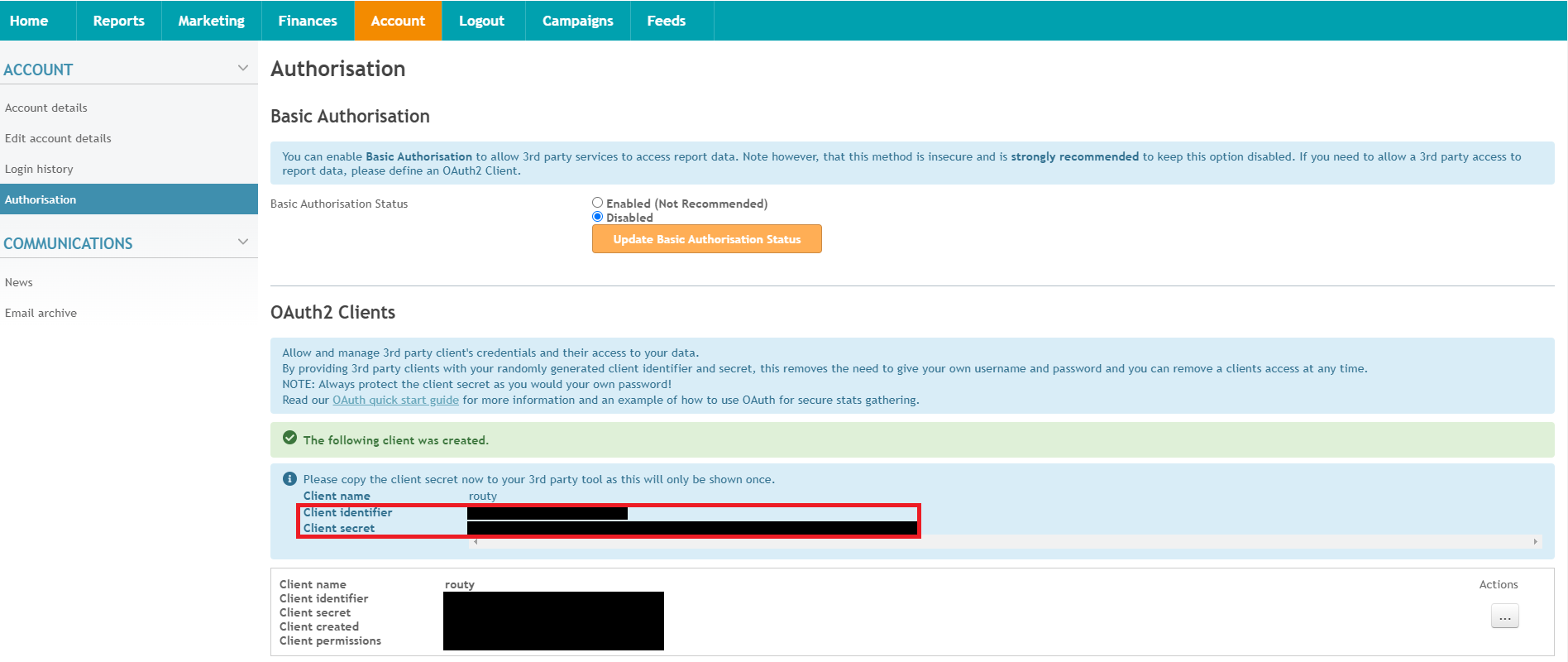
Copy the secret now. MyAffiliates shows it only this once. If you leave the page without it, create another client rather than looking for the old secret.
Leave Basic Authorisation disabled. Routy doesn't use it, and MyAffiliates itself recommends keeping it off.
One client per program. Each brand's portal issues its own clients, so if you promote three MyAffiliates brands, you create a client in each portal and add three accounts in Routy.
Entering them in Routy
- Name the account and enter your Username for that portal.
- Under Login Credentials, stay on the Identifier tab.
- Paste the Client Identifier into the first box and the Client Secret into the second.
- Click Test Connection, then pick your currency and click Save & Connect.
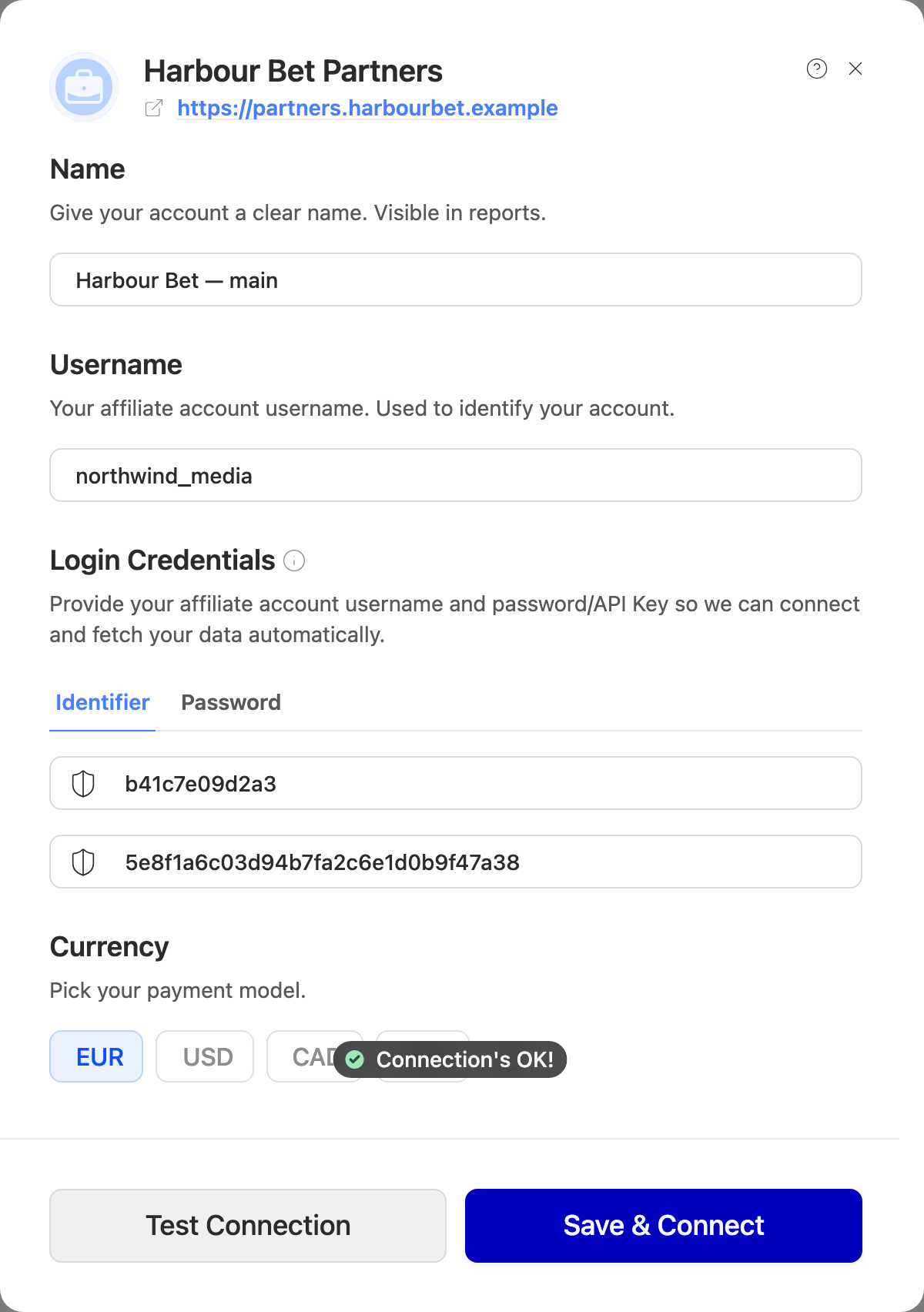
The Password tab connects with your portal login instead. Use it only if the program doesn't let you create an OAuth2 client; you need one tab, not both.
Username
Your login username for that MyAffiliates portal. Routy uses it to identify whose stats it is reading; the client is what authenticates.
Client Identifier
The Client identifier shown when you created the client. It also stays listed under OAuth2 Clients afterwards, so you can copy it again later.
Client Secret
The Client secret shown once when you created the client. Treat it like a password: don't paste it into a support ticket or a chat.
If you remove the client in the portal, Routy loses access. Create a new client and update both values here at the same time.
Test connection failed
- The identifier and secret don't belong together. Both come from the same client. If you have created more than one, copy the identifier from the client whose secret you saved, or create a fresh one and use both of its values.
- The secret wasn't copied when the client was created. It is shown only that once. Create a new client.
- The client was removed. Check Account → Authorisation: if it isn't listed under OAuth2 Clients any more, create a new one.
- The client is from a different brand's portal. Clients only work on the portal that created them. Confirm the portal matches the program you're adding.
- There's no Authorisation page under Account. API access is probably switched off for your account. Ask your affiliate manager to enable it; it's read-only reporting access and a routine request.
Getting help
If the client is current and the connection still fails, contact support with the program's name, your username and the exact error from Test connection. Don't send the client secret.