
Connecting a V.Partners account
Routy connects to V.Partners with a token from your profile's Remote statistics page.
Finding your credentials
Log in to V.Partners.
Click the profile icon at the top right.
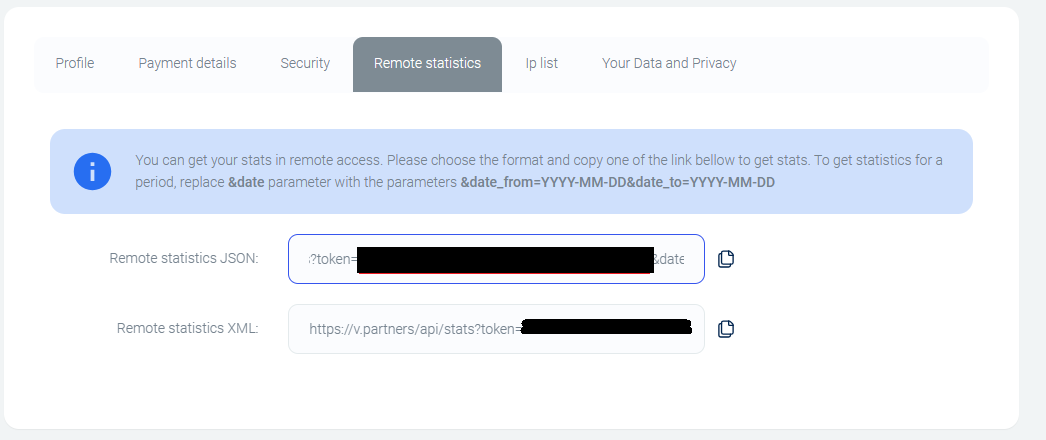
Open the Remote statistics tab. It lists links to your stats, in this shape:
https://v.partners/api/stats?token=YOUR_TOKEN&date=…Copy the value after
token=, up to the next&. That is your API key.
Entering them in Routy
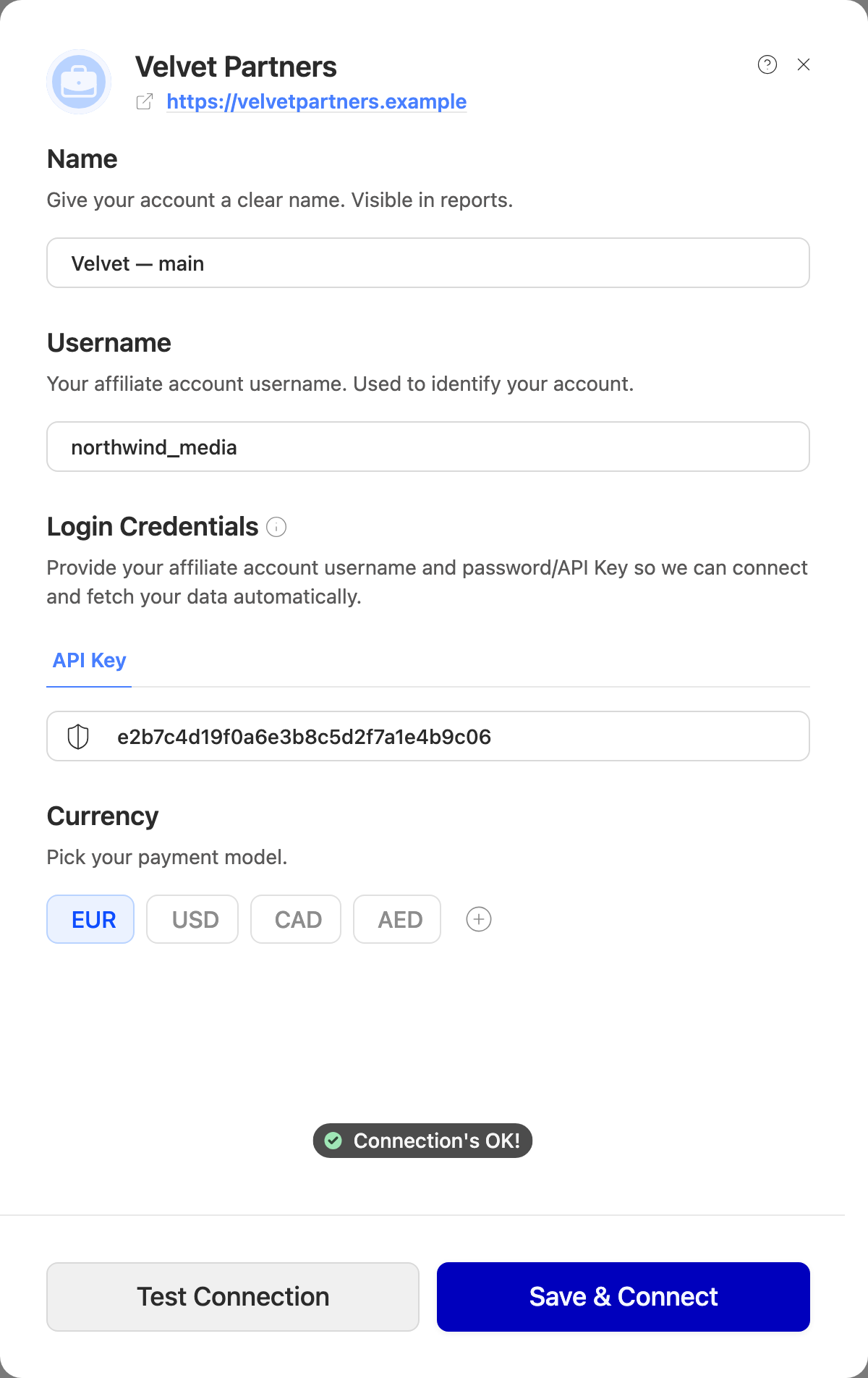
- Name the account and enter your Username for V.Partners.
- Under Login Credentials, paste the token into the API Key tab.
- Click Test Connection, then pick your currency and click Save & Connect.
Username
Your V.Partners login username.
API Key
The value after token= in the Remote statistics link. Treat it like a
password: the link opens your stats for anyone who has it, so don't paste the
link or the token into a support ticket or a chat.
Test connection failed
- Part of the link was copied with the token. The token stops at the next
&. Make sure nothing like&date=came with it, and nothing beforetoken=. - There's no Remote statistics tab. Ask your affiliate manager to enable remote statistics for your account.
Getting help
If the token is current and the connection still fails, contact support with your username and the exact error from Test connection. Don't send the token or the stats link.