
Connecting a Cellxpert account
Cellxpert runs the affiliate portal for many brands, each on its own address but with the same menus, so these steps work whichever Cellxpert program you're adding.
There are two ways to connect, and you need only one:
- API key (recommended): your affiliate ID and an access key from the portal's API settings.
- Portal username & password: the login you use for that portal.
If you save both, Routy uses the API key.
Finding your credentials
- Log in to the program's affiliate portal.
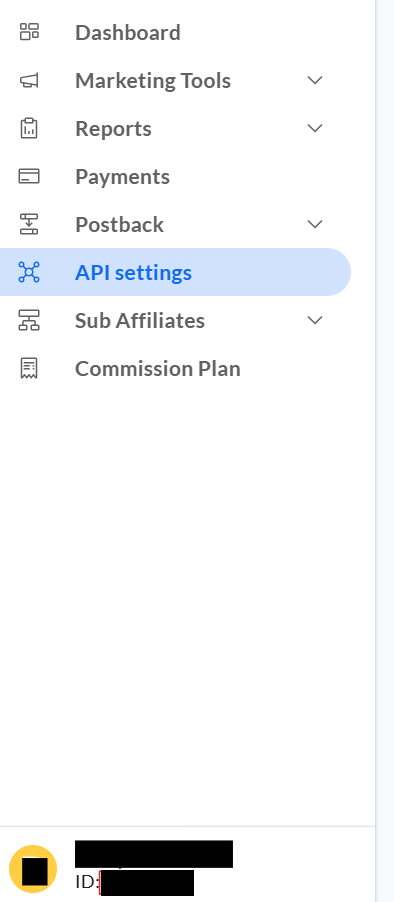
- Click API settings in the side menu. If there is no API settings item, API access isn't switched on for your account: ask your affiliate manager at the program to activate it.
- Under Access Key, generate a key and copy it.
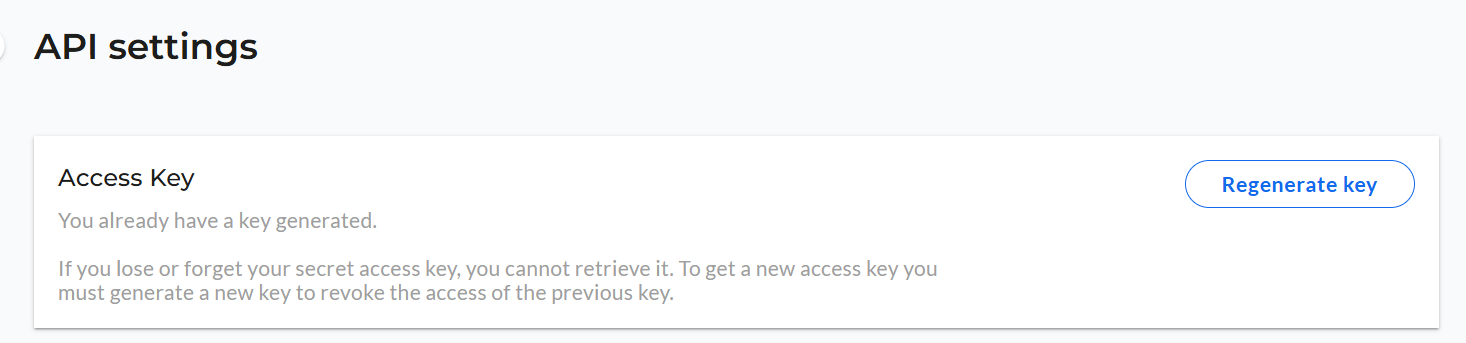
Copy the access key when you generate it. Cellxpert can't show it again. If you already have one and don't know it, click Regenerate key: that cancels the old key, so update any other tool that used it.
Your affiliate ID is at the bottom of the side menu, under your name, next to ID:.
Add Routy's IP addresses
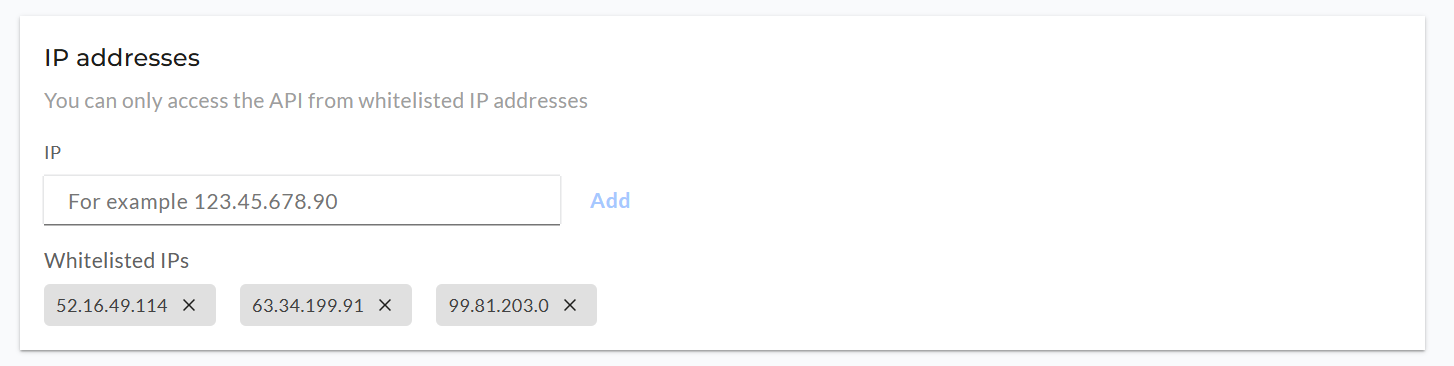
Cellxpert only accepts API requests from addresses you approve. On the same API settings page, add each of Routy's IP addresses in the IP addresses section. If you can't edit it, ask your affiliate manager to add them.
Entering them in Routy
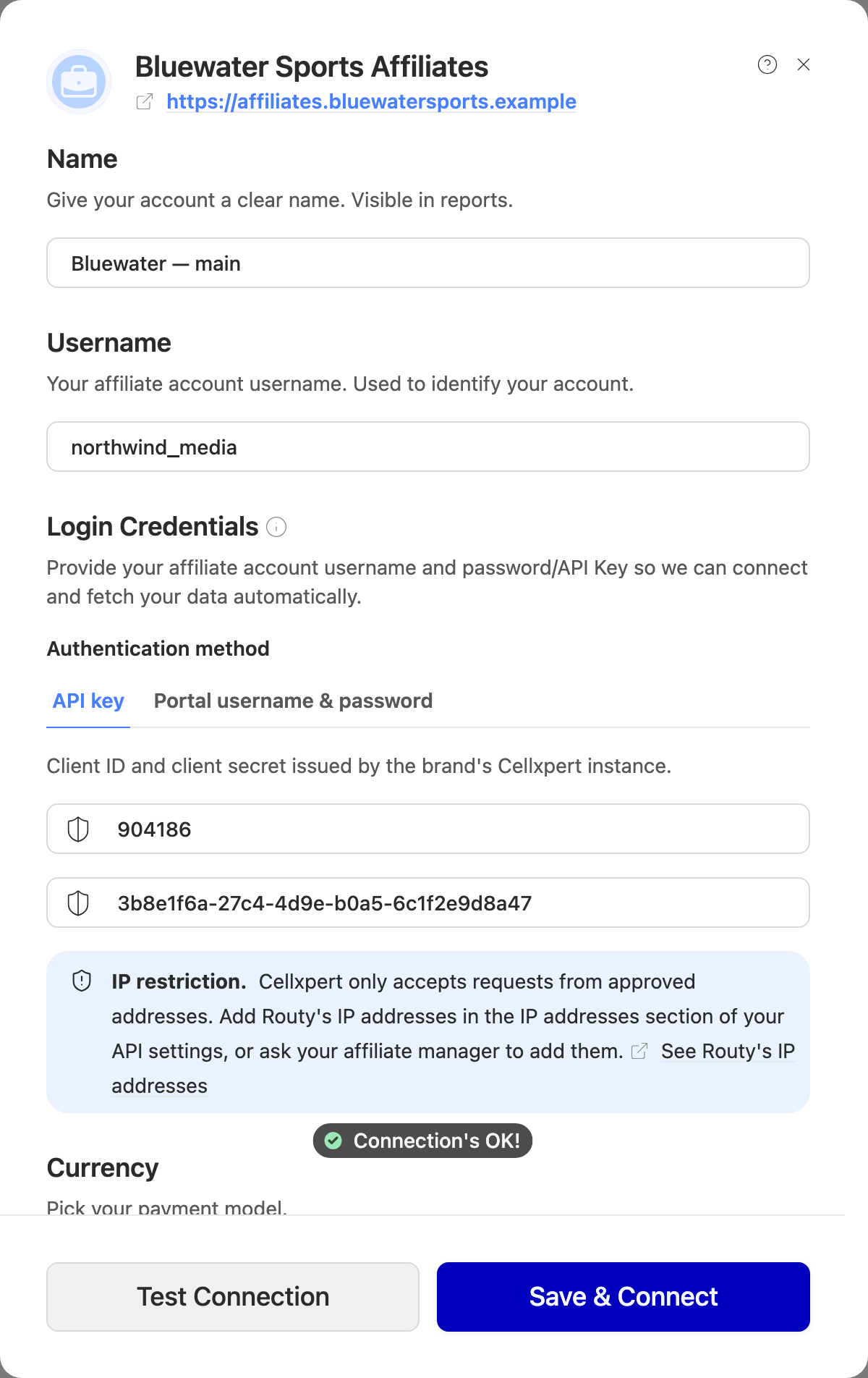
- Name the account and enter your Username for that portal.
- Under Authentication method, keep API key selected.
- Paste your affiliate ID into the first box and the access key into the second.
- Click Test Connection, then pick your currency and click Save & Connect.
Username
Your login username for that Cellxpert portal.
Client Identifier
Your Cellxpert affiliate ID, the number next to ID: under your name in the portal. It is not the access key.
Client Secret
The access key from API settings. Treat it like a password: don't paste it into a support ticket or a chat. If you regenerate it, the old one stops working, so update it here at the same time.
Test connection failed
- The two values are swapped. The affiliate ID goes in the first box and the access key in the second.
- The access key was regenerated. Only the newest key works. Paste the current one, or regenerate it and use the new one.
- Routy's addresses aren't approved. Check the IP addresses section of API settings lists all three of Routy's IP addresses.
- The key is from a different brand's portal. Keys only work on the portal that issued them. Confirm the portal matches the program you're adding.
- There's no API settings page. API access is off for your account. Ask your affiliate manager to activate it, or connect with Portal username & password instead.
Getting help
If the key is current, Routy's addresses are approved and the connection still fails, contact support with the program's name, your affiliate ID and the exact error from Test connection. Don't send the access key.