
Managing catalog brands
The brand catalog is where Routy keeps every brand that can be linked to: its name, website, logo, verticals and status, and which affiliate programs list it. This guide is for Routy staff and account managers working in Catalog → Brands and on a program's Brands tab.
The catalog is shared by every client
Read this before changing anything. There is one catalog, and every client uses it. Nothing on these screens is scoped to the client you're helping.
- Editing a brand changes it for every client who uses it: the name in their reports, the logo on their screens, the website used to tell it apart.
- Attaching a brand to a program makes it available to every affiliate with an account on that program.
- Detaching a brand from a program removes it from that program for every affiliate on it, not only for the client who asked. The confirmation names the program but doesn't say how many affiliates use it, so check the program's Accounts tab first.
- A new brand is live immediately, as Enabled, and visible to anyone.
When a request comes from one client, ask whether the change is true for everyone. A client who wants a brand renamed "for their reports" is usually asking for something else.
Catalog → Brands
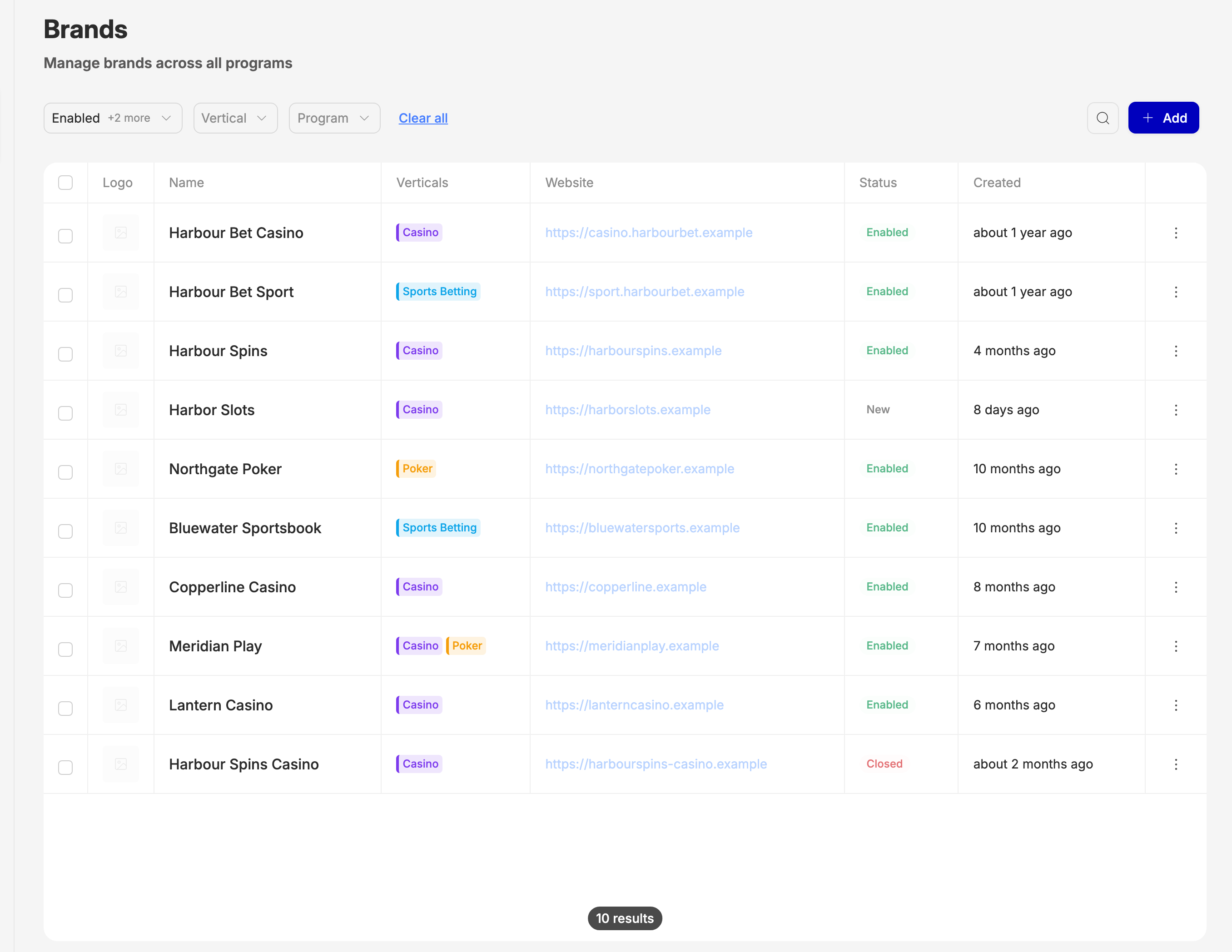
Every brand in the catalog. It opens showing Enabled brands only; use the Status filter to include New and Closed ones. You can also filter by Vertical and Program, and search.
Each row's ⋮ menu has Edit and Delete. Select rows with the checkboxes to enable several at once, or to fetch their logos.
A program's Brands tab
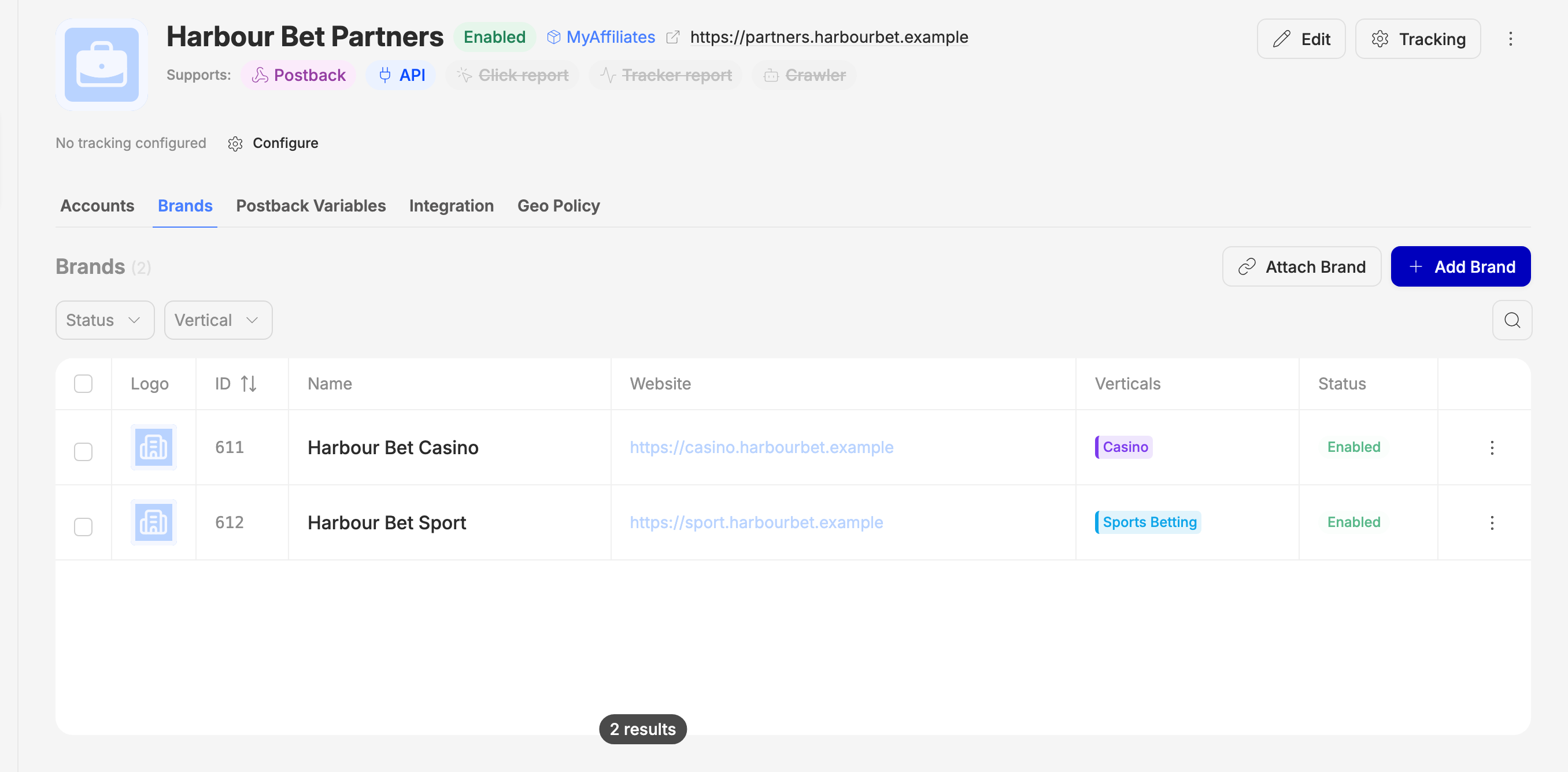
Open a program (Catalog → Programs) and go to Brands. These are the brands every account on this program can link to, which is exactly what a client sees under Available Brands on their account.
This is the right place to add a brand for a client: find their account's program, then attach or add here.
Attach Brand
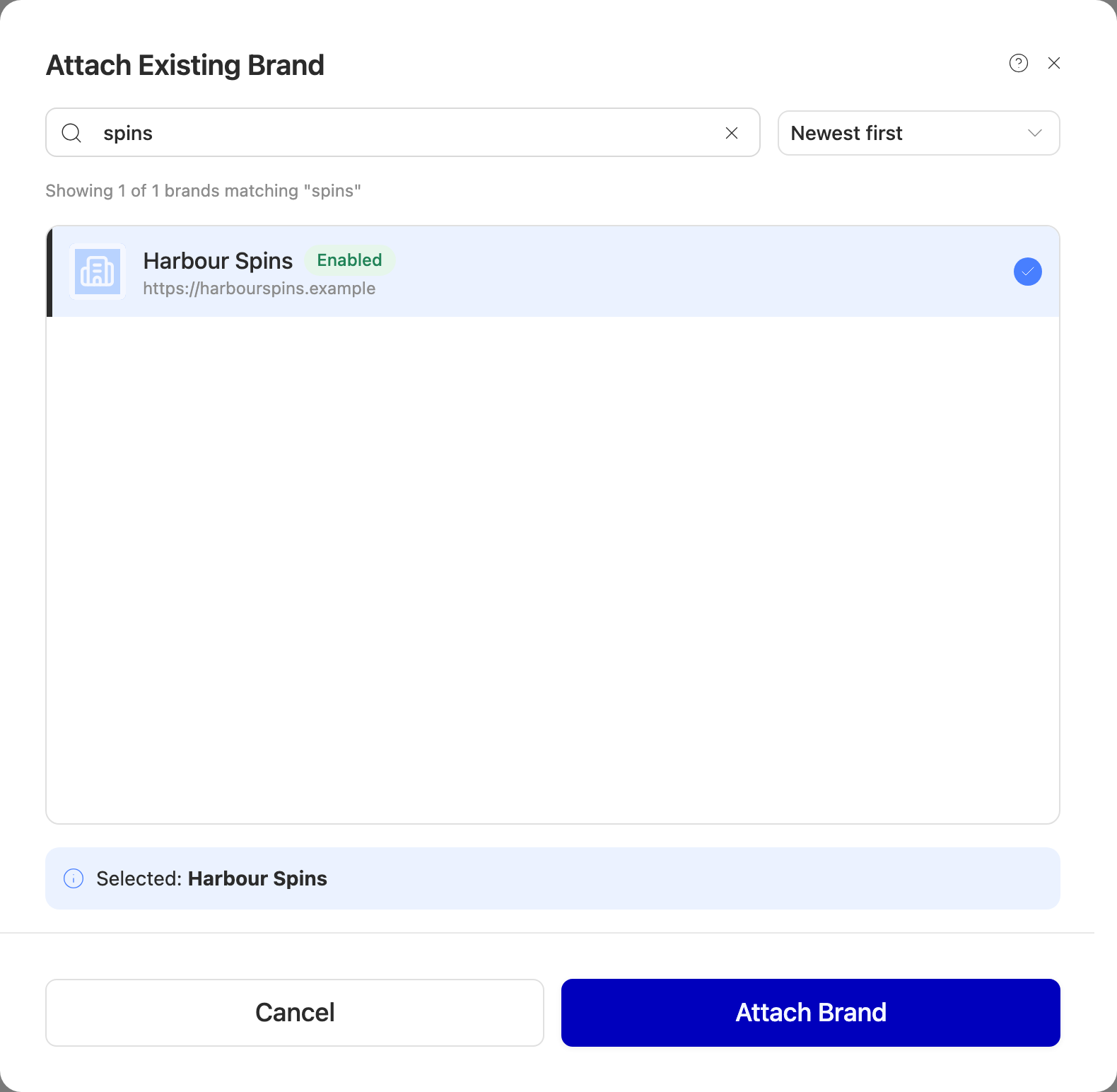
Use this first. It puts a brand that's already in the catalog on this program.
- Press Attach Brand.
- Search by name. Brands already on this program are left out, and so are Closed brands.
- Select the brand and press Attach Brand.
The search matches part of the name. If it finds nothing, a Did you mean one of these? list appears with close spellings ("Bet 365" for "Bet365"). Check it before deciding the brand doesn't exist.
Add Brand
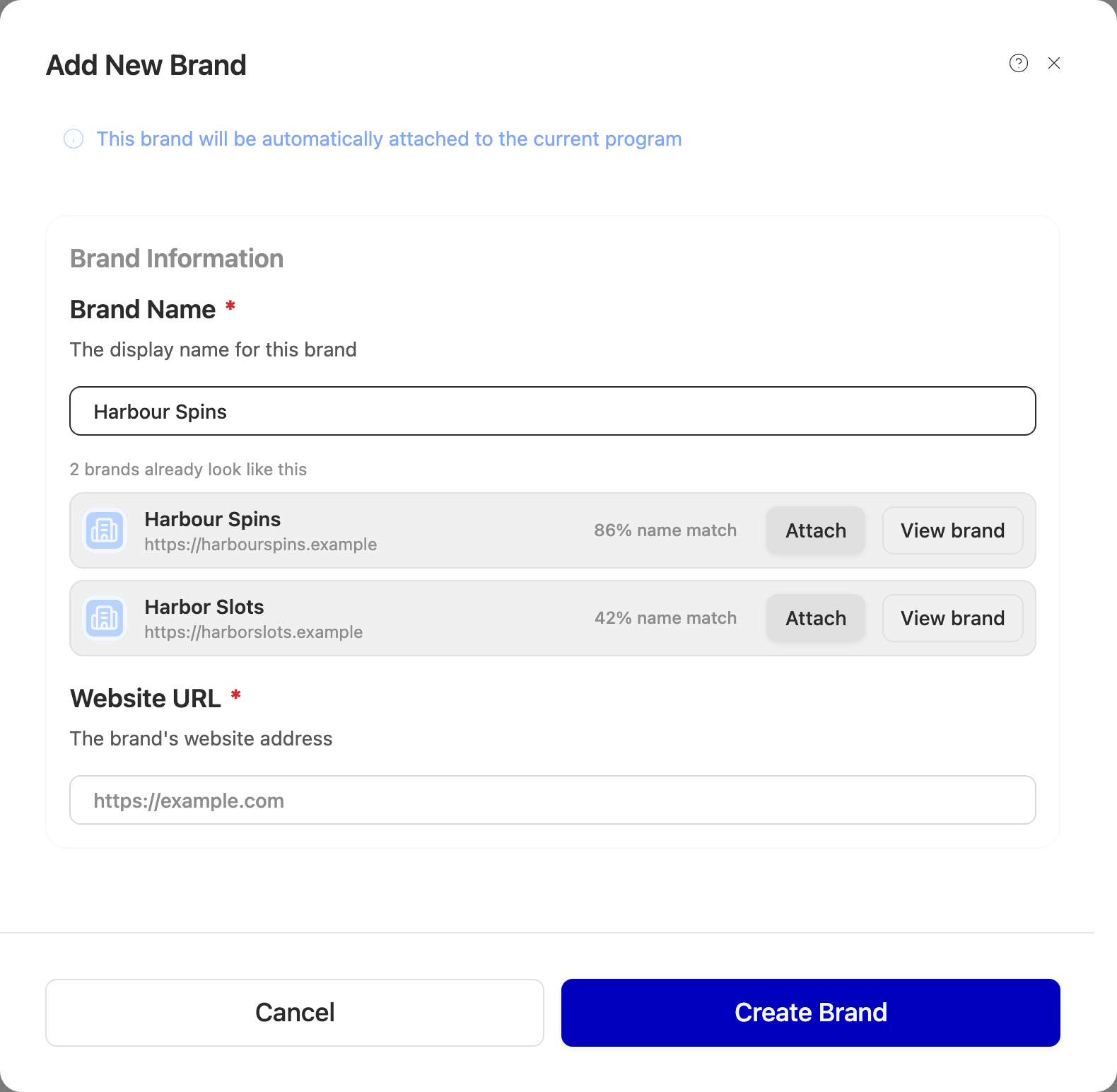
Only when the brand genuinely isn't in the catalog.
- Press Add Brand on the program's Brands tab. The new brand is attached to that program automatically.
- Type the Brand Name. Brands that already look like it appear underneath, each with Attach. If one of them is the brand, attach it instead.
- Enter the Website URL and press Create Brand.
Two things can stop the create:
- "This brand is already in the catalog": the website already belongs to a
brand. Two brands can't share a website (
www.and the page path are ignored). There's no override; attach the brand shown. - "N existing brands look like this one": nothing has been created yet. Attach the one that matches, or Create brand anyway if the brand is really different.
Add on Catalog → Brands also creates a brand, but on no program. It shows the same look-alike list and the same two notices, but with no program to attach to, each match is a link to the existing brand: open it and attach it to the right program from there. When you know the program, use its Brands tab. Either way, a website is required.
Edit
From the row's ⋮ menu, or Edit on the brand's page: Logo, Brand Name, Status, Website URL and Verticals. Remember that every change here reaches every client using the brand.
Changing Status to Enabled is how a New brand goes live. To enable many at once, select them in the list and use the enable button above the table.
Detach
On a program's Brands tab, use the row's ⋮ menu and Detach. On a brand's own page, use the unlink button next to the program under Affiliate Programs.
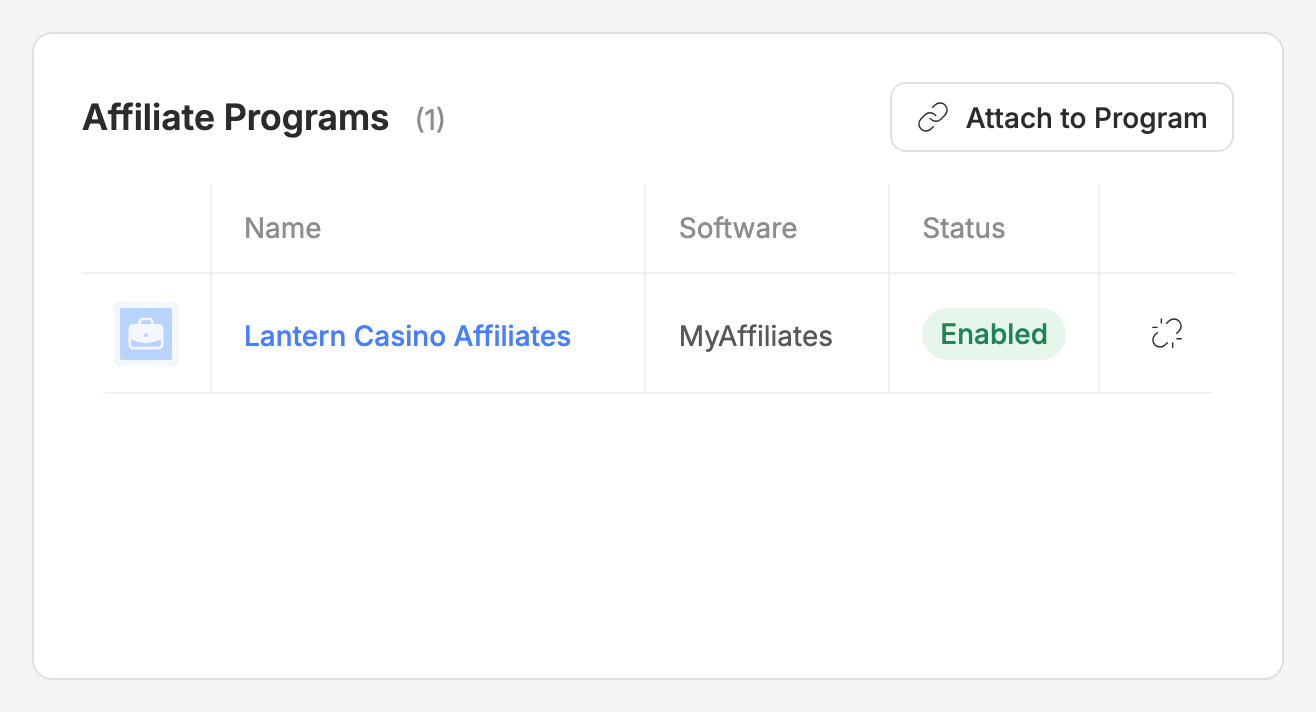
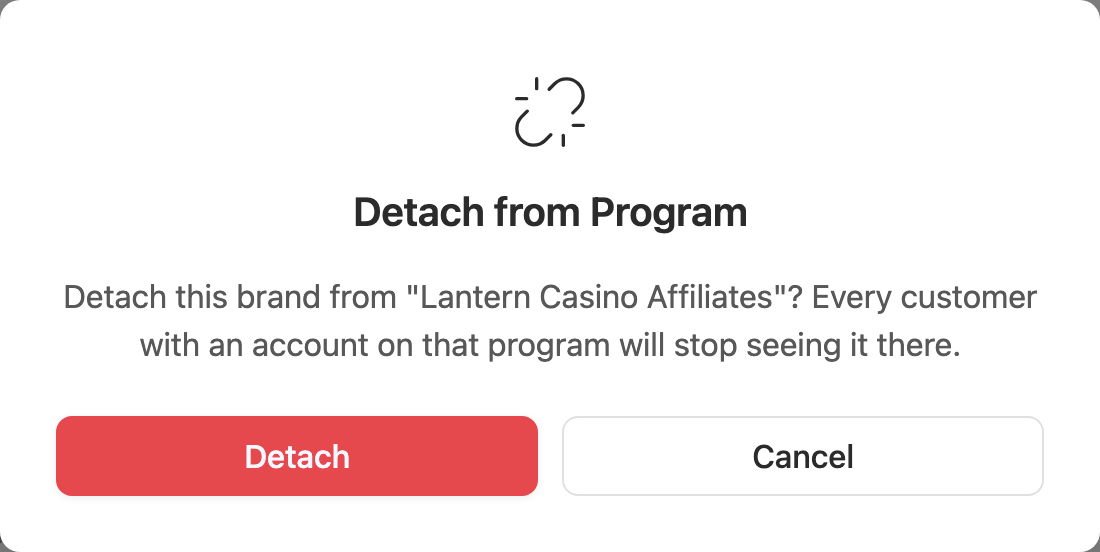
Detaching keeps the brand in the catalog but takes it off that program for every affiliate on it. They can no longer pick it for new links. Don't detach to fix one client's problem.
Delete
Delete is final, and a brand must be Closed before it can be deleted, wherever you delete it from. Delete removes the brand from the whole catalog, not just from one program; to take it off one program, use Detach.
Duplicates
Two records for one brand split a client's reporting in two. The look-alike list
and the website check catch most of them, but not all: a second record on a
slightly different website (harbourspins-casino.example beside
harbourspins.example) gets through.
When you find one:
- Decide which record to keep. Usually the older one, which most programs and links already use.
- Attach the kept record to every program that lists only the duplicate.
- Set the duplicate to Closed. It stops being offered when attaching.
- Don't delete it while links or programs still use it. Ask engineering to move those over first.
Helping a client who can't find a brand
Most "the brand is missing" requests are an attach, not a create:
- Open the client's account and note its program.
- On that program's Brands tab, press Attach Brand and search. Try a shorter name and other spellings, and read the Did you mean list.
- Still not there? Search Catalog → Brands with the Status filter set to all statuses. A Closed brand may need re-enabling rather than replacing.
- Only then use Add Brand on the program's tab, with the brand's real website.
Clients can also do this themselves when brand adding is turned on for them; point them at the Adding a brand to your account guide.
When to escalate to engineering
- A create is refused with "already in the catalog" but no existing brand is shown, or the brand it names can't be found.
- An attach or detach reports success but the program's Brands tab doesn't change after a reload.
- A brand needs to be merged into another and links already use both.