
Account Performance
Account Performance shows how your affiliate program accounts did over one month: clicks, signups, FTDs, qualifieds and commission, as month totals, day by day, and per account.
What makes it different from a report is that every number exists in three versions — what Routy tracked, what the affiliate program reported, and a reconciled "Effective" figure — and you choose which one you're looking at.
Month, program and account
The filters at the top set what the whole dashboard counts.
- Month — the month shown. Every card, chart and table row covers that calendar month.
- Affiliate Program — narrow to one program's accounts.
- Account — narrow to a single account.
Account managers and admins also see an Affiliate picker, to choose whose accounts they're looking at.
Metric cards
Each card is one metric for the month:
- the big number is the month total,
- the badge is the change against the previous month,
- the line underneath is the month, day by day.

Looking at the current month? It's not over yet, so it's compared against a complete previous month and will usually read down until the month ends.
Choose which metrics get a card under Settings (see below). There are nine: clicks, signups, FTDs, qualifieds, commission, CPA commission, revshare commission, deposit amount and net revenue.
View: Routy, External, Effective and Compare
Every metric is held three ways, and the View setting picks which one the dashboard shows:
The view only changes what's displayed. The data underneath is the same, so switching is instant and safe.
Reading Compare
Each card shows Routy on the left and External on the right, and the badge shows how far External is from Routy, as a percentage.
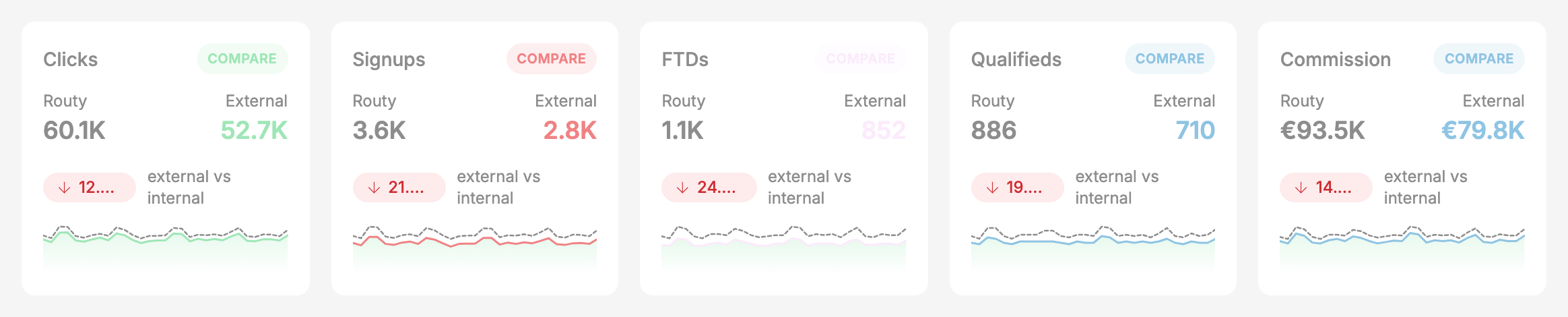
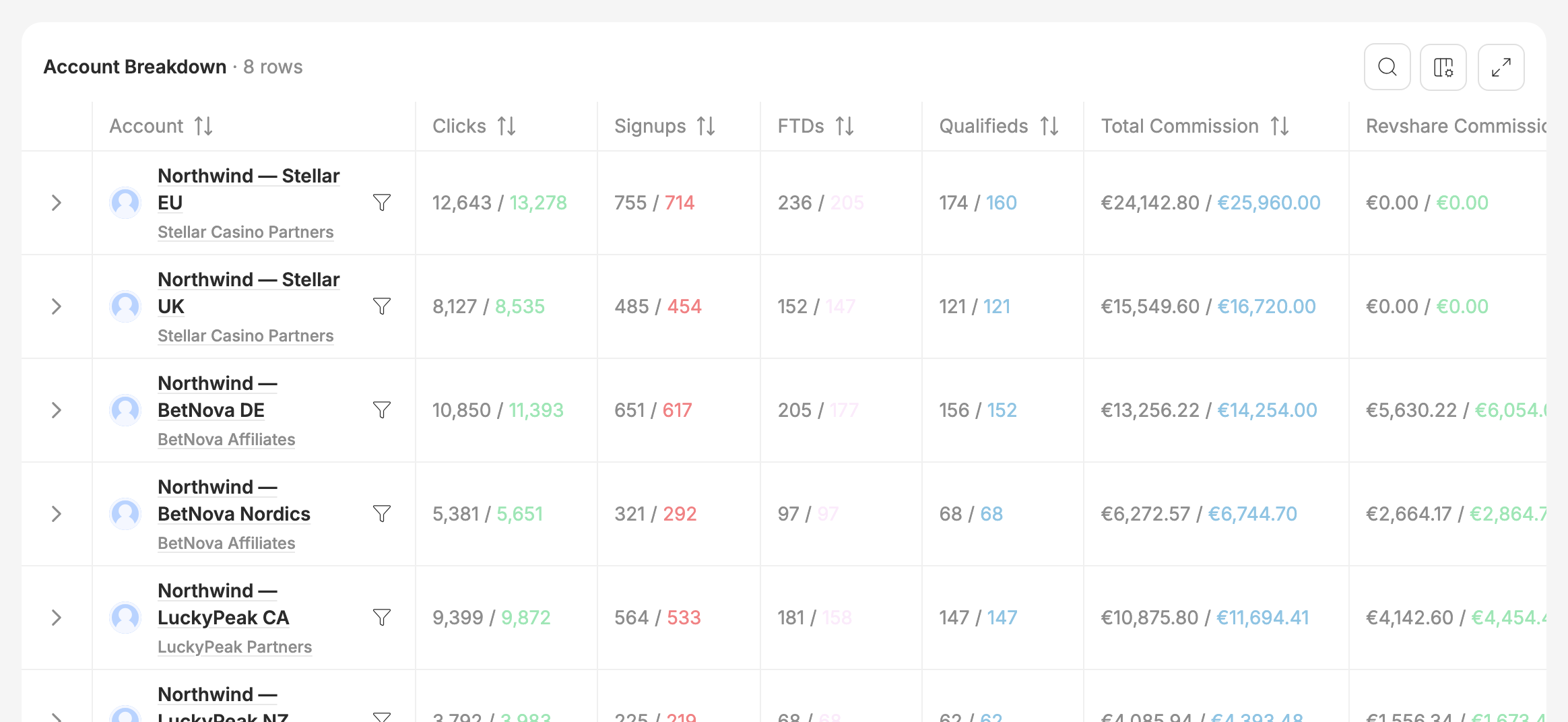
In the charts, the solid line is External and the dashed line is Routy. In the account breakdown, each cell reads Routy / External.
A small gap is normal. A program and a tracker rarely count exactly alike — the program may count clicks Routy filtered out, or not yet credit signups Routy saw. A large or sudden gap on one account is the thing worth looking into.
An External of zero usually means the program reports nothing for that account — for example, when the program's reporting isn't connected. That's the case Effective is built for: where the program is silent, Effective counts Routy's numbers instead, so the account doesn't drop out of your totals.
Daily charts
- Daily Conversions Chart — the count metrics you've selected (clicks, signups, FTDs, qualifieds), one line each. Clicks use the left axis; the rest use the right.
- Daily Monetary Chart — the money metrics (deposit amount, net revenue), in your display currency.
Click a legend chip to hide or show its line.
Account Breakdown
One row per program account, for the month.
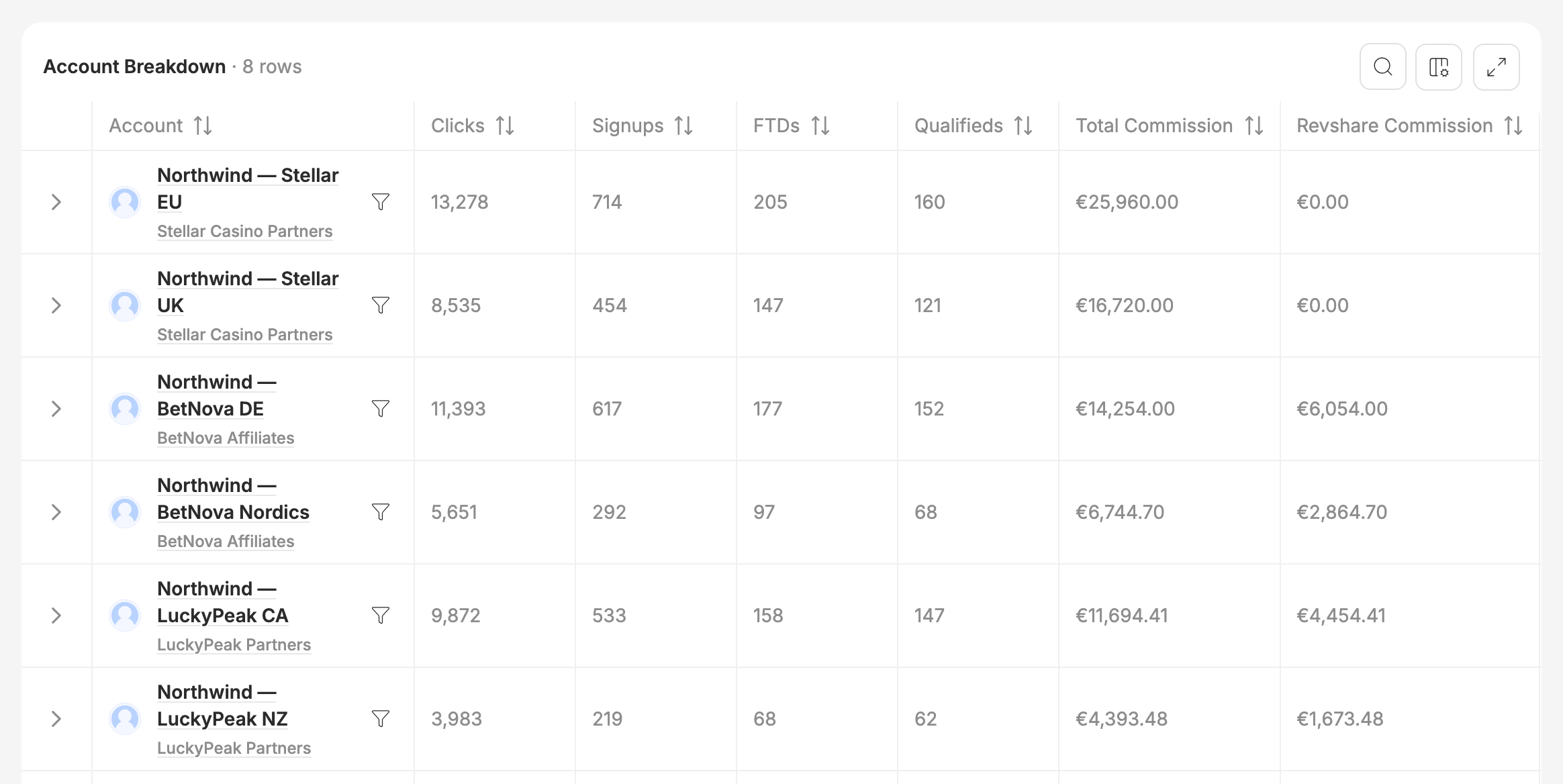
- Sort by any column, and search by account or program name.
- Choose columns with the column picker.
- Expand a row (the arrow on the left) to see that account day by day, as charts or as a table.
- Filter the dashboard by an account with the funnel next to its name. The month, program and account filters at the top update to match, and the cards and daily charts narrow to that account.
- Page total and Grand total sit at the bottom; the grand total covers every account, not just the page you're on.
- Expand the table to full screen with the button at the top right.
In the Compare view every cell shows both numbers:
Monthly trend
At the bottom, Monthly FTDs and Monthly Total Commission show each of the last twelve months, ending with the month you've picked. In Compare, each month shows both versions.
Settings
Open Settings from the ⋮ menu at the top right.
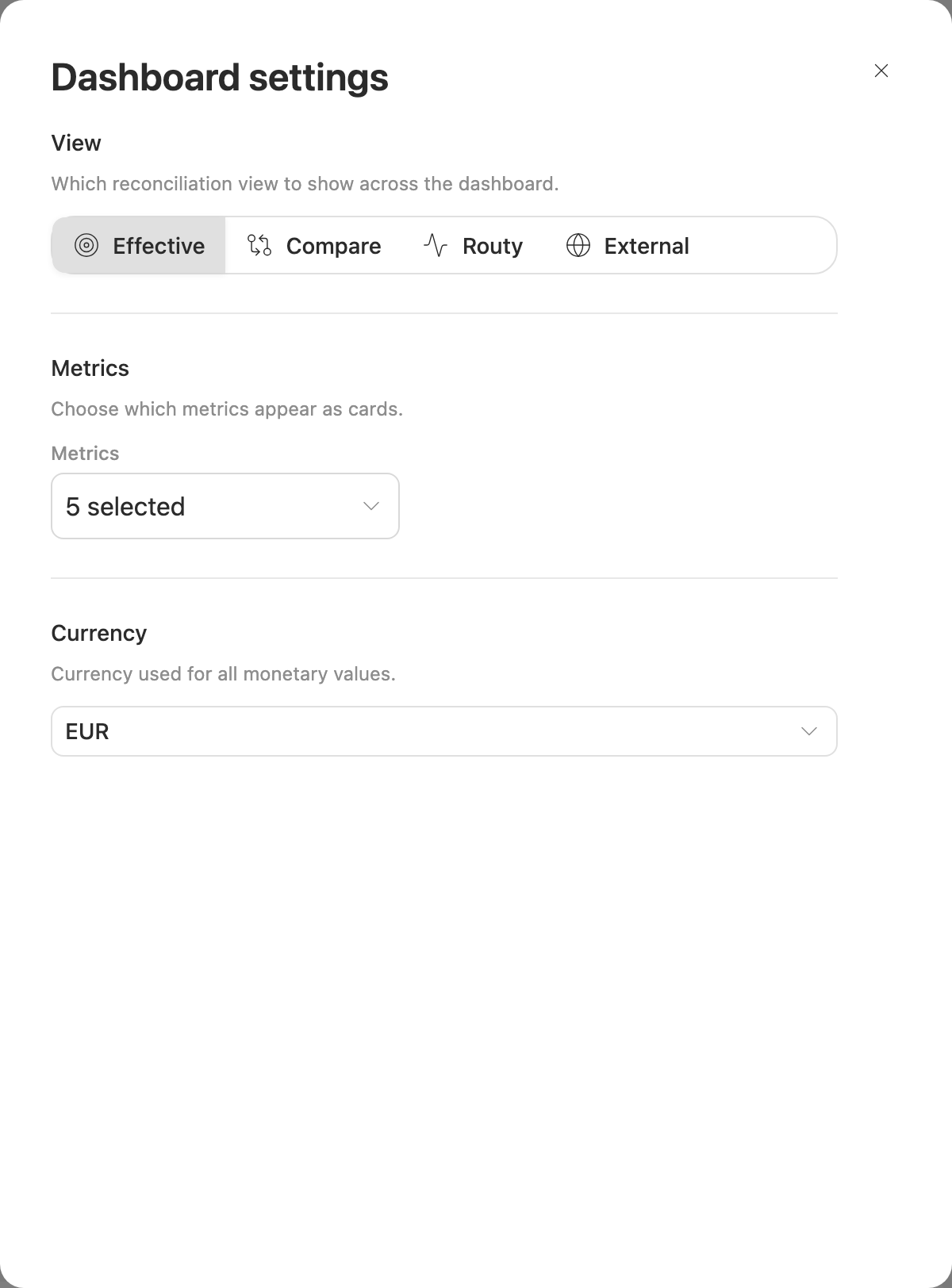
- View — Effective, Compare, Routy or External (see above).
- Metrics — which metrics appear as cards. Select all and Reset are in the list.
- Currency — every money value is converted to this currency.
Your choices are kept in the page address, so a link you share opens the dashboard exactly as you see it.
Export and print
From the ⋮ menu:
- Export downloads every account in the breakdown as a CSV. Clicks come in two columns, Routy and program; every other metric is the Effective figure, whichever view you're looking at.
- Print prints the dashboard.
Refresh reloads the data.
Common questions
"External is zero for an account"
The program isn't reporting numbers for that account — often because its reporting isn't connected. Effective falls back to Routy's numbers for it. If you expected the program to report, check the account's integration.
"Routy and External don't match"
Expected, within a few percent. Look at Compare and the breakdown to find the account where the gap is largest; a gap concentrated in one account usually has a specific cause there.
"This month looks down against last month"
The current month isn't finished and is compared against a full previous month. Pick a completed month for a like-for-like comparison.
"The numbers changed since yesterday"
Programs restate their numbers, sometimes days later, and the External and Effective figures follow them.
When to escalate
- External stays at zero for an account whose program you can see reporting in its own dashboard.
- Routy and External diverge sharply on one account from one day to the next, with no change on your side.
- The breakdown's grand total doesn't match the card totals for the same view.