
Connecting a ReferOn account
ReferOn runs the affiliate portal for many brands, each on its own address
(often ro-affiliate.<brand>.com) but with the same menus, so these steps work
whichever ReferOn program you're adding.
There are two ways to connect, and you need only one:
- Personal access token (recommended): a token you create in the portal. It works even when your login has two-factor authentication switched on.
- Portal username & password: the login you use for that portal. This doesn't work if your login has two-factor authentication switched on.
If you save both, Routy uses the token.
Creating a personal access token
- Log in to the program's affiliate portal.
- Switch on two-factor authentication if it isn't already: open your account's security settings and set it up with an authenticator app. ReferOn only lets you create a token once two-factor authentication is on.
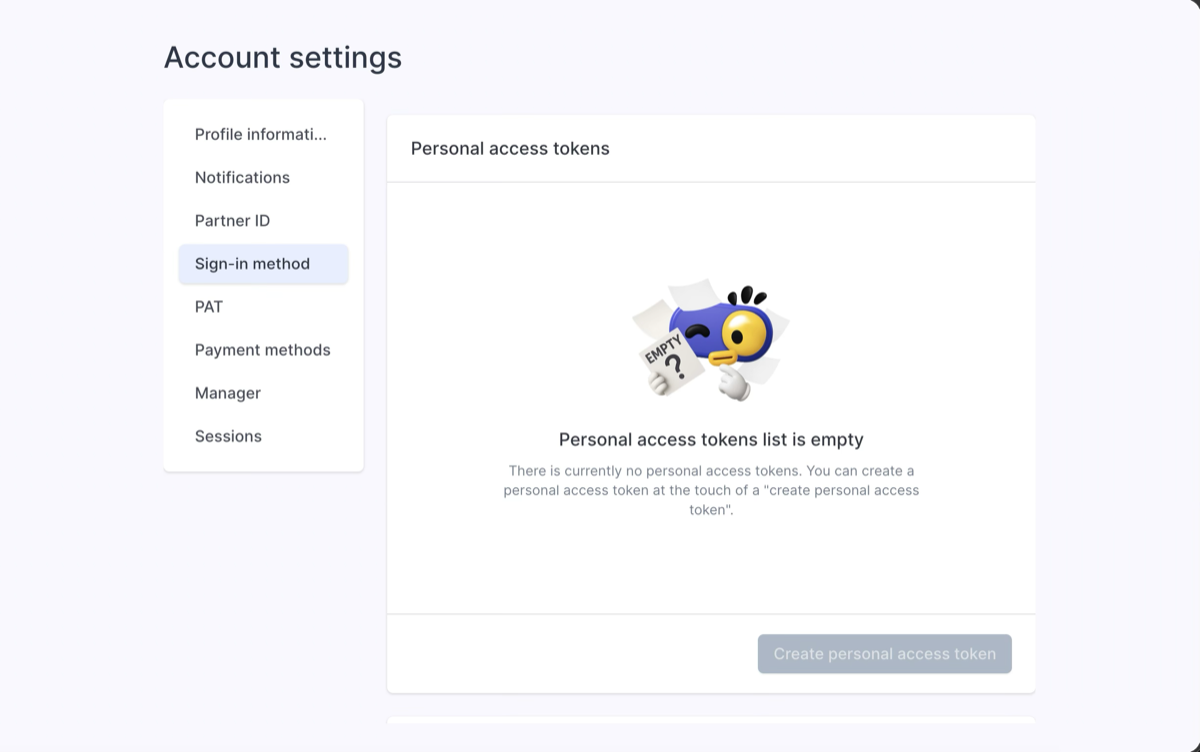
- Open Account settings and click PAT in the menu.
- Click Create personal access token. Give it a name you'll recognise, such as "Routy", and pick an expiry date. Choose the longest one offered: when the token expires, Routy stops syncing this account until you create a new one.
- Copy the token.
Copy the token when you create it. ReferOn shows it in full only once. If you lose it, create a new one.
If Create personal access token is greyed out, two-factor authentication isn't switched on for your login yet.
Entering it in Routy
- Name the account.
- Under Authentication method, keep Personal access token selected.
- Paste the token into the API key box.
- Click Test Connection, then pick your currency and click Save & Connect.
Test connection failed
- The token has expired or was deleted. Create a new one in ReferOn and paste it here. The old one doesn't come back.
- The token was created from a different login. A token can only read the data of the login that created it. Create it while logged in as the affiliate whose reports this account should show.
- The token is from a different brand's portal. Tokens only work on the portal that issued them. Check the portal matches the program you're adding.
Already connected with a password?
If your account syncs with a username and password and ReferOn now asks you for two-factor authentication, Routy can't get past that check. Create a personal access token as above and save it on the account. You can leave the password there; Routy uses the token.
How much Routy asks for at a time
ReferOn limits how often its portal can be asked for data, and pauses access for everyone on that portal when the limit is broken. Routy stays under that limit and fetches up to a month of reports at a time. On a program with many connected accounts, a sync may pause briefly between requests. That's expected, and no data is skipped.
Getting help
If the token is new, from the right login and the right portal, and the connection still fails, contact support with the program's name and the exact error from Test connection. Don't send the token.