
Connect Google Ads
Connect a Google Ads account to Routy so you can see what your campaigns cost next to what that traffic earned. Once connected, Routy pulls each campaign's spend, impressions, clicks, conversions and conversion value, every day, on its own.
It takes about two minutes. There is nothing to copy or paste: you sign in with Google and pick the ad account.
Before you start
- A Google login that can see the ad account. Use the Google account you use to open Google Ads. If you reach your ad accounts through a manager (MCC) account, that login works too — the accounts under the manager are listed for you to choose from.
- A free channel connection on your plan. Each Google Ads account you connect uses one. If you're at your limit, the connect panel tells you how many you've used.
- About the timezone. Every Google Ads account has its own timezone, set in Google Ads. Routy counts this connection's days in that timezone, so it's worth knowing which one your account uses.
Step 1 — Open Channels and click Add
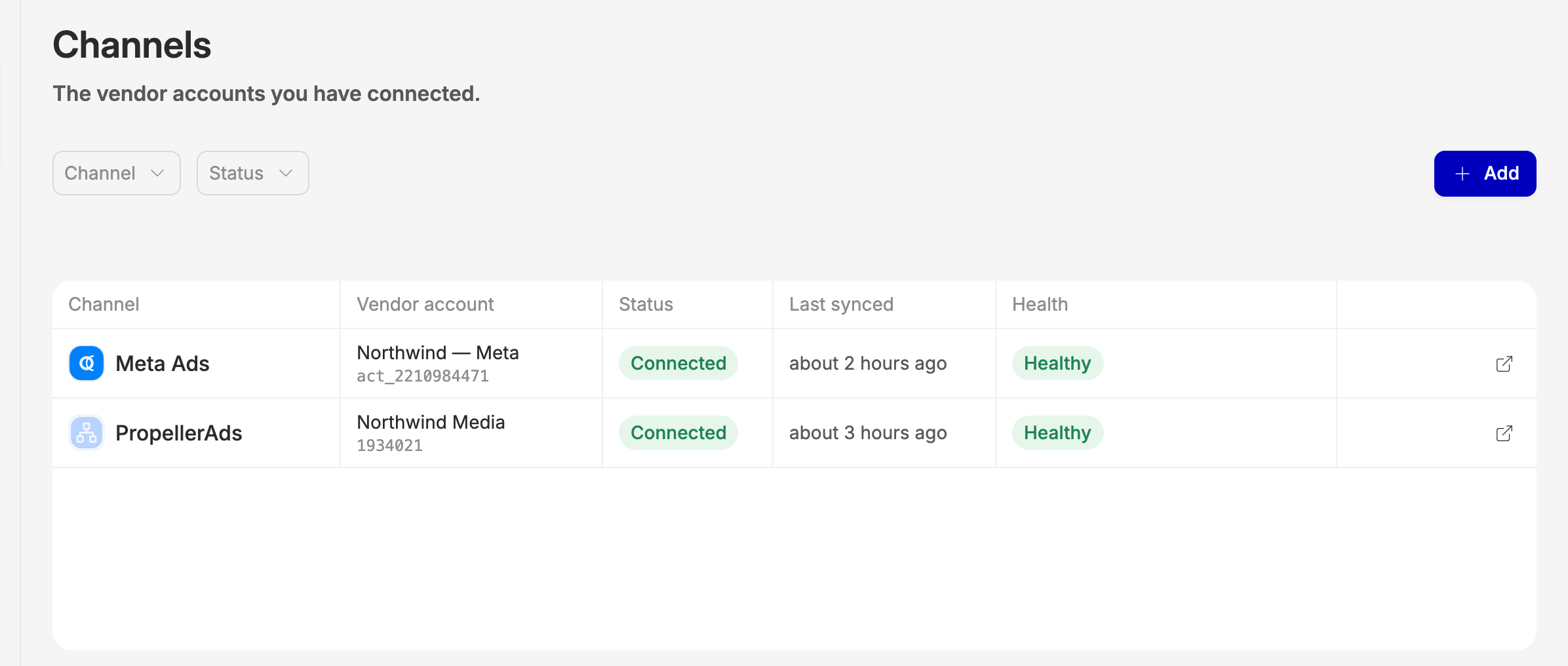
Go to Tracking → Channels. This lists the vendor accounts you've already connected. Click Add.
Step 2 — Pick Google Ads
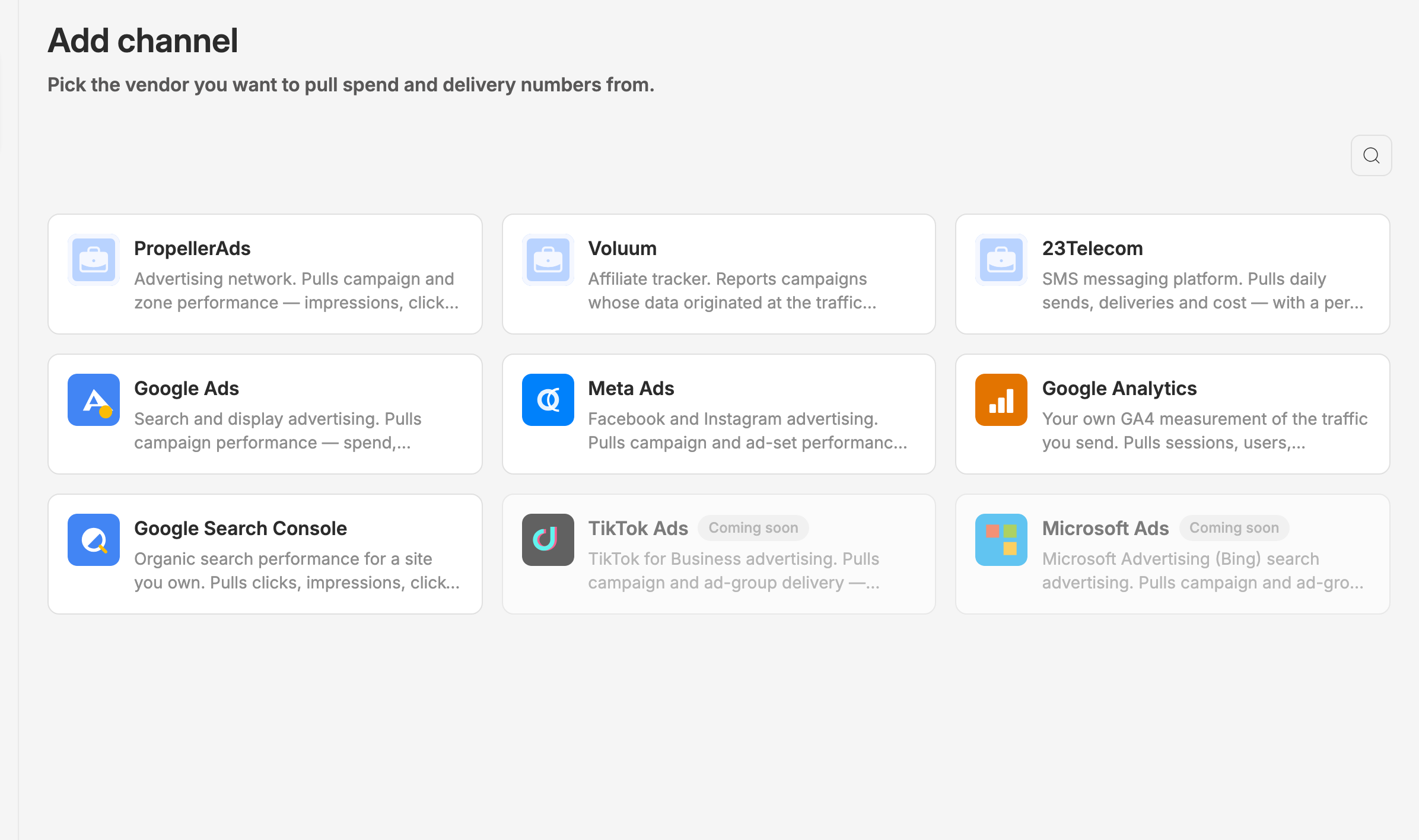
You'll see every vendor you can connect. Click the Google Ads tile. Tiles marked Coming soon aren't available yet.
Step 3 — Continue to Google Ads
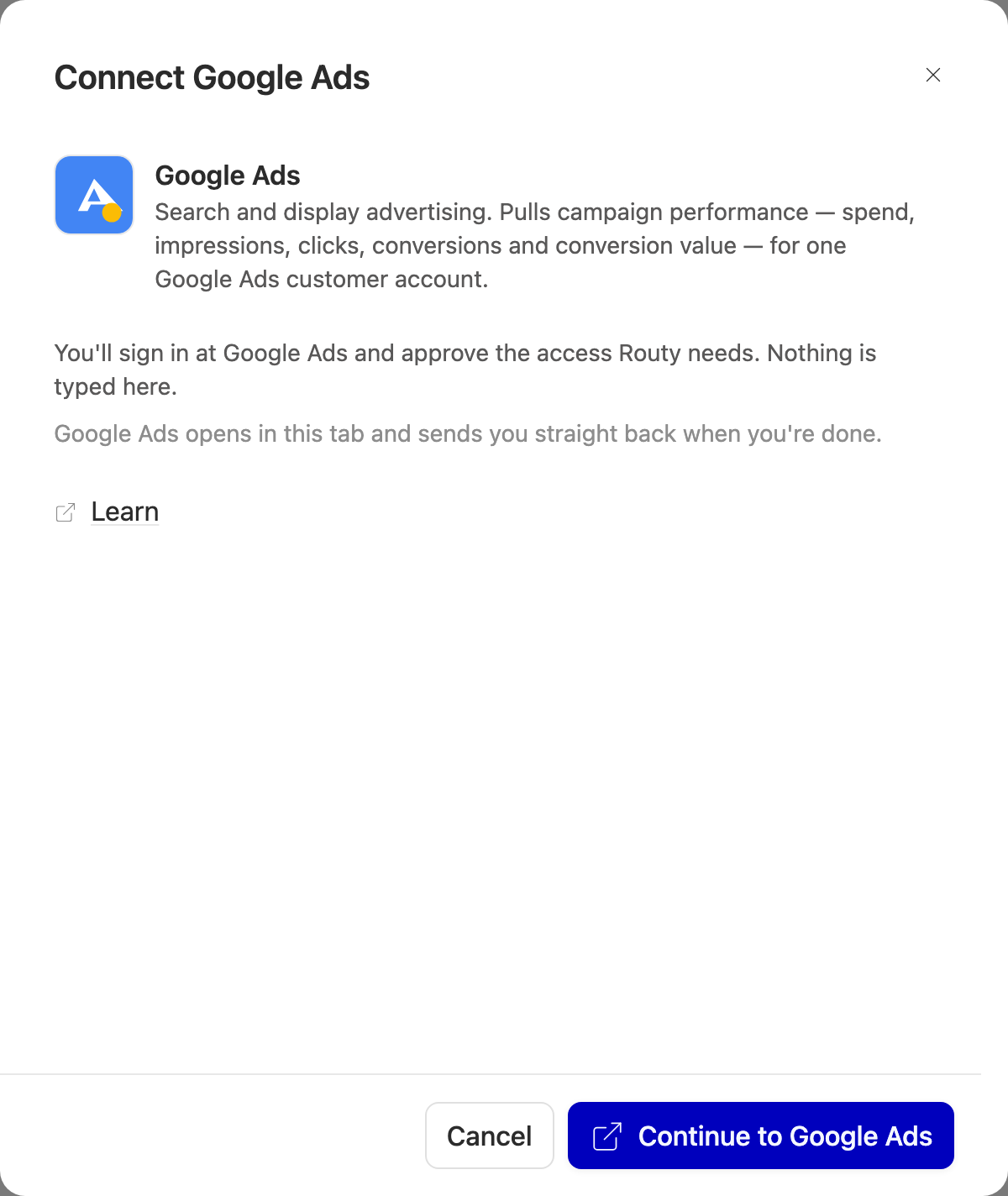
A panel opens. For Google Ads there is no form — Google doesn't give out keys to paste. Click Continue to Google Ads. Google's sign-in opens in the same tab.
Step 4 — Sign in at Google and approve access
On Google's page, choose the Google account that has access to your ad account, and approve the access Routy asks for. Google describes it in its own words — it's Google's standard Google Ads permission, which Google phrases broadly. Routy uses it to read your campaign reporting.
Approve everything Google asks for. If you approve only part of it, Routy can't finish the connection and you'll be asked to start again.
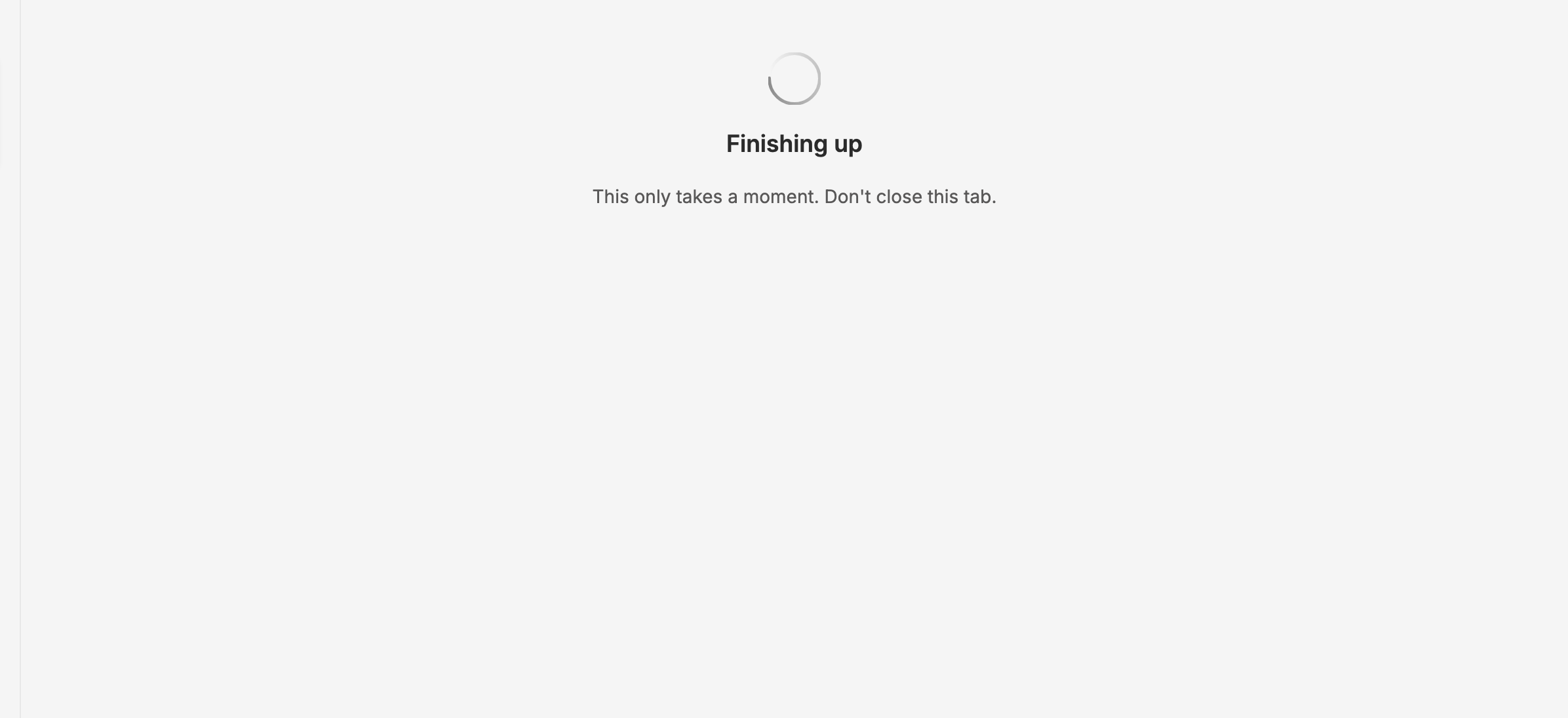
Google then sends you straight back to Routy. You'll see a short Finishing up with Google Ads screen while Routy stores the access you approved. Don't close the tab.
Step 5 — Choose an account
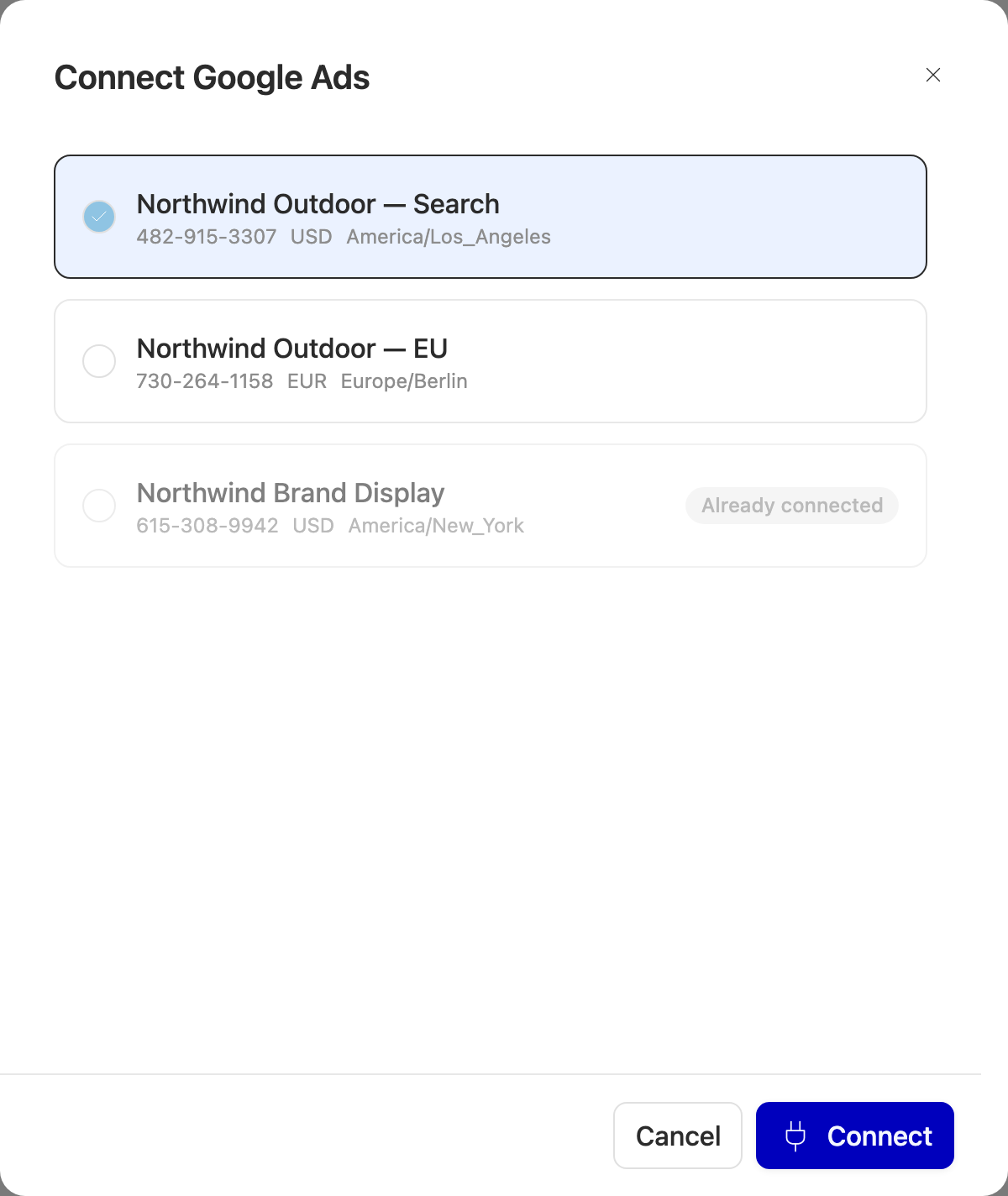
Routy lists every Google Ads account your Google login can reach. If your login sits on a manager account, the accounts underneath it are listed — the manager itself isn't, because it has no campaigns of its own.
Each account shows:
- its name and customer ID (the 123-456-7890 number from Google Ads),
- its currency, exactly as Google reports it,
- its timezone, which is the one every date on this connection will be counted in.
An account that's already connected is greyed out and marked Already connected. Pick the account you want and click Connect. If your login reaches only one account, Routy skips this step and connects it for you.
Want more than one Google Ads account? Connect each one separately — pick Google Ads again and choose the next account. Each is its own connection, with its own schedule, currency and timezone.
After you connect
You land on the new connection straight away. It reads Waiting for first sync — that's normal, not a problem.
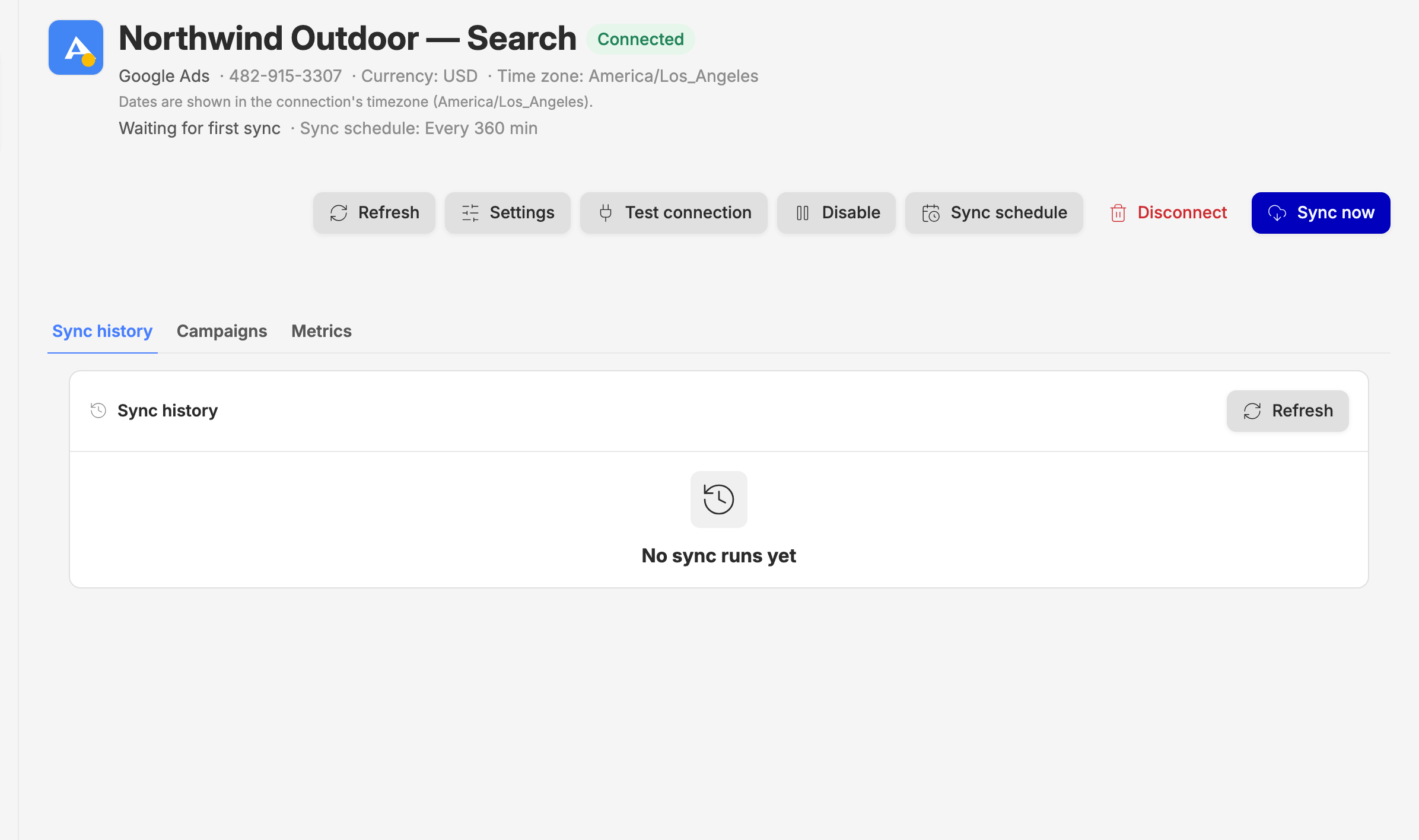
The first sync runs on the connection's schedule (every 6 hours unless you change it under Sync schedule) and pulls the last 30 days. If you don't want to wait, click Sync now.
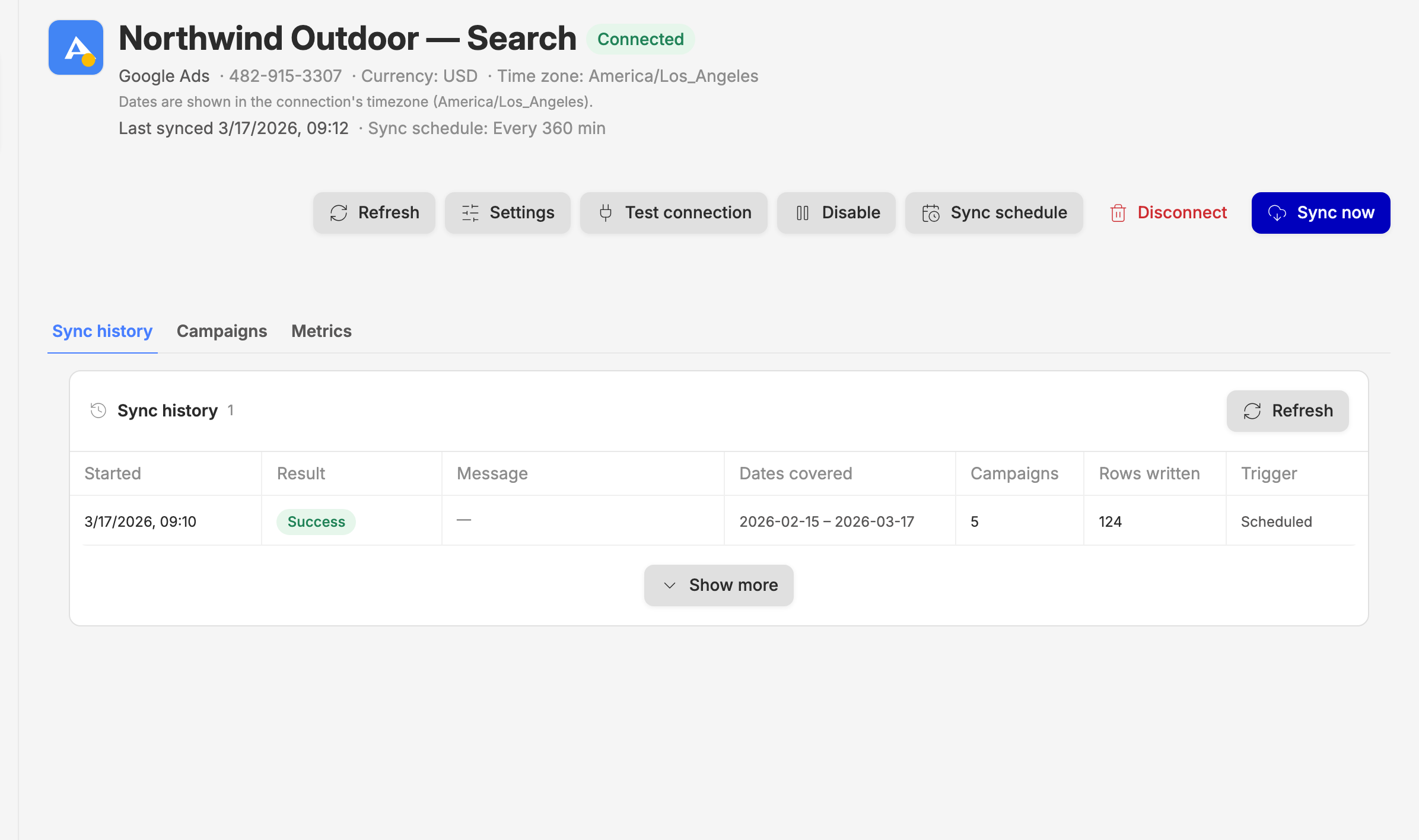
Sync history
Once a sync has run, Sync history shows each run: when it started, whether it worked, which dates it covered and how many campaigns it found.
Campaigns
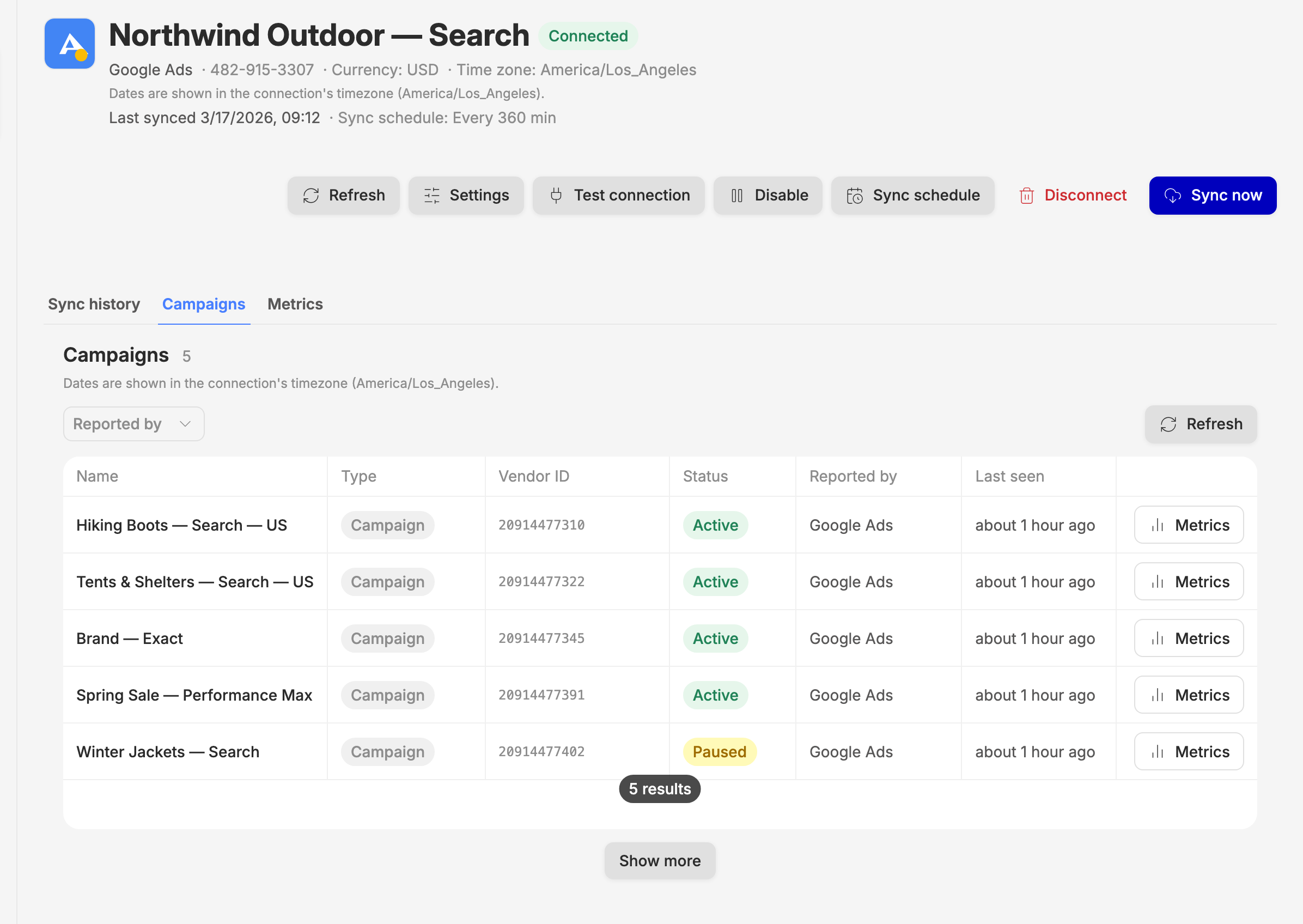
Campaigns lists every campaign Routy found in the account, with its status in Google Ads (active or paused).
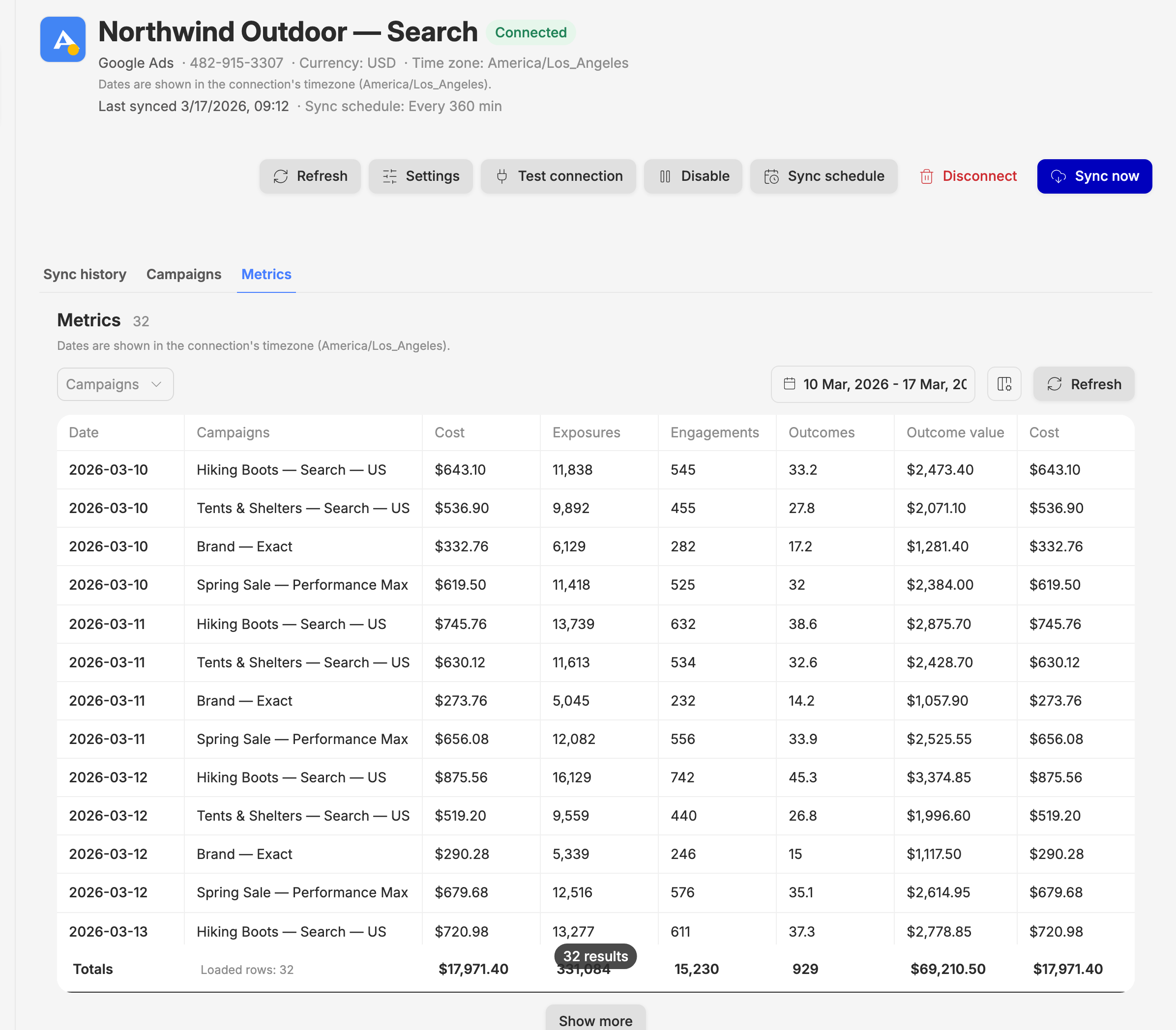
Metrics
Metrics shows the daily numbers per campaign. Routy's standard columns come first, so every vendor reads the same way. For Google Ads they mean:
Google's own metrics follow, under Google's own names (click-through rate, average CPC and so on). Use the column picker to hide the ones you don't need.
Things worth knowing
Dates are in the ad account's timezone
The dates on this connection are Google Ads days, in the timezone of the ad account — the one you saw when you picked it. Routy doesn't convert them, so the numbers match what you see in Google Ads for the same day. If your ad account is on Los Angeles time and you're in Europe, a "day" here starts in your morning.
The last few days can still change
Google keeps revising conversions for a few days after they happen. Every sync re-reads the last 3 days, so recent conversion numbers may move slightly before they settle. Older days don't change.
Reporting level
By default Routy pulls at campaign level. Under Settings on the connection you can choose a deeper Reporting level — ad group, keyword or ad. A deeper level means more rows and longer syncs. Changing it applies from the next sync on; it doesn't rewrite the days already collected.
Google Analytics and Search Console use the same login
Connecting Google Analytics or Google Search Console later works the same way. If you sign in with the same Google login, Routy adds the new access to what you already approved.
Common questions
"Access wasn't granted"
The screen says "Google Ads didn't grant everything Routy asked for." You declined, or approved only part of the access on Google's page. Click Try again and approve everything requested.
"My ad account isn't in the list"
The Google login you signed in with can't see that account. Check in Google Ads that this login has access to it (directly or through a manager account), or start again and sign in with a different Google account.
"These credentials do not reach any accounts"
The Google login you used has no Google Ads accounts at all. Close the panel, pick Google Ads again, and sign in with the login you use for Google Ads.
"That account is already connected"
That Google Ads account is already connected on your Routy account. Find it in your Channels list — each Google Ads account can be connected once.
"You have used 5 of 5 channel connections on your plan"
Your plan includes a set number of channel connections and you're at the limit. Disconnect one you no longer need, or change your plan. Disabling a connection doesn't free a slot; disconnecting does.
"It's been a while and it still says Waiting for first sync"
Click Sync now, then check Sync history after a few minutes. A large account can take a while on its first run.
"My numbers don't match Google Ads"
Check the date range and timezone first: Routy shows Google Ads days in the ad account's timezone. Then check whether the difference is in the last 3 days, which Google may still be revising.
When to contact support
- You see "Routy's connection to Google Ads isn't set up correctly." That one is always on our side.
- You approved everything at Google but keep getting sent back with an error.
- An account you can open in Google Ads never appears in the list, even with the right login.
- Metrics stay empty after a successful sync, for dates where Google Ads clearly shows spend.